_811205.png)
_e196d8.png)
_32b3d9.png)
_1c53fe.png)

The new MacBook Air and MacBook Pro models feature a keyboard change that was easy to miss during Apple's announcements last week.
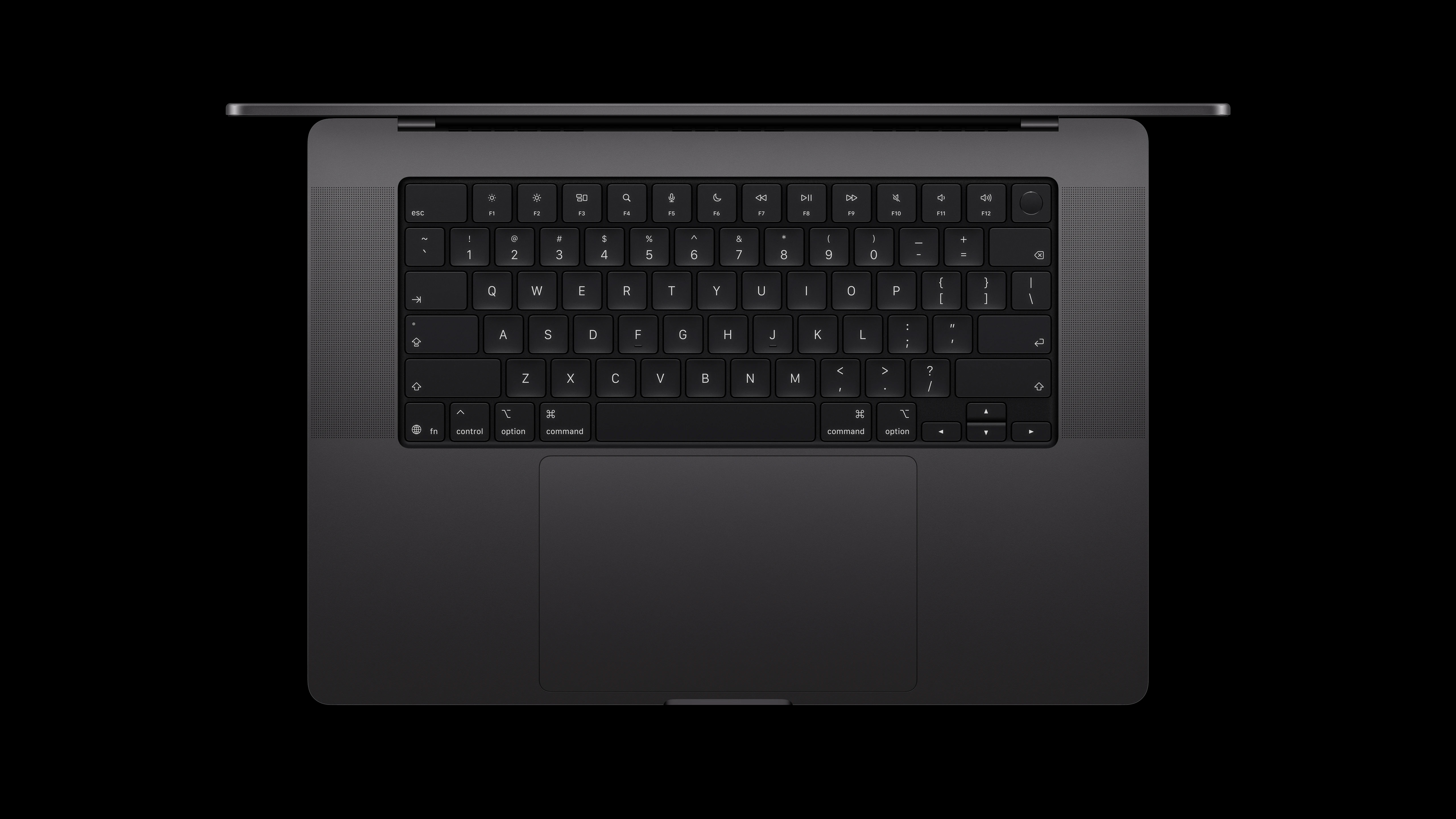 The new U.S. English keyboard layout
On the U.S. English version of the new MacBook Air and MacBook Pro keyboards, the tab, caps lock, shift, return, and delete keycaps now have glyphs on them. On previous-generation models, these keys are labeled with text instead.
This change was spotted by "Mr. Macintosh" last week, and it extends to the MacBook Neo.
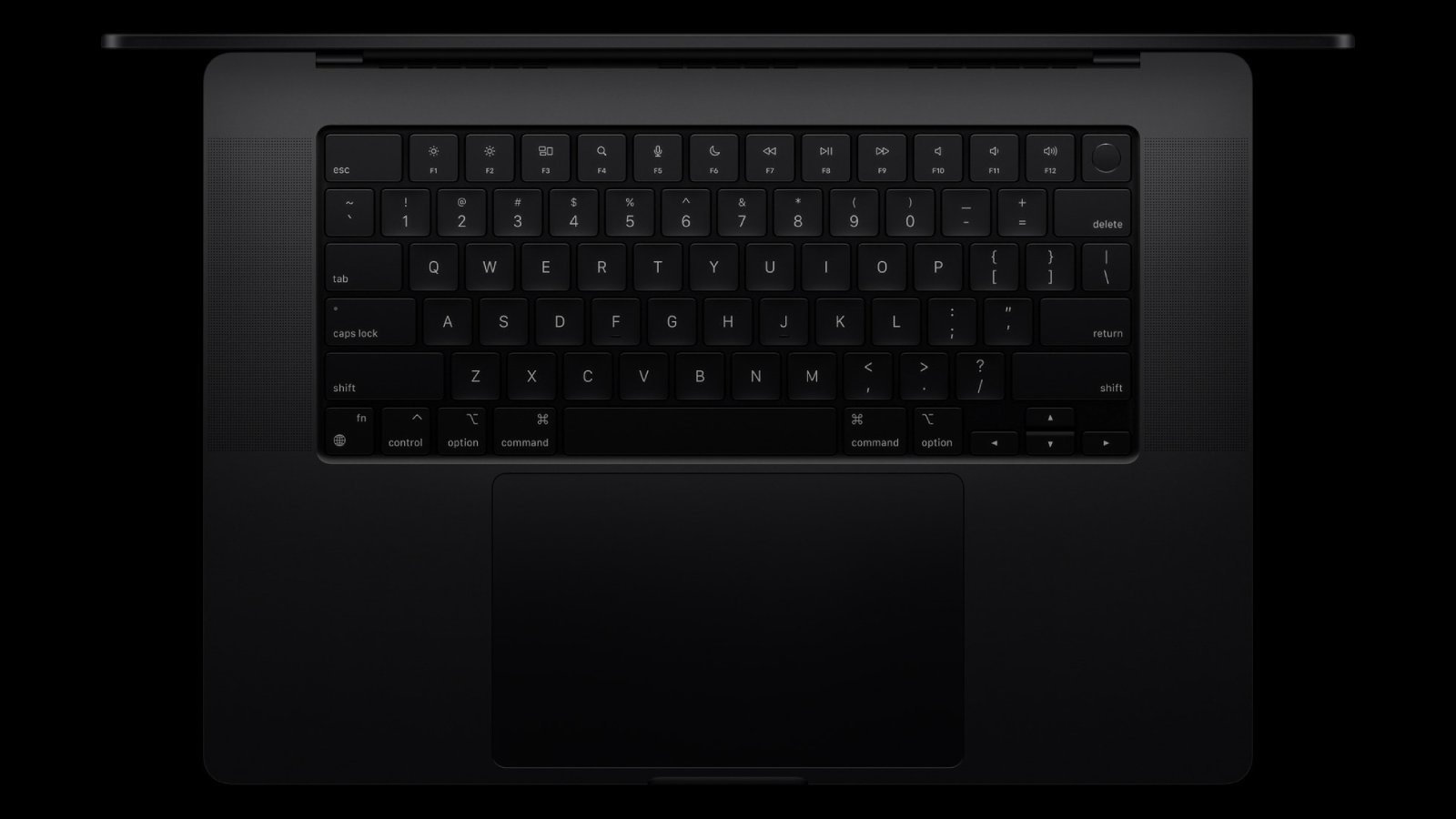 The previous U.S. English keyboard layout
Given the U.S. English keyboard layout is the default option for MacBook Air, MacBook Pro, and MacBook Neo models sold in Canada, Australia, New Zealand, and Singapore, this change effectively extends to those countries and a few others.
If you live in Europe, this will look familiar to you. Apple has long showed glyphs on the tab, caps lock, shift, return, and delete keycaps on its keyboard layouts for British English and other European languages, so this is nothing new there.
The new MacBook Air, MacBook Pro, and MacBook Neo models launch this Wednesday.
This article, "Apple's New MacBooks Have a Keyboard Change You Might Have Missed" first appeared on MacRumors.com
Discuss this article in our forums
The new U.S. English keyboard layoutOn the U.S. English version of the new MacBook Air and MacBook Pro keyboards, the tab, caps lock, shift, return, and delete keycaps now have glyphs on them. On previous-generation models, these keys are labeled with text instead.
This change was spotted by "Mr. Macintosh" last week, and it extends to the MacBook Neo.
The previous U.S. English keyboard layoutGiven the U.S. English keyboard layout is the default option for MacBook Air, MacBook Pro, and MacBook Neo models sold in Canada, Australia, New Zealand, and Singapore, this change effectively extends to those countries and a few others.
If you live in Europe, this will look familiar to you. Apple has long showed glyphs on the tab, caps lock, shift, return, and delete keycaps on its keyboard layouts for British English and other European languages, so this is nothing new there.
The new MacBook Air, MacBook Pro, and MacBook Neo models launch this Wednesday.
This article, "Apple's New MacBooks Have a Keyboard Change You Might Have Missed" first appeared on MacRumors.com
Discuss this article in our forums
Recommended Comments
Join the conversation
You can post now and register later. If you have an account, sign in now to post with your account.