_811205.png)
_e196d8.png)
_32b3d9.png)
_1c53fe.png)

Apple's flagship Regent Street store in London, England is temporarily closed starting today for "refurbishment," the company said on its website.
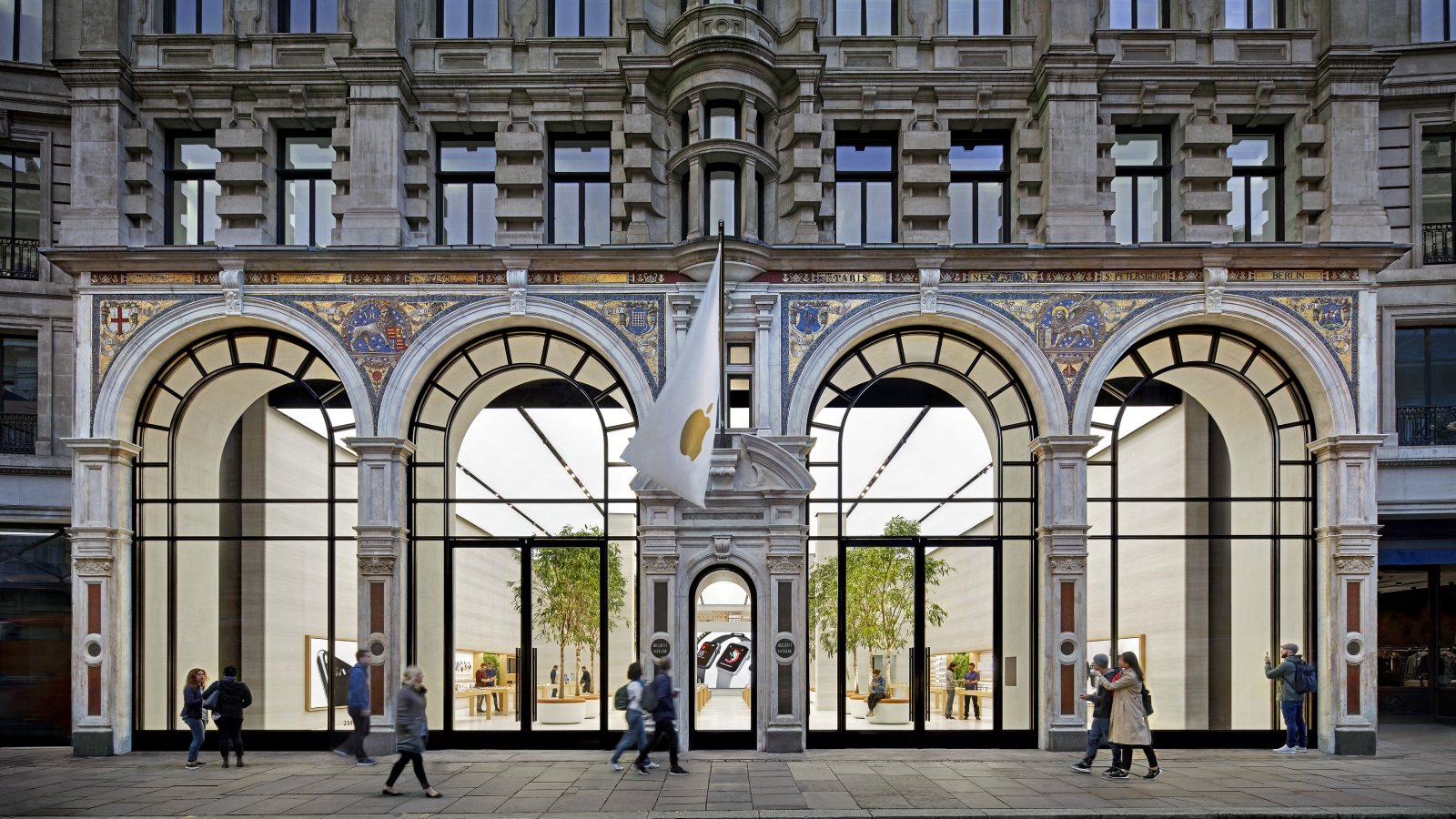
Apple has not indicated when the store will reopen, but a source familiar with the matter indicated that the location will likely be closed for at least a few weeks. It is unclear if Apple is planning any changes that will be visible to customers, but the company has been removing the Video Wall from some of it stores in recent months. Many newer and renovated stores also feature a dedicated Apple Pickup station for online orders.
In some cases, Apple only updates a store's fixtures or back-of-house area, resulting in no visible differences to customers when business resumes.
Regent Street is a world-famous shopping street in the heart of London, making it one of the busiest locations where Apple has a retail presence. At a minimum, hopefully the store will receive a deep clean before it reopens.
Apple first opened its Regent Street store in 2004.
This article, "Apple's Regent Street Store in UK is Temporarily Closed, Here's Why" first appeared on MacRumors.com
Discuss this article in our forums
Apple has not indicated when the store will reopen, but a source familiar with the matter indicated that the location will likely be closed for at least a few weeks. It is unclear if Apple is planning any changes that will be visible to customers, but the company has been removing the Video Wall from some of it stores in recent months. Many newer and renovated stores also feature a dedicated Apple Pickup station for online orders.
In some cases, Apple only updates a store's fixtures or back-of-house area, resulting in no visible differences to customers when business resumes.
Regent Street is a world-famous shopping street in the heart of London, making it one of the busiest locations where Apple has a retail presence. At a minimum, hopefully the store will receive a deep clean before it reopens.
Apple first opened its Regent Street store in 2004.
Tag: Apple Store
This article, "Apple's Regent Street Store in UK is Temporarily Closed, Here's Why" first appeared on MacRumors.com
Discuss this article in our forums
Recommended Comments
Join the conversation
You can post now and register later. If you have an account, sign in now to post with your account.