_811205.png)
_e196d8.png)
_32b3d9.png)
_1c53fe.png)

ChatGPT is now able to identify songs that are playing using Apple-owned music service Shazam. With a new Shazam integration, ChatGPT users can type in a question like "Shazam, what is this song?" to bring up a "Tap to Shazam" interface to get the title of a song.
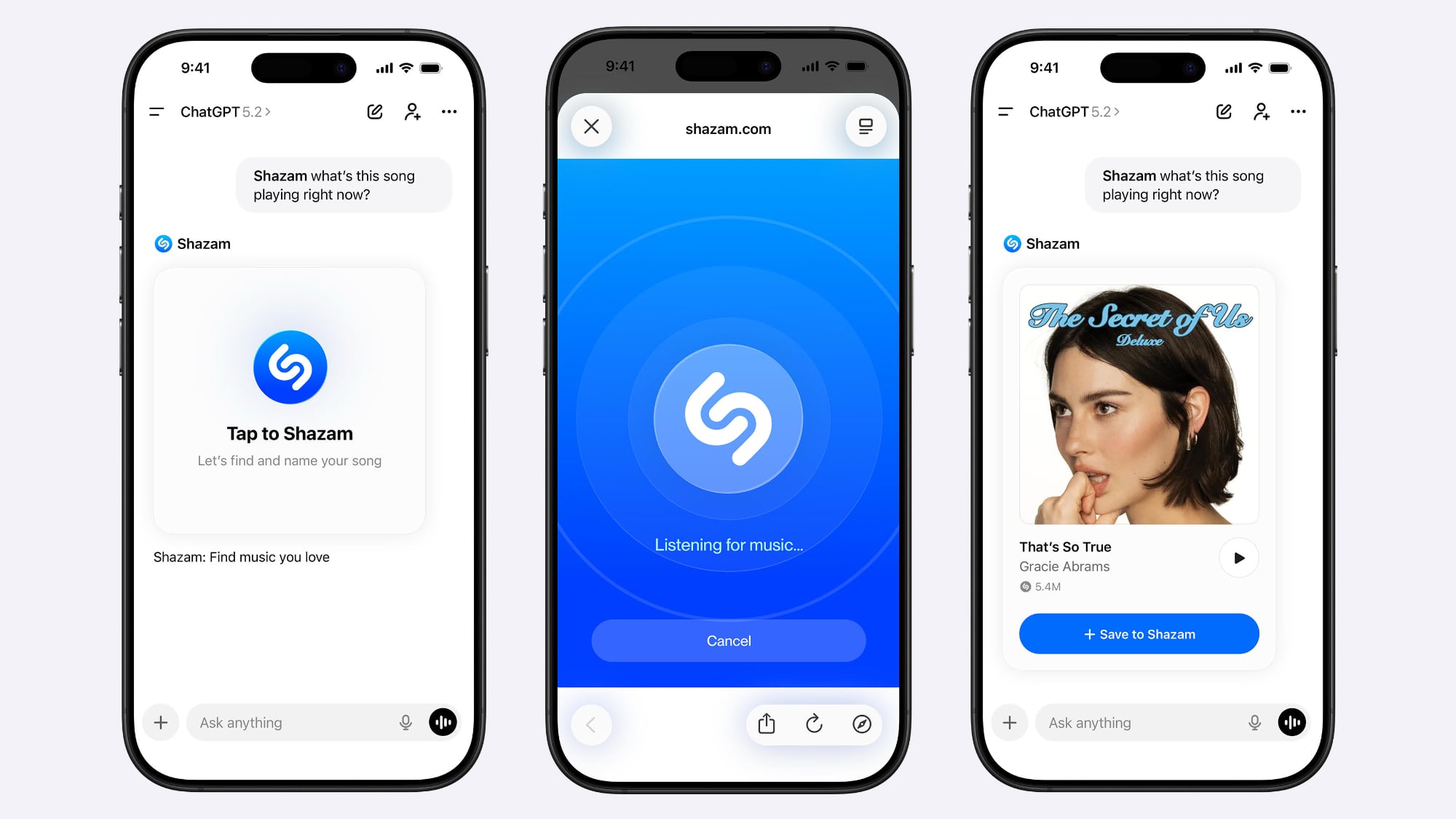
Shazam's full music recognition technology is available in ChatGPT, so users won't need to exit out of the app to identify a song and listen to an inline preview. Using Shazam in ChatGPT works the same way as Shazam on an Apple device.
Shazam can be added to ChatGPT by opening up the ChatGPT settings, navigating to apps, and searching for Shazam. After installation, Shazam can be invoked by starting a request with "Shazam."
Using Shazam in ChatGPT does not require the Shazam app to be installed, and the song recognition functionality can be used on any platform. With the Shazam app installed, songs identified using ChatGPT are added to the Shazam app library for later access.
Shazam is rolling out in ChatGPT as of today.
This article, "Apple's Shazam Music Recognition Now Available in ChatGPT" first appeared on MacRumors.com
Discuss this article in our forums
Shazam's full music recognition technology is available in ChatGPT, so users won't need to exit out of the app to identify a song and listen to an inline preview. Using Shazam in ChatGPT works the same way as Shazam on an Apple device.
Shazam can be added to ChatGPT by opening up the ChatGPT settings, navigating to apps, and searching for Shazam. After installation, Shazam can be invoked by starting a request with "Shazam."
Using Shazam in ChatGPT does not require the Shazam app to be installed, and the song recognition functionality can be used on any platform. With the Shazam app installed, songs identified using ChatGPT are added to the Shazam app library for later access.
Shazam is rolling out in ChatGPT as of today.
This article, "Apple's Shazam Music Recognition Now Available in ChatGPT" first appeared on MacRumors.com
Discuss this article in our forums
Recommended Comments
Join the conversation
You can post now and register later. If you have an account, sign in now to post with your account.