_811205.png)
_e196d8.png)
_32b3d9.png)
_1c53fe.png)

Starting today, the Metropolitan Atlanta Rapid Transit Authority (MARTA)'s Breeze Card can be added to the Apple Wallet app, allowing commuters in the Atlanta, Georgia area to tap an iPhone or Apple Watch to pay their fare at train stations and on buses.
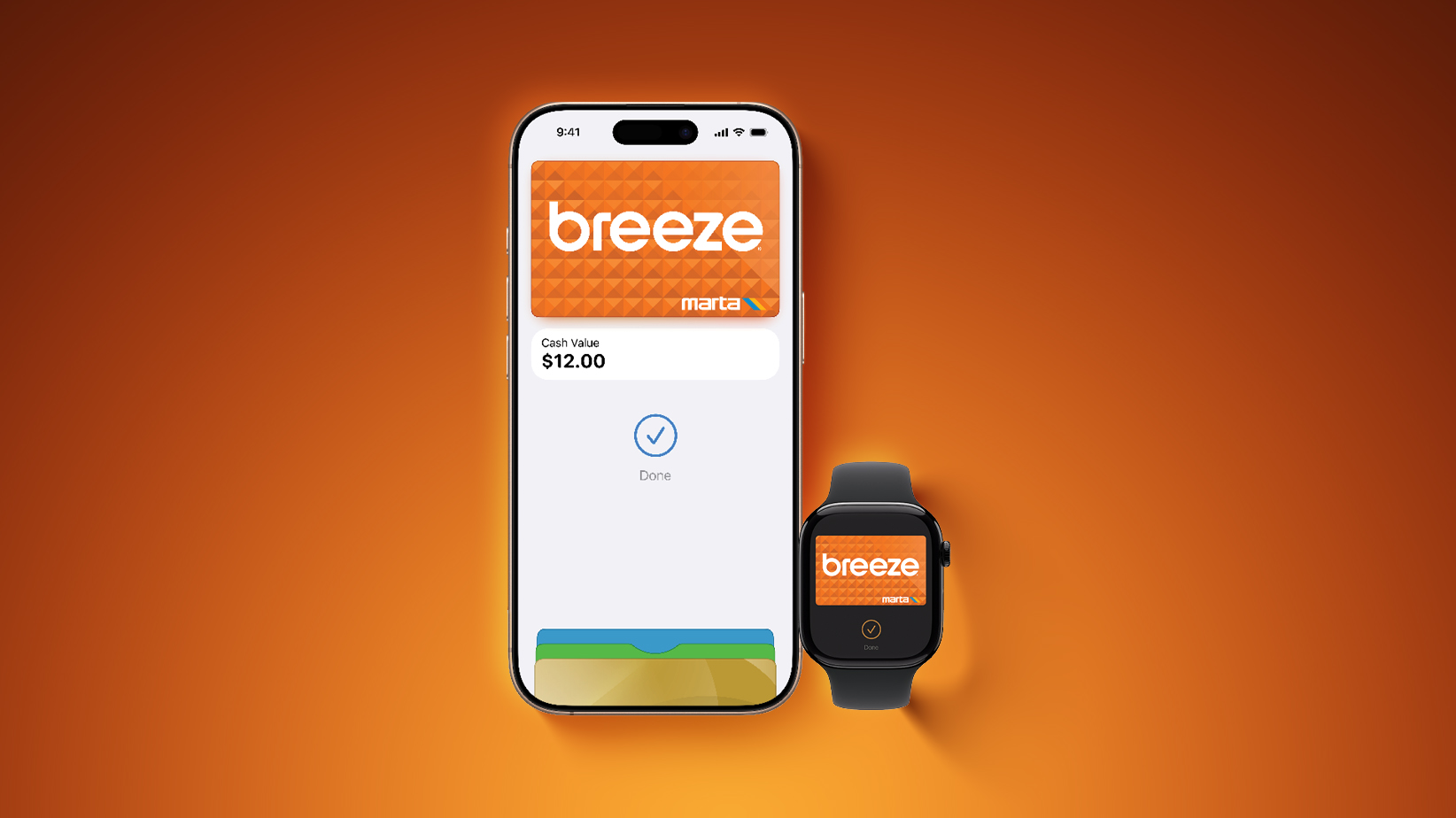
To add the Breeze Card to Apple Wallet, open the app and tap on the plus sign in the top-right corner. Next, tap on Transit Card and scroll down and select the Breeze Card. Then, follow the on-screen steps to complete the setup process.
Funds can be added to the Breeze Card directly in Apple Wallet, with both pay-per-ride and discounted passes for multiple rides available.
Express Mode allows commuters to simply hold their iPhone or Apple Watch near a payment reader to pay for their ride, without needing to unlock or wake the device. This mode even works for up to five hours after an iPhone runs out of battery. Express Transit can be enabled per card in the Settings app under Wallet & Apple Pay.
Breeze Card has been available in the Google Wallet and Samsung Wallet apps since earlier this month, but Apple Wallet support was just added now.
This article, "Atlanta's MARTA Breeze Card Now Available in Apple Wallet" first appeared on MacRumors.com
Discuss this article in our forums
To add the Breeze Card to Apple Wallet, open the app and tap on the plus sign in the top-right corner. Next, tap on Transit Card and scroll down and select the Breeze Card. Then, follow the on-screen steps to complete the setup process.
Funds can be added to the Breeze Card directly in Apple Wallet, with both pay-per-ride and discounted passes for multiple rides available.
Express Mode allows commuters to simply hold their iPhone or Apple Watch near a payment reader to pay for their ride, without needing to unlock or wake the device. This mode even works for up to five hours after an iPhone runs out of battery. Express Transit can be enabled per card in the Settings app under Wallet & Apple Pay.
Breeze Card has been available in the Google Wallet and Samsung Wallet apps since earlier this month, but Apple Wallet support was just added now.
Tags: Apple Wallet, Express Transit
This article, "Atlanta's MARTA Breeze Card Now Available in Apple Wallet" first appeared on MacRumors.com
Discuss this article in our forums
Recommended Comments
Join the conversation
You can post now and register later. If you have an account, sign in now to post with your account.