_811205.png)
_e196d8.png)
_32b3d9.png)
_1c53fe.png)

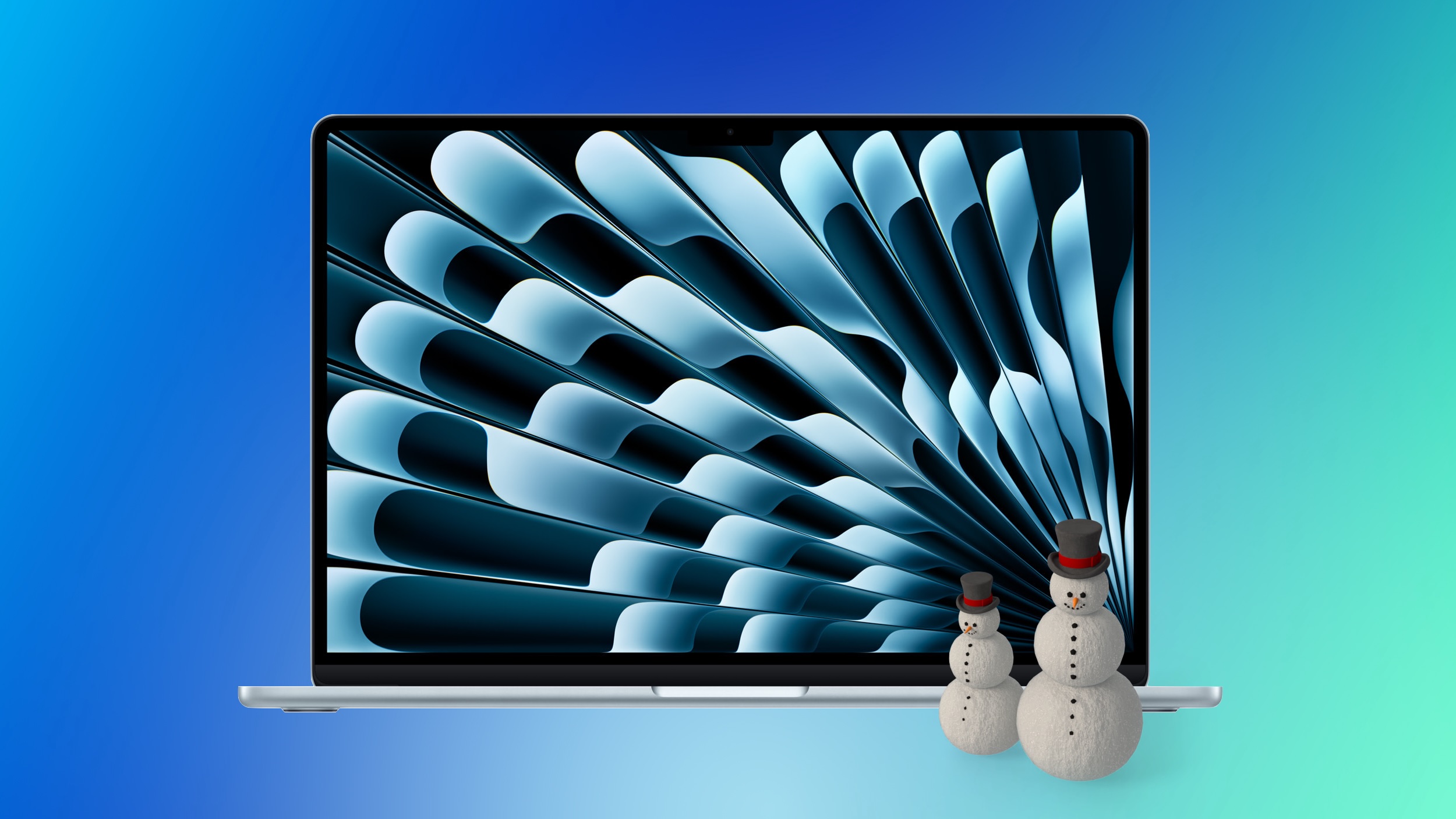
Best Buy has a few new offers on Apple's M4 MacBook Air this week, including a match of the all-time low price on the notebook, plus a free $25 Best Buy gift card with purchase. You can get the 13-inch 256GB model for $749.00, down from $999.00, as well as discounts on every other 13-inch model.
 Note: MacRumors is an affiliate partner with Best Buy. When you click a link and make a purchase, we may receive a small payment, which helps us keep the site running.
When you purchase one of the 13-inch M4 MacBook Air computers at Best Buy, you will get a free $25 Best Buy gift card with your purchase. This is an e-gift card that will be sent out after the eligible product is fulfilled or picked up in a Best Buy store, and a valid e-mail address is required to claim the card.
As of writing, no 15-inch M4 MacBook Air models are matching any all-time low prices, or include the $25 gift card offer. If you're on the hunt for more discounts, be sure to visit our Apple Deals roundup where we recap the best Apple-related bargains of the past week.
Interested in hearing more about the best deals you can find this holiday season? Sign up for our Deals Newsletter and we'll keep you updated so you don't miss the biggest deals of the season!
This article, "Best Buy Takes $250 Off M4 MacBook Air, Plus Free $25 Gift Card" first appeared on MacRumors.com
Discuss this article in our forums
Note: MacRumors is an affiliate partner with Best Buy. When you click a link and make a purchase, we may receive a small payment, which helps us keep the site running.
When you purchase one of the 13-inch M4 MacBook Air computers at Best Buy, you will get a free $25 Best Buy gift card with your purchase. This is an e-gift card that will be sent out after the eligible product is fulfilled or picked up in a Best Buy store, and a valid e-mail address is required to claim the card.
As of writing, no 15-inch M4 MacBook Air models are matching any all-time low prices, or include the $25 gift card offer. If you're on the hunt for more discounts, be sure to visit our Apple Deals roundup where we recap the best Apple-related bargains of the past week.
Deals Newsletter
Interested in hearing more about the best deals you can find this holiday season? Sign up for our Deals Newsletter and we'll keep you updated so you don't miss the biggest deals of the season!
Related Roundup: Apple Deals
This article, "Best Buy Takes $250 Off M4 MacBook Air, Plus Free $25 Gift Card" first appeared on MacRumors.com
Discuss this article in our forums
Recommended Comments
Join the conversation
You can post now and register later. If you have an account, sign in now to post with your account.