_811205.png)
_e196d8.png)
_32b3d9.png)
_1c53fe.png)

If you have a Mac and a cat, you've probably run into a situation where your cat sits on your computer keyboard. Whether it's because Macs are warm or because they want to distract you from the screen absorbing all of your attention, laptops tend to attract cats.
A new Mac app called Cats Lock adds cat-proofing that keeps your cat from doing damage to whatever you're working on when it gets on your keyboard, and it can even be set to shoo the cat off.
You can click to turn on Cats Lock from the menu bar or use a quick keyboard shortcut, and it prevents cats from being able to activate the keys. Cats can be particularly good at finding odd keyboard shortcuts you never knew existed and making changes that are annoying to undo, so Cats Lock is useful for preventing that. It also has an option to cut sound, so there's no more incessant beeping of keys when your cat gets on your keyboard and holds down a button.
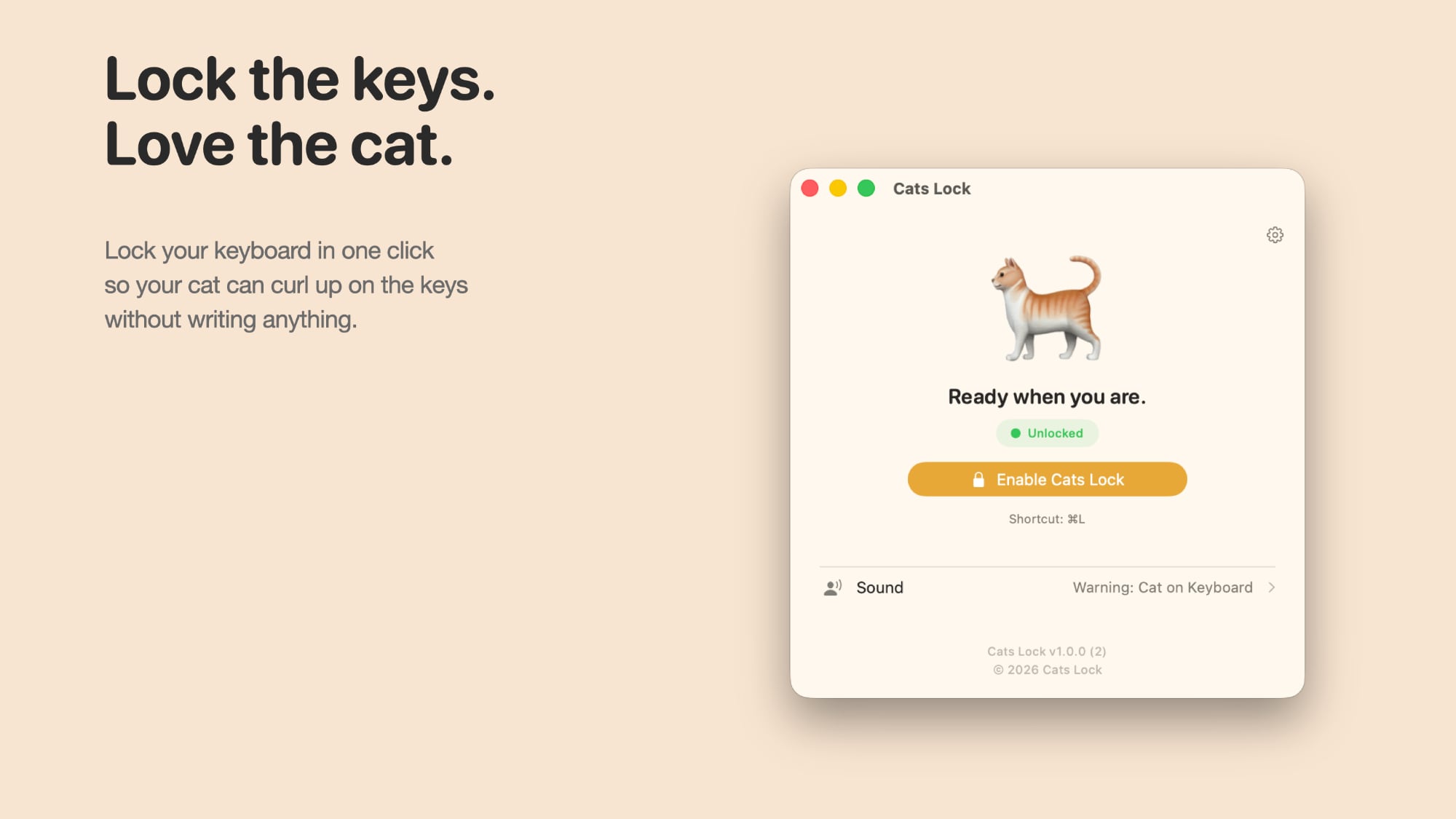
Putting your Mac in sleep mode is an alternative, but you can also set Cats Lock to alert you or make a loud noise when your cat gets on the keyboard. Some of the built-in sounds like a barking dog, vacuum cleaner, or hissing cat might serve as a deterrent even when you're not around. You can also upload your own sounds.
Cats Lock stays on until your Mac goes to sleep, at which point it turns off so you're not locked out of your Mac because of the app.
Cats Lock can be downloaded from the Mac App Store for $2.99.
This article, "Cats Lock for Mac Stops Your Cat From Causing Keyboard Havoc" first appeared on MacRumors.com
Discuss this article in our forums
A new Mac app called Cats Lock adds cat-proofing that keeps your cat from doing damage to whatever you're working on when it gets on your keyboard, and it can even be set to shoo the cat off.
You can click to turn on Cats Lock from the menu bar or use a quick keyboard shortcut, and it prevents cats from being able to activate the keys. Cats can be particularly good at finding odd keyboard shortcuts you never knew existed and making changes that are annoying to undo, so Cats Lock is useful for preventing that. It also has an option to cut sound, so there's no more incessant beeping of keys when your cat gets on your keyboard and holds down a button.
Putting your Mac in sleep mode is an alternative, but you can also set Cats Lock to alert you or make a loud noise when your cat gets on the keyboard. Some of the built-in sounds like a barking dog, vacuum cleaner, or hissing cat might serve as a deterrent even when you're not around. You can also upload your own sounds.
Cats Lock stays on until your Mac goes to sleep, at which point it turns off so you're not locked out of your Mac because of the app.
Cats Lock can be downloaded from the Mac App Store for $2.99.
Tag: Mac App Store
This article, "Cats Lock for Mac Stops Your Cat From Causing Keyboard Havoc" first appeared on MacRumors.com
Discuss this article in our forums
Recommended Comments
Join the conversation
You can post now and register later. If you have an account, sign in now to post with your account.