_811205.png)
_e196d8.png)
_32b3d9.png)
_1c53fe.png)

Aukey introduced a new desktop charging option this week, debuting the $150 MagFusion DeskHive 5X Pro. The DeskHive is a 5-in-1 charging solution that combines wired and wireless charging in a compact desktop box.
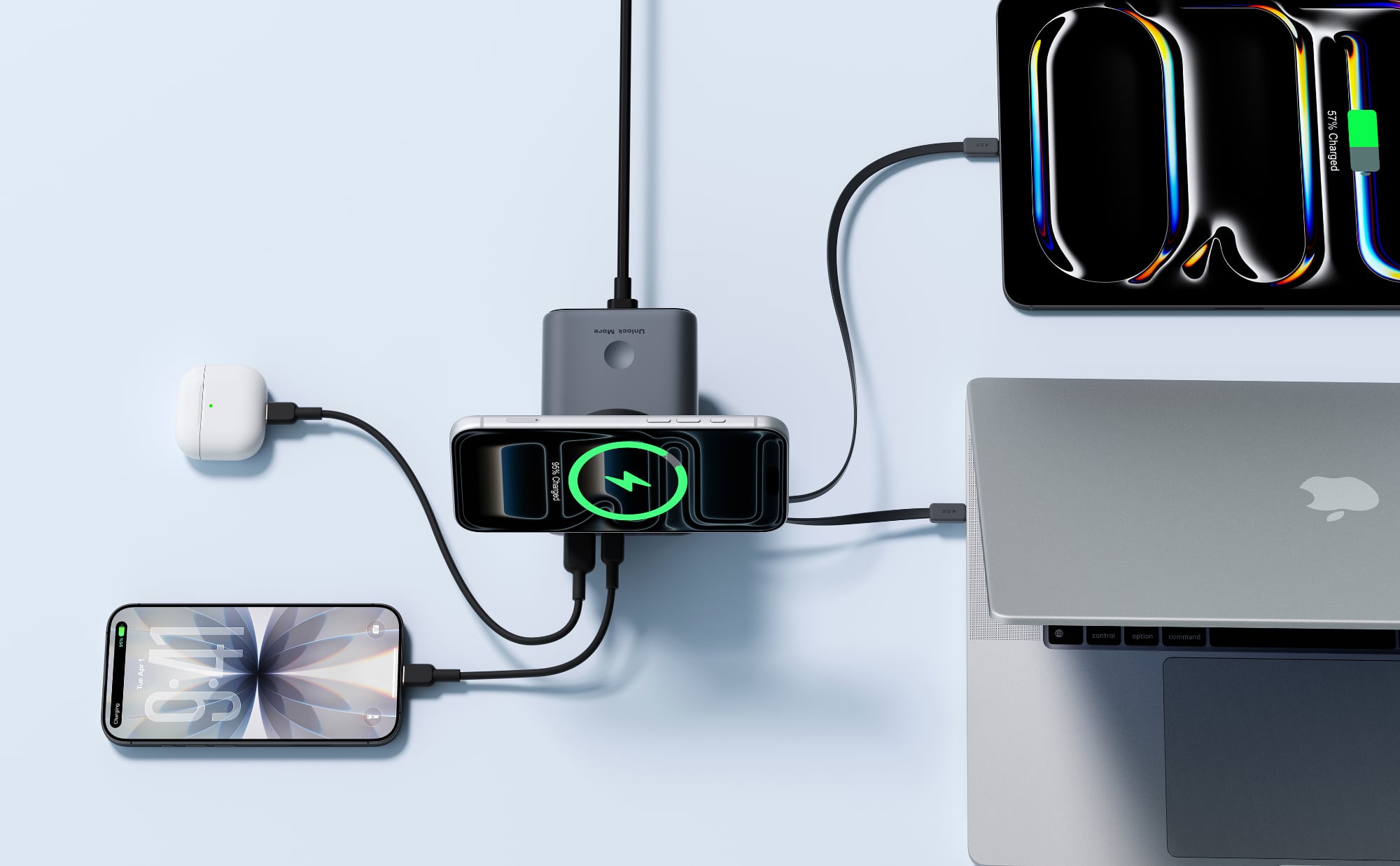
Measuring in at 3.76 x 3.76 x 3.07 inches, the DeskHive includes two retractable USB-C cables, a USB-C port, a USB-A port, and a Qi2.2 25W charger for wirelessly charging the iPhone. The magnetic charger has an adjustable hinge so it can be positioned at different angles for video calls or watching content.
With GaN technology, the DeskHive provides up to 200W for charging, offering support for charging at 140W through the USB-C port. A digital display offers real-time output for each wired port.
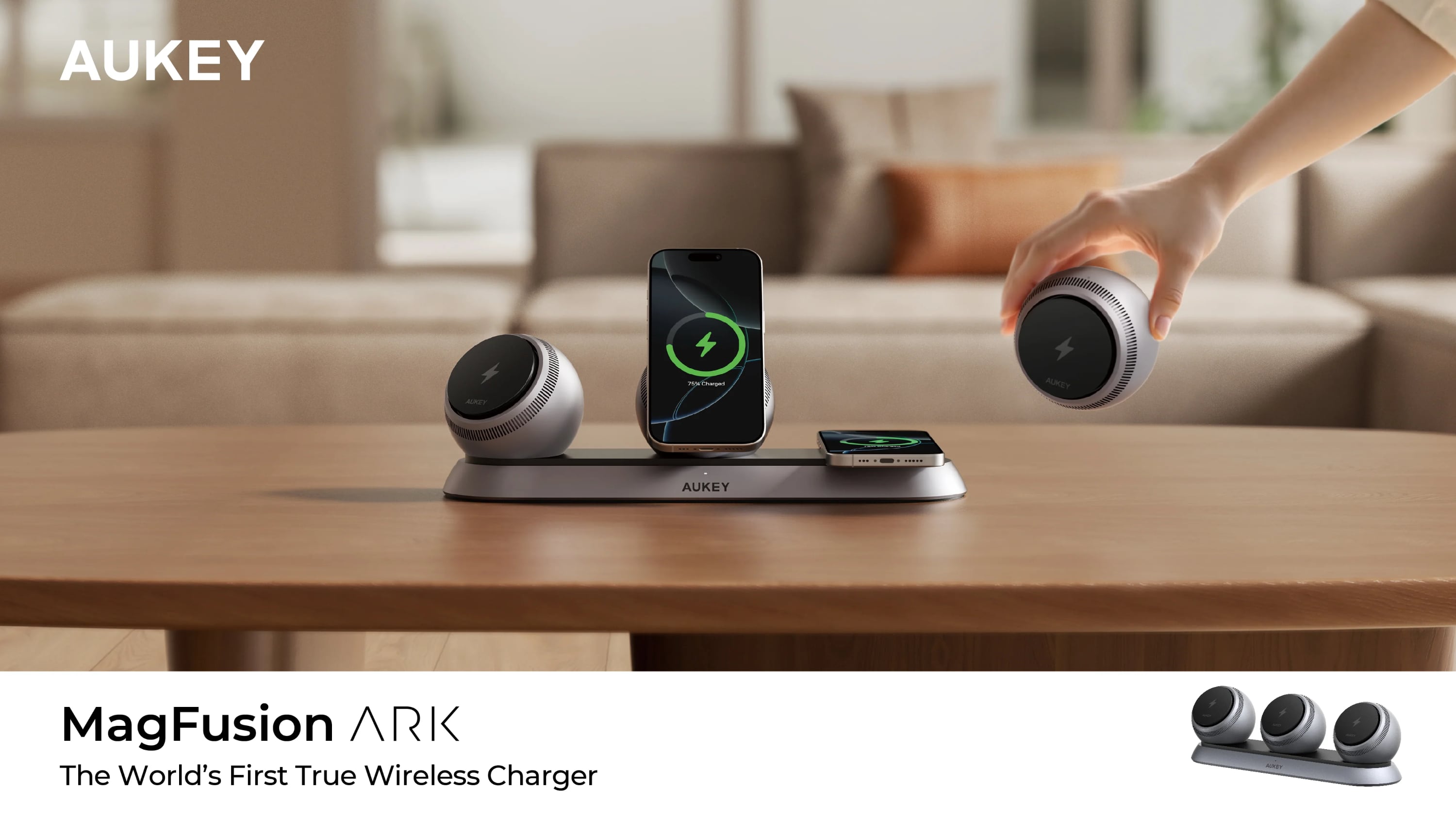
Aukey was also showing off the MagFusion Ark charger that it first debuted last year. The MagFusion Ark has a 6-in-1 design that includes a base station able to charge up to three devices, and three detachable 6,700 mAh power bank spheres for multi-device charging.
The MagFusion DeskHive 5X Pro and the MagFusion Ark are expected to launch in the second quarter of 2026.
This article, "CES 2026: Aukey Launches MagFusion DeskHive 5X Pro" first appeared on MacRumors.com
Discuss this article in our forums
Measuring in at 3.76 x 3.76 x 3.07 inches, the DeskHive includes two retractable USB-C cables, a USB-C port, a USB-A port, and a Qi2.2 25W charger for wirelessly charging the iPhone. The magnetic charger has an adjustable hinge so it can be positioned at different angles for video calls or watching content.
With GaN technology, the DeskHive provides up to 200W for charging, offering support for charging at 140W through the USB-C port. A digital display offers real-time output for each wired port.
Aukey was also showing off the MagFusion Ark charger that it first debuted last year. The MagFusion Ark has a 6-in-1 design that includes a base station able to charge up to three devices, and three detachable 6,700 mAh power bank spheres for multi-device charging.
The MagFusion DeskHive 5X Pro and the MagFusion Ark are expected to launch in the second quarter of 2026.
Tag: CES 2026
This article, "CES 2026: Aukey Launches MagFusion DeskHive 5X Pro" first appeared on MacRumors.com
Discuss this article in our forums
Recommended Comments
Join the conversation
You can post now and register later. If you have an account, sign in now to post with your account.