_811205.png)
_e196d8.png)
_32b3d9.png)
_1c53fe.png)

OWC today announced the launch of a fully certified 2-meter Thunderbolt 5 cable, which OWC says is the longest Thunderbolt 5 cable available for Macs and PCs.
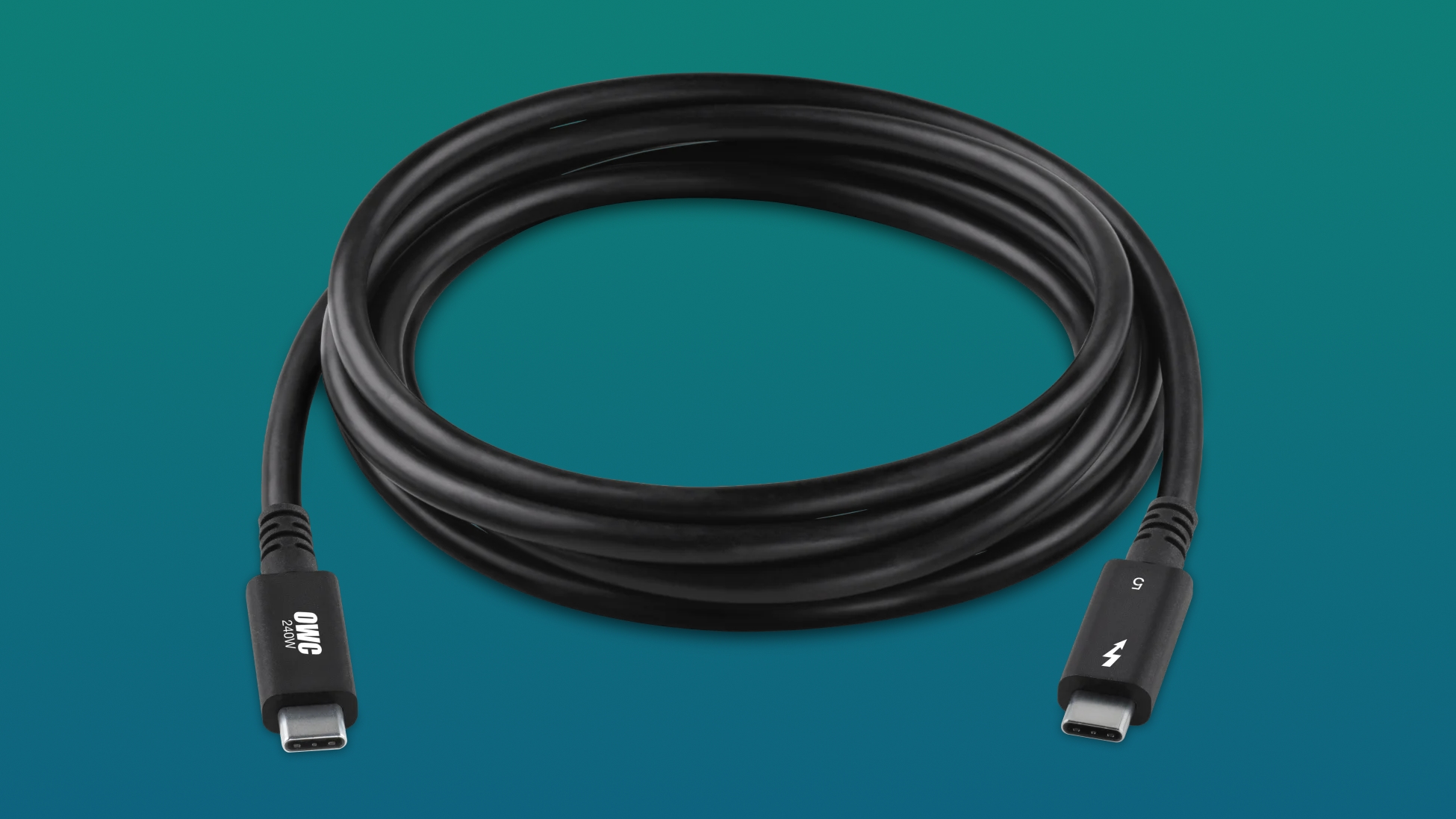
The cable has been certified by Thunderbolt and independent testing labs, and it meets the full Thunderbolt 5 specification. It offers up to 80Gb/s bi-directional data performance, up to 120Gb/s video streaming performance for multiple displays, and 240W power delivery.
The 2-meter cable is priced at $80, and it joins OWC's other Thunderbolt 5 cables in 0.3m, 0.8m, and 1m lengths. It is available from the OWC website.
At CES, OWC is also debuting an 8TB Envoy Ultra Thunderbolt 5 SSD that supports transfer speeds of up to 6000MB/s, and a capacity expansion for the ThunderBlade X12 RAID SSD. It now supports up to 12 16TB SSDs for up to 192TB of storage, double the prior limit.
This article, "CES 2026: OWC Launches 2-Meter Thunderbolt 5 Cable for Macs" first appeared on MacRumors.com
Discuss this article in our forums
The cable has been certified by Thunderbolt and independent testing labs, and it meets the full Thunderbolt 5 specification. It offers up to 80Gb/s bi-directional data performance, up to 120Gb/s video streaming performance for multiple displays, and 240W power delivery.
The 2-meter cable is priced at $80, and it joins OWC's other Thunderbolt 5 cables in 0.3m, 0.8m, and 1m lengths. It is available from the OWC website.
At CES, OWC is also debuting an 8TB Envoy Ultra Thunderbolt 5 SSD that supports transfer speeds of up to 6000MB/s, and a capacity expansion for the ThunderBlade X12 RAID SSD. It now supports up to 12 16TB SSDs for up to 192TB of storage, double the prior limit.
This article, "CES 2026: OWC Launches 2-Meter Thunderbolt 5 Cable for Macs" first appeared on MacRumors.com
Discuss this article in our forums
Recommended Comments
Join the conversation
You can post now and register later. If you have an account, sign in now to post with your account.