_811205.png)
_e196d8.png)
_32b3d9.png)
_1c53fe.png)

Senso is a gamified plant sensor that's designed to use AI to improve plant care. It is supposed to track soil moisture, temperature, and light exposure data in real time, and there is a little pixel creature that delivers AI insights.
The pixel creature awakens once the sensor is placed in soil, and users can complete daily and weekly plant care missions to collect rewards and unlock new characters. The sensor has a modular design with different depth options, and multiple sensors for multiple plants can be combined. The AI and an accompanying app are meant to adapt to provide accurate readings across different plant species and pot types.
The device supports voice-based AI interactions, so you can ask it questions to get responses from a "friendly plant expert."
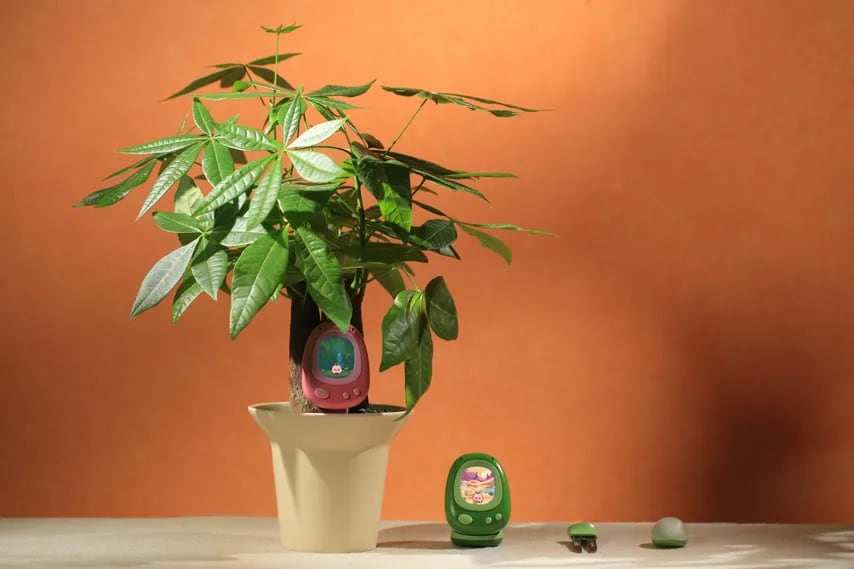
Senso is being shown off at CES 2026, but it is not an actual product yet. It is set to launch on Kickstarter in the near future. Pricing has not been announced.
This article, "CES 2026: Senso Is a Smart Plant Sensor With an AI Tamagotchi" first appeared on MacRumors.com
Discuss this article in our forums
The pixel creature awakens once the sensor is placed in soil, and users can complete daily and weekly plant care missions to collect rewards and unlock new characters. The sensor has a modular design with different depth options, and multiple sensors for multiple plants can be combined. The AI and an accompanying app are meant to adapt to provide accurate readings across different plant species and pot types.
The device supports voice-based AI interactions, so you can ask it questions to get responses from a "friendly plant expert."
Senso is being shown off at CES 2026, but it is not an actual product yet. It is set to launch on Kickstarter in the near future. Pricing has not been announced.
Tag: CES 2026
This article, "CES 2026: Senso Is a Smart Plant Sensor With an AI Tamagotchi" first appeared on MacRumors.com
Discuss this article in our forums
Recommended Comments
Join the conversation
You can post now and register later. If you have an account, sign in now to post with your account.