_811205.png)
_e196d8.png)
_32b3d9.png)
_1c53fe.png)

OpenAI is overhauling the shopping experience in its ChatGPT app by shifting the focus from in-app purchases to product discovery, after the company's Instant Checkout feature apparently failed to gain traction.
Launched in September, Instant Checkout let users buy items from retailers like Etsy, Walmart, and Shopify directly within ChatGPT. In a new product post, OpenAI now says it is deprioritizing the feature as a standalone offering, because it "did not offer the level of flexibility that we aspire to provide."
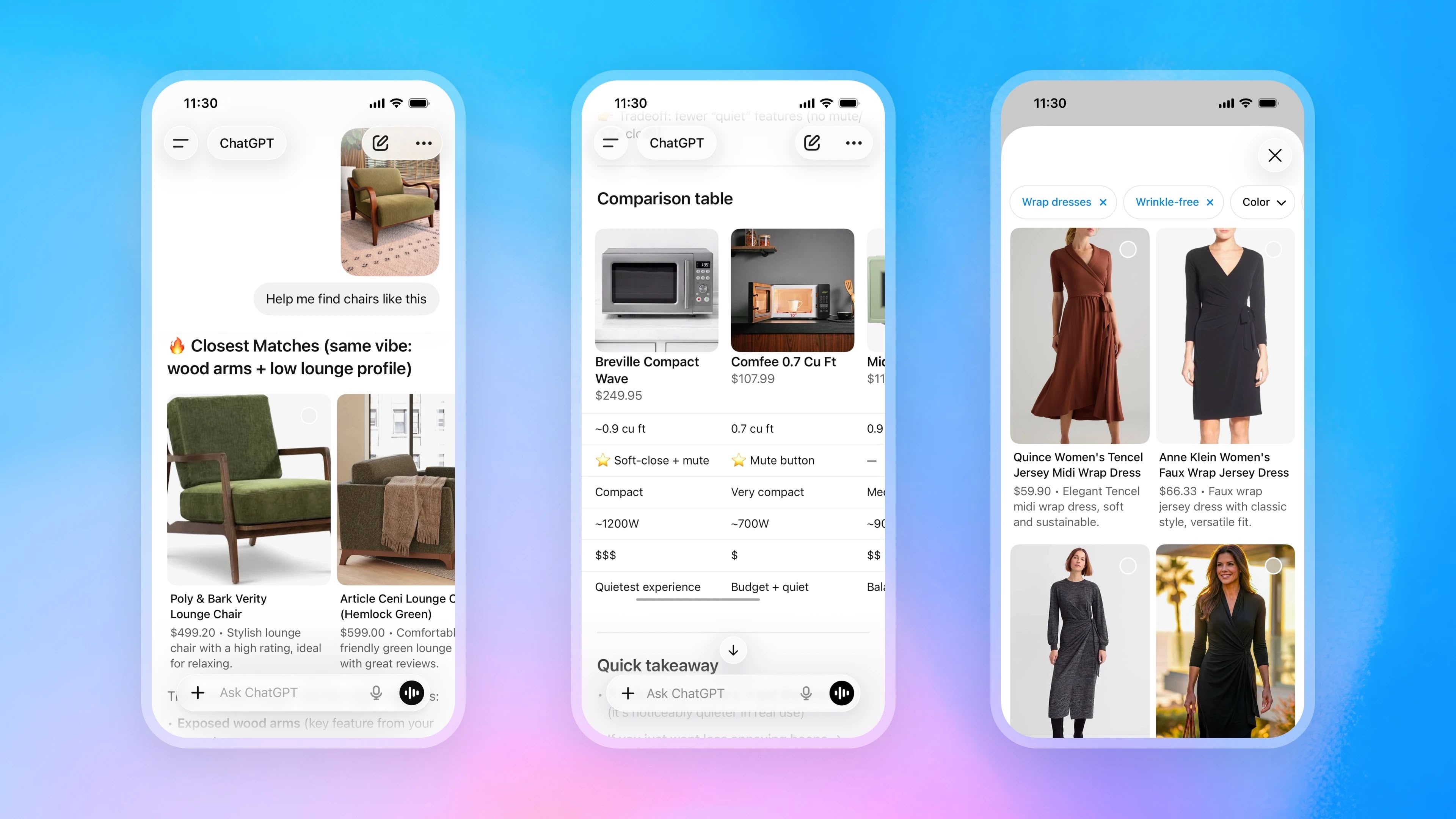
In place of it, ChatGPT is getting richer visual shopping tools, including side-by-side product comparisons, image-based search for finding similar items, and conversational result filtering.
OpenAI says the updates are powered by an expansion of its Agentic Commerce Protocol, which lets merchants feed product catalogs and promotions directly into ChatGPT. Retailers including Target, Sephora, Nordstrom, Best Buy, and The Home Depot are already on board.
Meanwhile, Walmart is launching a dedicated in-app ChatGPT experience that supports account linking, loyalty programs, and its own payment system. The updates are rolling out this week to all ChatGPT Free, Go, Plus, and Pro users.
In related news, OpenAI yesterday said that it is ending support for its Sora AI video app just six months after it initially launched.
This article, "ChatGPT Revamps Shopping Features, Drops In-App Checkout" first appeared on MacRumors.com
Discuss this article in our forums
Launched in September, Instant Checkout let users buy items from retailers like Etsy, Walmart, and Shopify directly within ChatGPT. In a new product post, OpenAI now says it is deprioritizing the feature as a standalone offering, because it "did not offer the level of flexibility that we aspire to provide."
In place of it, ChatGPT is getting richer visual shopping tools, including side-by-side product comparisons, image-based search for finding similar items, and conversational result filtering.
OpenAI says the updates are powered by an expansion of its Agentic Commerce Protocol, which lets merchants feed product catalogs and promotions directly into ChatGPT. Retailers including Target, Sephora, Nordstrom, Best Buy, and The Home Depot are already on board.
Meanwhile, Walmart is launching a dedicated in-app ChatGPT experience that supports account linking, loyalty programs, and its own payment system. The updates are rolling out this week to all ChatGPT Free, Go, Plus, and Pro users.
In related news, OpenAI yesterday said that it is ending support for its Sora AI video app just six months after it initially launched.
This article, "ChatGPT Revamps Shopping Features, Drops In-App Checkout" first appeared on MacRumors.com
Discuss this article in our forums
Recommended Comments
Join the conversation
You can post now and register later. If you have an account, sign in now to post with your account.