_811205.png)
_e196d8.png)
_32b3d9.png)
_1c53fe.png)

There's now a dedicated Apple Music app for ChatGPT, which allows ChatGPT to make music recommendations and build playlists based on your Apple Music listening history.
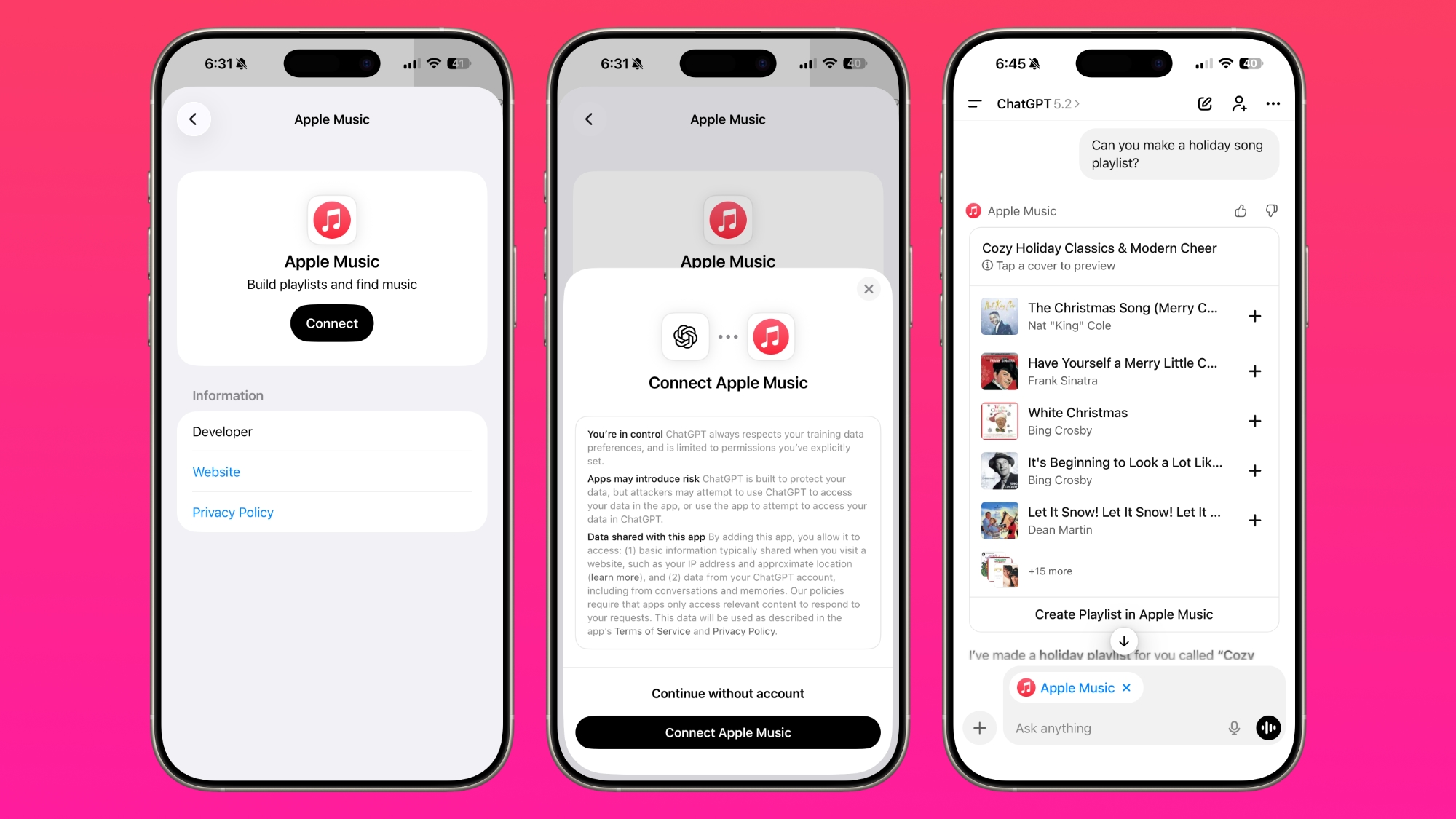
Apple Music can be added to ChatGPT through the Settings section in the Mac app, website, or iOS app. Apple Music is listed under the apps option, and connecting to it requires signing in with your Apple Account for authorization purposes.
ChatGPT can be used to search through the Apple Music catalog for songs, artists, albums, and playlists, even without an Apple Music subscription. OpenAI says that all users are able to discover music, generate playlists, and listen to preview clips in ChatGPT.
Apple Music subscribers can add songs, albums, and playlists to their Apple Music Library using ChatGPT. When Apple Music is added to ChatGPT, it can be selected by tapping on the "+" button. Playlists and suggestions generated by ChatGPT can be opened directly in Apple Music.
ChatGPT's Apple Music feature was first shared yesterday, but the functionality wasn't live. The app is now available to add to ChatGPT.
This article, "ChatGPT's Apple Music Integration Is Now Live" first appeared on MacRumors.com
Discuss this article in our forums
Apple Music can be added to ChatGPT through the Settings section in the Mac app, website, or iOS app. Apple Music is listed under the apps option, and connecting to it requires signing in with your Apple Account for authorization purposes.
ChatGPT can be used to search through the Apple Music catalog for songs, artists, albums, and playlists, even without an Apple Music subscription. OpenAI says that all users are able to discover music, generate playlists, and listen to preview clips in ChatGPT.
Apple Music subscribers can add songs, albums, and playlists to their Apple Music Library using ChatGPT. When Apple Music is added to ChatGPT, it can be selected by tapping on the "+" button. Playlists and suggestions generated by ChatGPT can be opened directly in Apple Music.
ChatGPT's Apple Music feature was first shared yesterday, but the functionality wasn't live. The app is now available to add to ChatGPT.
Tags: Apple Music, ChatGPT
This article, "ChatGPT's Apple Music Integration Is Now Live" first appeared on MacRumors.com
Discuss this article in our forums
Recommended Comments
Join the conversation
You can post now and register later. If you have an account, sign in now to post with your account.