_811205.png)
_e196d8.png)
_32b3d9.png)
_1c53fe.png)

Apple today updated its Apple Cash feature to introduce a set of stickers that can be used in the Messages app. The stickers are Apple Cash themed, featuring emoji that you might want to use when sending or receiving a payment.
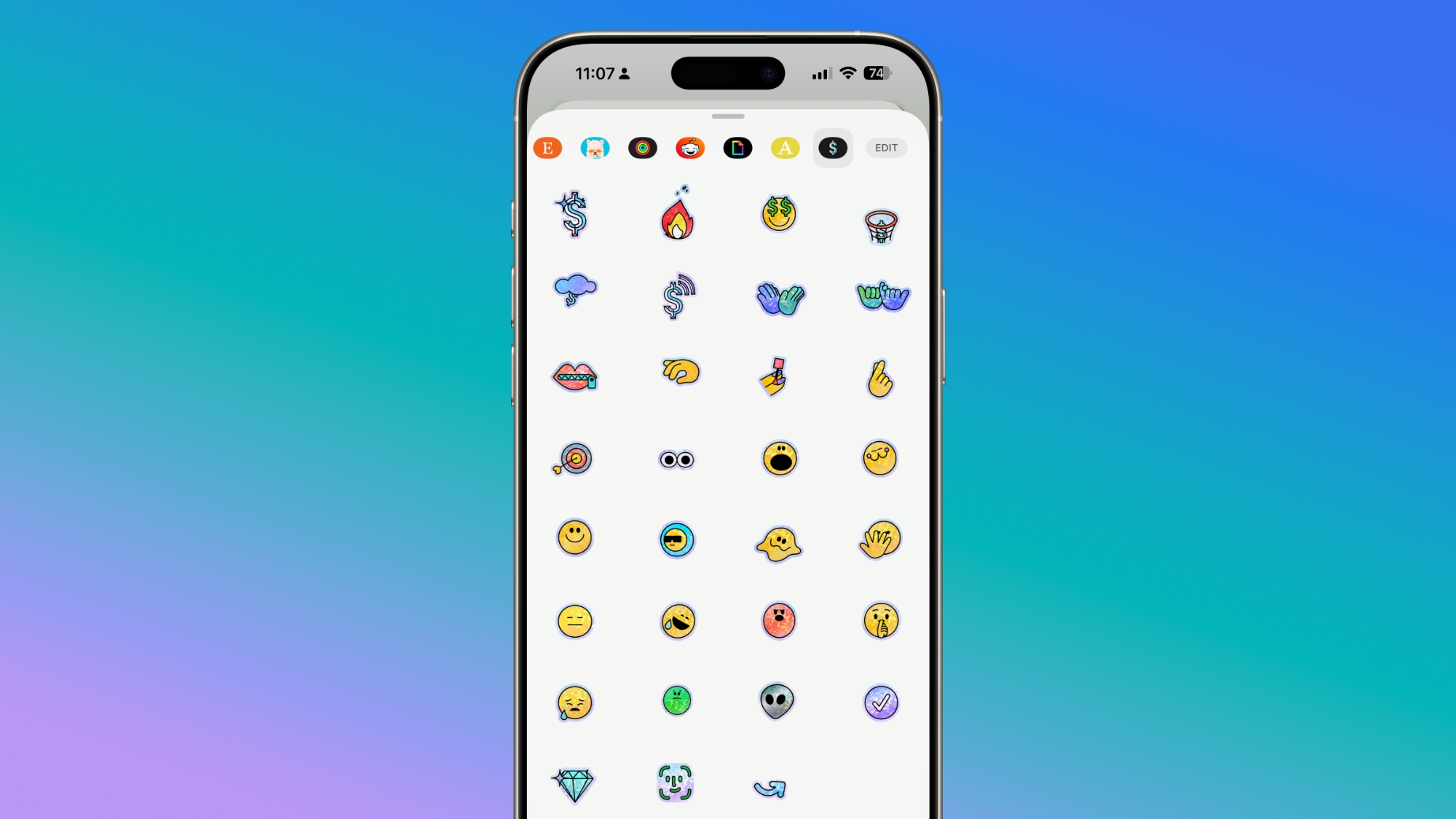
Each sticker is animated, and has an iridescent texture that gives a glinting effect as the sticker moves.
The Apple Cash stickers are rolling out to users starting today. You can find them by opening up the Messages app and selecting a conversation, then tapping on the "+" button next to the text bar. From there, tap on the "Stickers" option and swipe over to Apple Cash.



Apple Cash stickers will show up in the Messages Sticker list automatically, and there is no option to download them from the Sticker App Store. The stickers also aren't able to be removed, because Apple Cash is not an app that can be uninstalled.
This article, "Check Out These Fun New Apple Cash Stickers in the Messages App" first appeared on MacRumors.com
Discuss this article in our forums
Each sticker is animated, and has an iridescent texture that gives a glinting effect as the sticker moves.
The Apple Cash stickers are rolling out to users starting today. You can find them by opening up the Messages app and selecting a conversation, then tapping on the "+" button next to the text bar. From there, tap on the "Stickers" option and swipe over to Apple Cash.
Apple Cash stickers will show up in the Messages Sticker list automatically, and there is no option to download them from the Sticker App Store. The stickers also aren't able to be removed, because Apple Cash is not an app that can be uninstalled.
Tags: Apple Cash, Messages
This article, "Check Out These Fun New Apple Cash Stickers in the Messages App" first appeared on MacRumors.com
Discuss this article in our forums
Recommended Comments
Join the conversation
You can post now and register later. If you have an account, sign in now to post with your account.