_811205.png)
_e196d8.png)
_32b3d9.png)
_1c53fe.png)

If you regularly share your iPhone's data connection with your laptop or iPad, or let family members piggyback on your device's data, you'll be glad to learn that Apple recently made it a lot easier to keep tabs on who's burning through your monthly allowance.
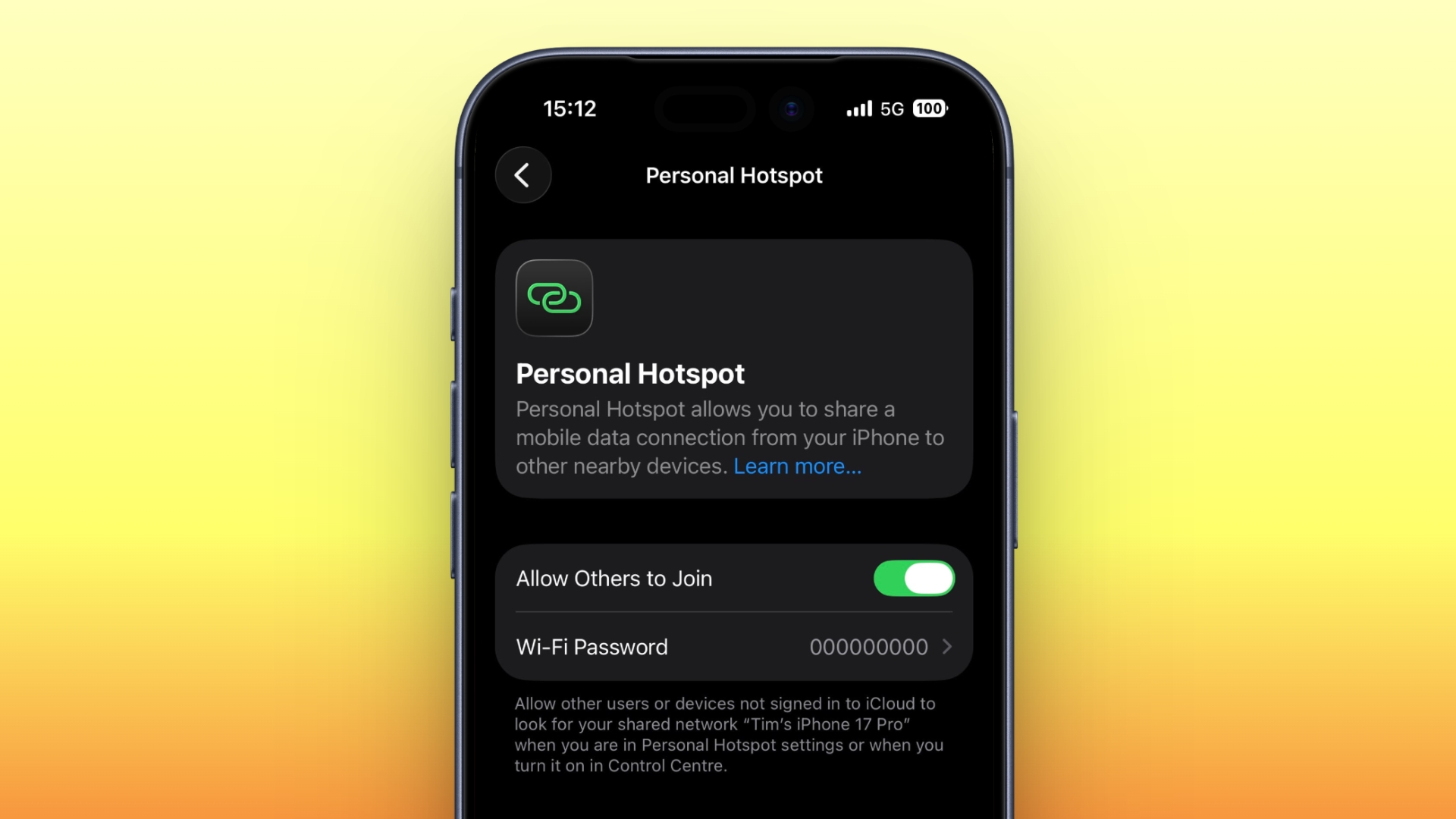
In a welcome change with the release of iOS 26.4, Apple has moved Personal Hotspot data usage info out of its previous hiding spot and put it in a much more convenient location.
Before the latest update, Personal Hotspot's per-device breakdown was secreted away inside cellular settings, where it was easy to miss. Now it sits right inside the Personal Hotspot menu, making it way more practical for anyone on a capped data plan who's keen to keep an eye on usage.
Here's how to check it in iOS 26.4 (you can make sure your device is up-to-date via Settings ➝ General ➝ Software Update).
Open Settings on your iPhone.
Tap Personal Hotspot.
Below the "Maximize Compatibility" toggle, tap Data Usage.
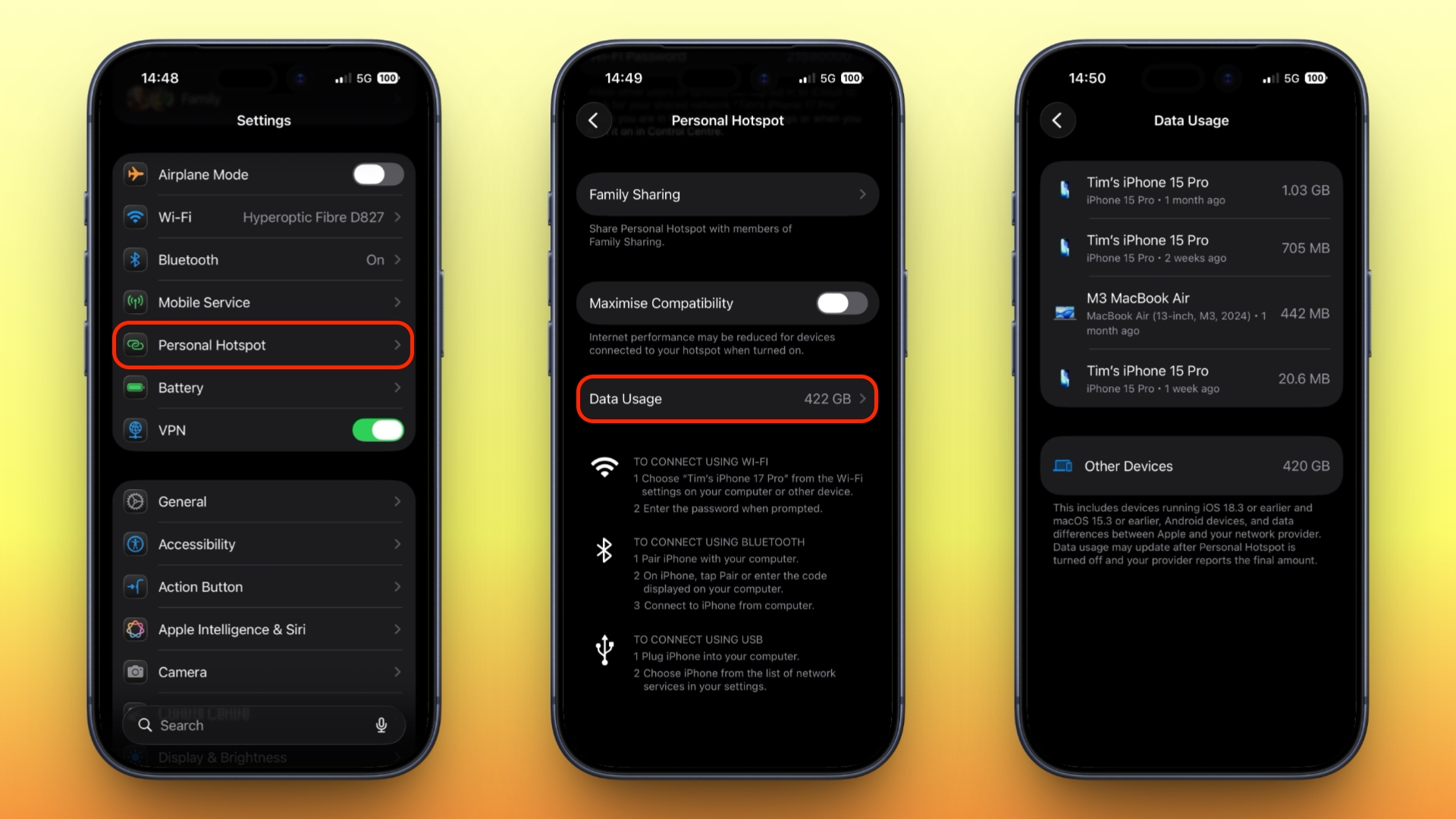
Here you'll see a list of connected devices along with how much data each one has consumed, as well as a total figure across all devices. Note that Apple devices running iOS 26.4 or macOS 26.4 appear individually by name, whereas Android phones, Windows PCs, and anything running older Apple software are grouped together under "Other Devices."
Bear in mind that the Data Usage option only appears if you've used Personal Hotspot recently. If you want, you can clear the figures and start tracking anew by heading to Settings ➝ Cellular/Mobile Service and resetting your overall cellular usage statistics (the option at the bottom). This wipes your hotspot numbers at the same time.
This article, "Check Who's Using Your iPhone Hotspot Data" first appeared on MacRumors.com
Discuss this article in our forums
In a welcome change with the release of iOS 26.4, Apple has moved Personal Hotspot data usage info out of its previous hiding spot and put it in a much more convenient location.
Before the latest update, Personal Hotspot's per-device breakdown was secreted away inside cellular settings, where it was easy to miss. Now it sits right inside the Personal Hotspot menu, making it way more practical for anyone on a capped data plan who's keen to keep an eye on usage.
Here's how to check it in iOS 26.4 (you can make sure your device is up-to-date via Settings ➝ General ➝ Software Update).
How to Check iPhone Hotspot Data Usage
Open Settings on your iPhone.
Tap Personal Hotspot.
Below the "Maximize Compatibility" toggle, tap Data Usage.
Here you'll see a list of connected devices along with how much data each one has consumed, as well as a total figure across all devices. Note that Apple devices running iOS 26.4 or macOS 26.4 appear individually by name, whereas Android phones, Windows PCs, and anything running older Apple software are grouped together under "Other Devices."
Bear in mind that the Data Usage option only appears if you've used Personal Hotspot recently. If you want, you can clear the figures and start tracking anew by heading to Settings ➝ Cellular/Mobile Service and resetting your overall cellular usage statistics (the option at the bottom). This wipes your hotspot numbers at the same time.
This article, "Check Who's Using Your iPhone Hotspot Data" first appeared on MacRumors.com
Discuss this article in our forums
Recommended Comments
Join the conversation
You can post now and register later. If you have an account, sign in now to post with your account.