_811205.png)
_e196d8.png)
_32b3d9.png)
_1c53fe.png)

As an Apple Music subscriber, you're able to download songs, playlists, and albums from the Apple Music catalog to your iPhone or iPad for offline listening, but this can gradually eat up your device's storage space over time.
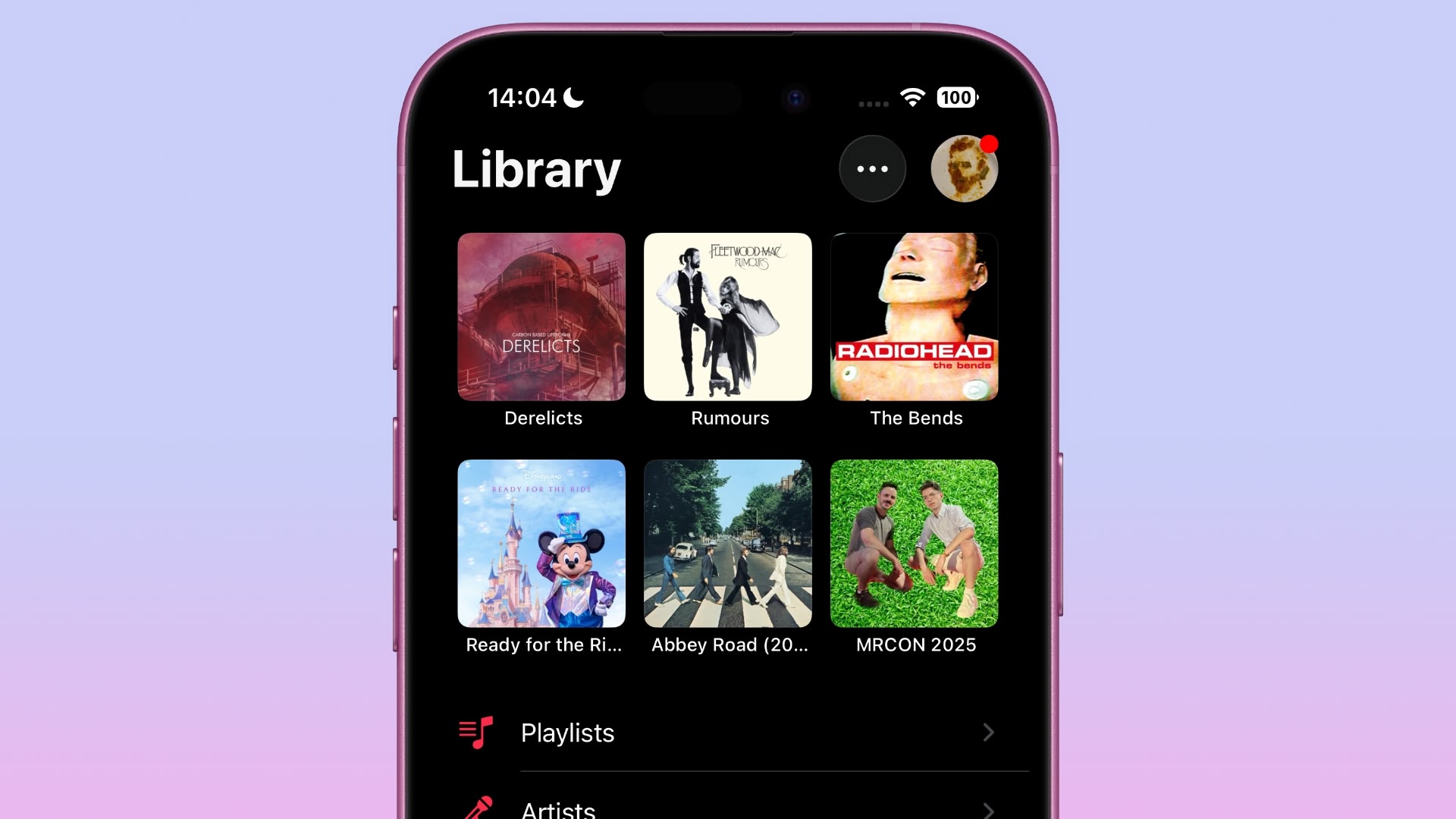
Fortunately the Music app includes a handy feature that can spring into action whenever your device's storage space runs low, and automatically offload songs you haven't played for a while in order to make space for newer ones.
It's called Optimized Storage, and here's how you can enable it.
Scroll down to the apps list and select Music.
Under Downloads, tap Optimized Storage.
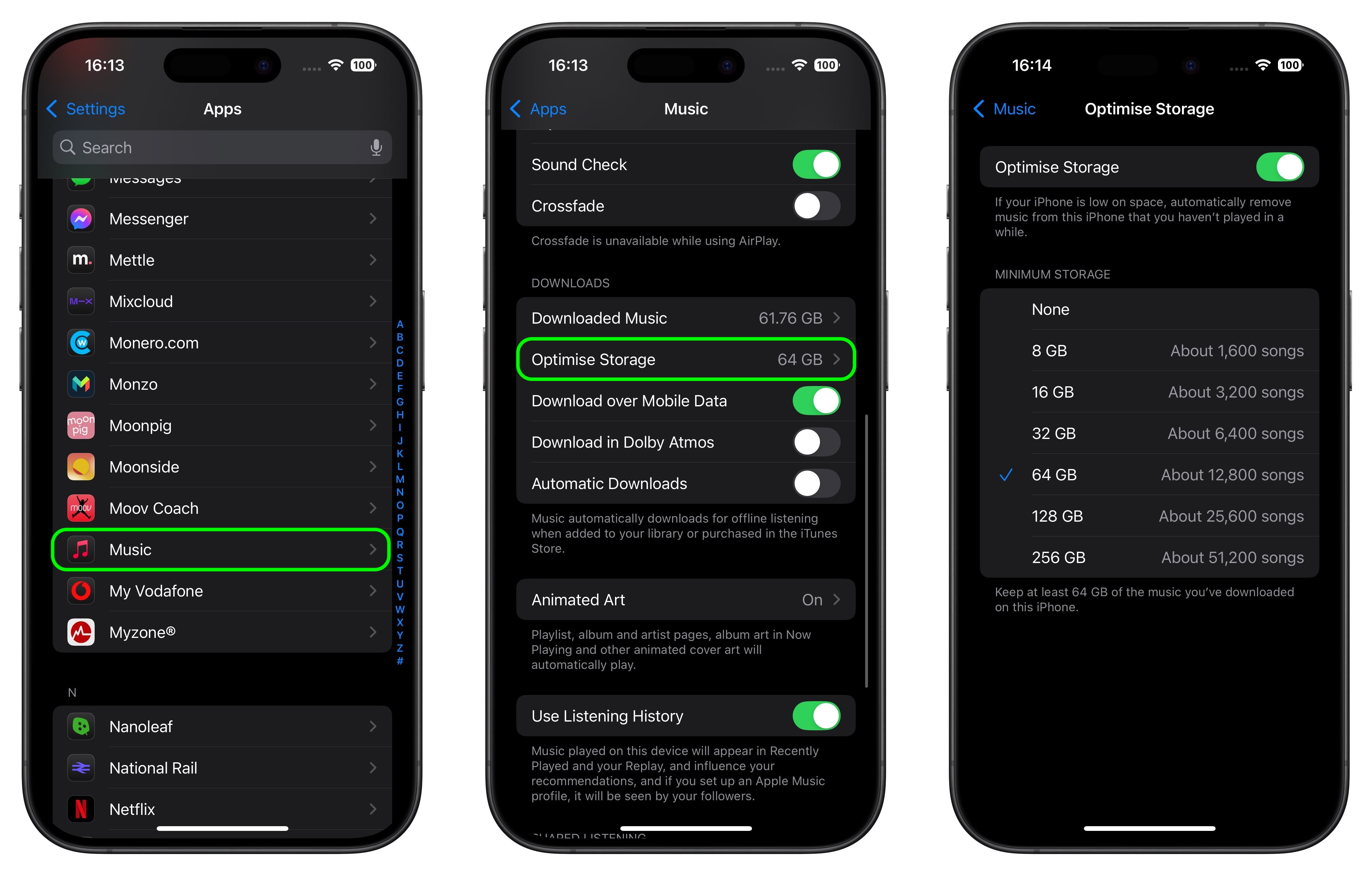
Toggle the Optimized Storage switch to the "on" position so that it shows green.
Choose a minimum storage amount that you want to keep for music before downloaded songs start being removed from your device.You can also monitor storage space by turning off automatic downloads and making sure to download new songs manually when needed. There's also an option to remove downloaded songs one by one from the Apple Music app if you prefer not to have songs offloaded by Apple automatically.
This article, "Cut Apple Music iPhone Storage Usage in Minutes – Here’s How" first appeared on MacRumors.com
Discuss this article in our forums
Fortunately the Music app includes a handy feature that can spring into action whenever your device's storage space runs low, and automatically offload songs you haven't played for a while in order to make space for newer ones.
It's called Optimized Storage, and here's how you can enable it.
- Launch the Settings app on your iPhone or iPad.
Scroll down to the apps list and select Music.
Under Downloads, tap Optimized Storage.
Toggle the Optimized Storage switch to the "on" position so that it shows green.
Choose a minimum storage amount that you want to keep for music before downloaded songs start being removed from your device.You can also monitor storage space by turning off automatic downloads and making sure to download new songs manually when needed. There's also an option to remove downloaded songs one by one from the Apple Music app if you prefer not to have songs offloaded by Apple automatically.
Tag: Apple Music
This article, "Cut Apple Music iPhone Storage Usage in Minutes – Here’s How" first appeared on MacRumors.com
Discuss this article in our forums
Recommended Comments
Join the conversation
You can post now and register later. If you have an account, sign in now to post with your account.