_811205.png)
_e196d8.png)
_32b3d9.png)
_1c53fe.png)

Google today announced that you can finally change the Google Account email address that you use for Gmail, Google Calendar, Google Photos, Google Drive, and more, but this ability is only rolling out to U.S. accounts for now. The company did not indicate if or when this functionality will be available in other countries.
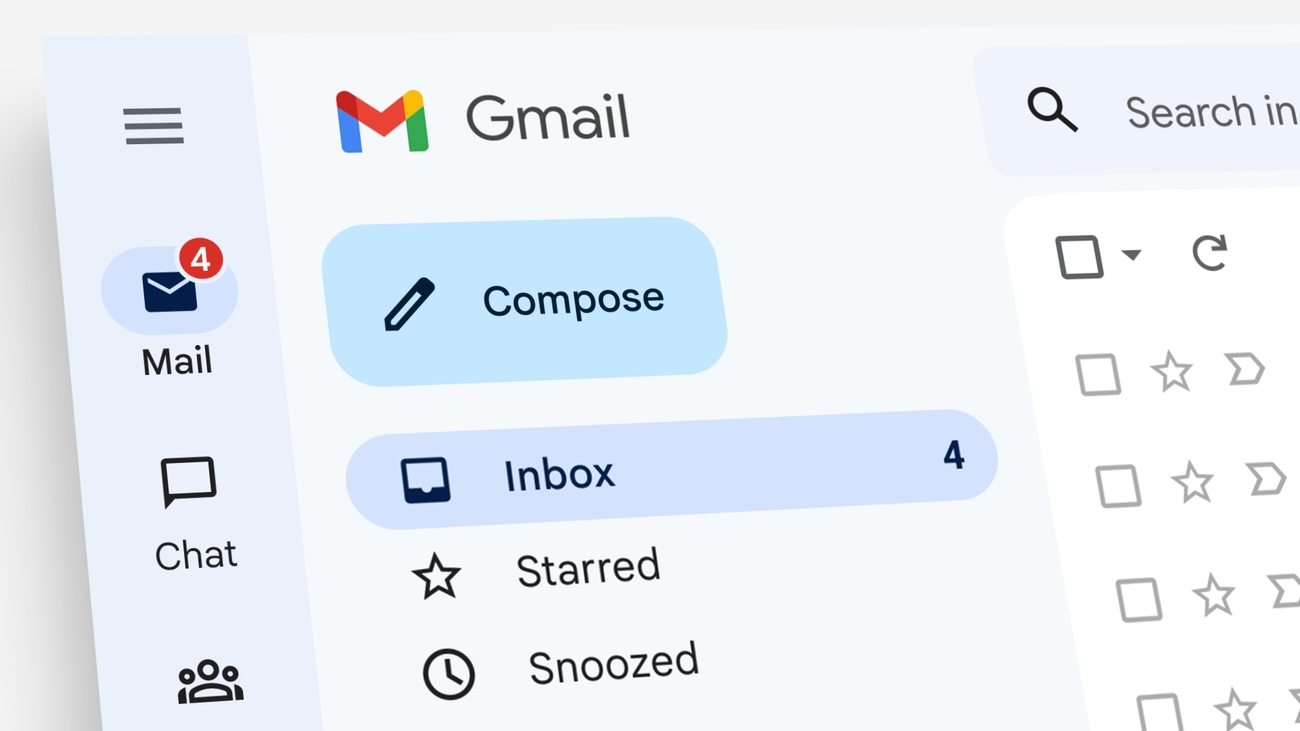
You can switch to any available @gmail.com address, and your previous address will become an alias, ensuring that you retain ownership of your original email address. You can still sign in and send and receive emails with both addresses.
You can change your Google Account's email address once per year, up to three times total, and Google says all emails and other account data and history are preserved. If you change your mind, you can revert to your old email address.
This new ability will be especially useful for longtime Gmail users who may have chosen a casual email address when they were younger. For example, maybe 13-year-old you signed up for [email protected], but as an adult you would prefer to have a more professional [email protected] address.
It was already possible to set up other email addresses as aliases in Gmail, but now you can change your account's main email address entirely.
Google provides more details in a support document.
This article, "Don't Like Your Gmail Email Address? You Can Finally Change It" first appeared on MacRumors.com
Discuss this article in our forums
You can switch to any available @gmail.com address, and your previous address will become an alias, ensuring that you retain ownership of your original email address. You can still sign in and send and receive emails with both addresses.
You can change your Google Account's email address once per year, up to three times total, and Google says all emails and other account data and history are preserved. If you change your mind, you can revert to your old email address.
This new ability will be especially useful for longtime Gmail users who may have chosen a casual email address when they were younger. For example, maybe 13-year-old you signed up for [email protected], but as an adult you would prefer to have a more professional [email protected] address.
It was already possible to set up other email addresses as aliases in Gmail, but now you can change your account's main email address entirely.
Google provides more details in a support document.
This article, "Don't Like Your Gmail Email Address? You Can Finally Change It" first appeared on MacRumors.com
Discuss this article in our forums
Recommended Comments
Join the conversation
You can post now and register later. If you have an account, sign in now to post with your account.