_811205.png)
_e196d8.png)
_32b3d9.png)
_1c53fe.png)

Language learning app Duolingo has apparently been using the iPhone's Live Activity feature to display ads on the Lock Screen and the Dynamic Island, which violates Apple's design guidelines.
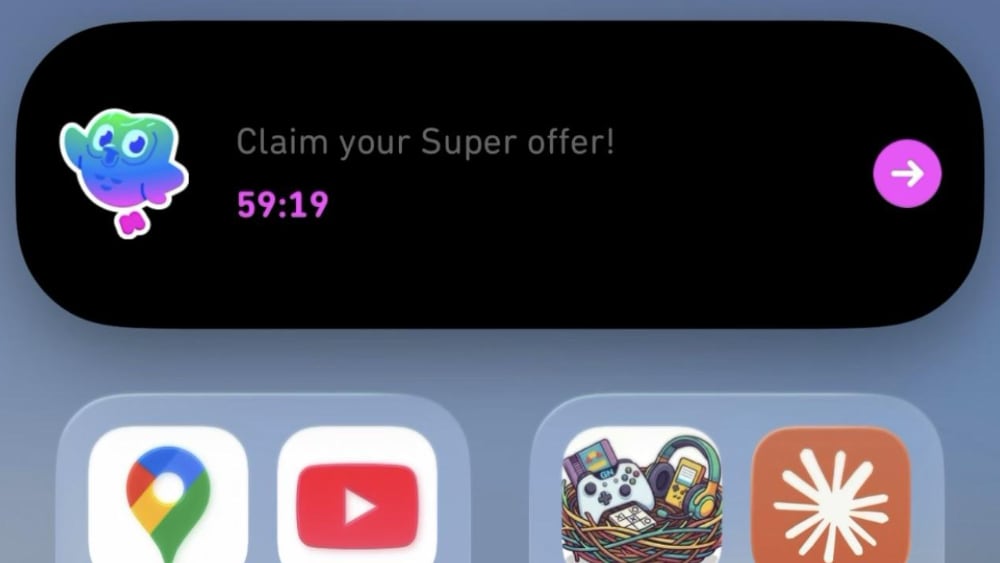
According to multiple reports on Reddit, the Duolingo app has been displaying an ad for a "Super offer," which is Duolingo's paid subscription option.
Apple's guidelines for Live Activity state that the feature cannot be used to display ads or promotions. From Apple's developer website:
Apps that violate Apple's interface guidelines can be pulled from the App Store.
We were not able to replicate the Live Activity ad, so it's possible that Duolingo stopped displaying it after user complaints.
This article, "Duolingo Used iPhone's Dynamic Island to Display Ads, Violating Apple Design Guidelines" first appeared on MacRumors.com
Discuss this article in our forums
According to multiple reports on Reddit, the Duolingo app has been displaying an ad for a "Super offer," which is Duolingo's paid subscription option.
Apple's guidelines for Live Activity state that the feature cannot be used to display ads or promotions. From Apple's developer website:
Don't use a Live Activity to display ads or promotions. Live Activities help people stay informed about ongoing events and tasks, so it's important to display only information that's related to those events and tasks.
Apps that violate Apple's interface guidelines can be pulled from the App Store.
We were not able to replicate the Live Activity ad, so it's possible that Duolingo stopped displaying it after user complaints.
This article, "Duolingo Used iPhone's Dynamic Island to Display Ads, Violating Apple Design Guidelines" first appeared on MacRumors.com
Discuss this article in our forums
Recommended Comments
Join the conversation
You can post now and register later. If you have an account, sign in now to post with your account.