_811205.png)
_e196d8.png)
_32b3d9.png)
_1c53fe.png)

Popular flight tracking app Flighty has a new Connection Assistant that helps travelers make connecting flights at airports worldwide.
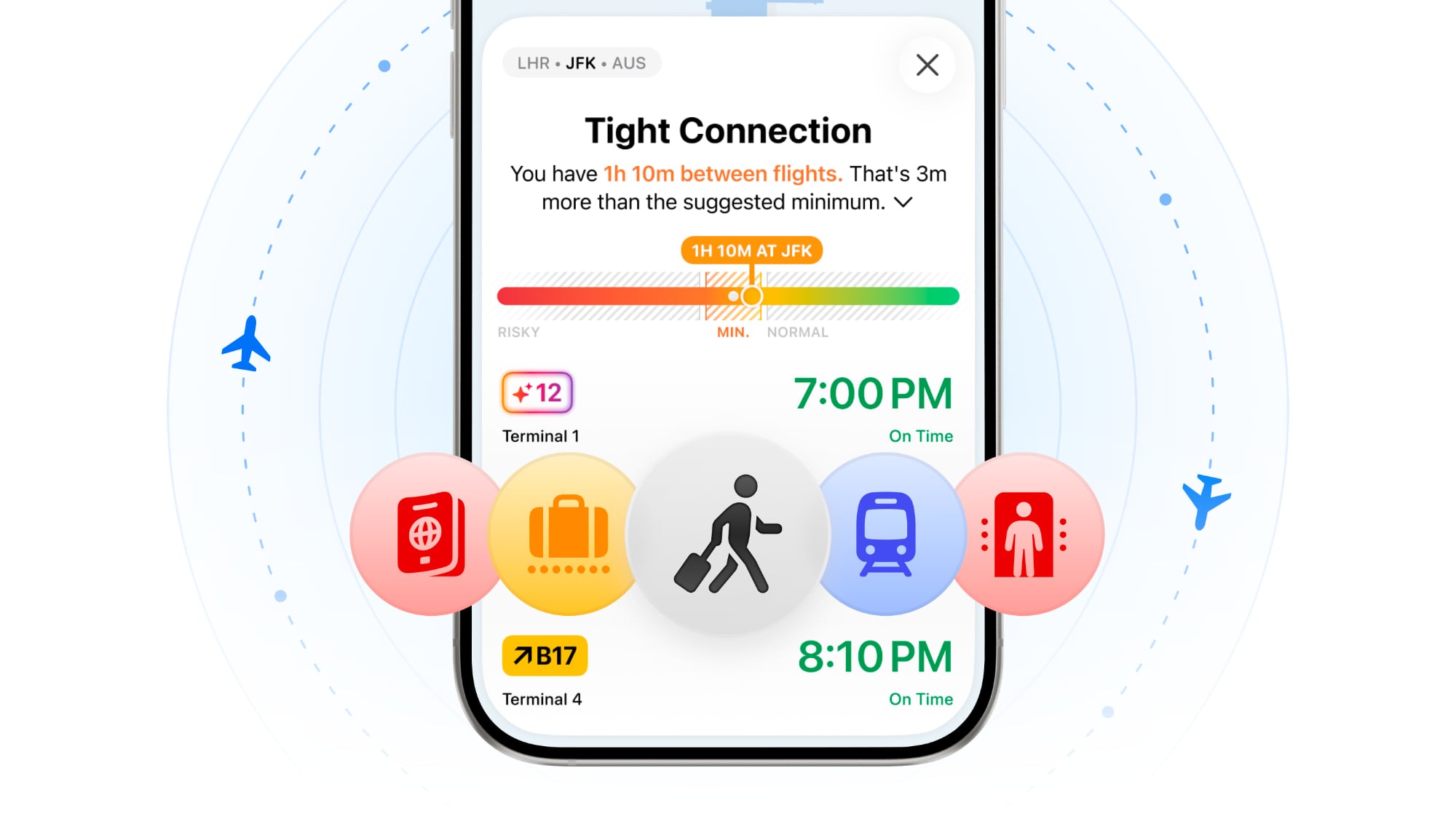
Connection Assistant gives flyers a step-by-step guide for all connections on a trip. It will outline whether users need to go through passport control, recheck a bag, go through security, or change terminals, and it gives an estimate of how long the process will take. Adding a passport to the app will let users know if they can use e-gates or skip passport control.
Users will get a heads-up on how tight a connecting flight is based on recommended minimums for planning purposes, and how long it typically takes to get from one flight to another. Flighty says Connection Assistant combines flight tracking data with airport-specific procedures and statistical modeling of millions of prior flights to create a custom walkthrough for each flight.
Flighty is also now able to predict arrival and departure gates, gate range, or concourse when a flight is first added to the app. The predictions are based on the flight's historical gates, and on the day of a connection, predictions will narrow to the exact gate.
Flighty can be downloaded from the App Store for free, with weekly, monthly, annual, and lifetime purchase options for Pro features.
This article, "Flighty Update Adds Step-by-Step Guide for Connecting Flights" first appeared on MacRumors.com
Discuss this article in our forums
Connection Assistant gives flyers a step-by-step guide for all connections on a trip. It will outline whether users need to go through passport control, recheck a bag, go through security, or change terminals, and it gives an estimate of how long the process will take. Adding a passport to the app will let users know if they can use e-gates or skip passport control.
Users will get a heads-up on how tight a connecting flight is based on recommended minimums for planning purposes, and how long it typically takes to get from one flight to another. Flighty says Connection Assistant combines flight tracking data with airport-specific procedures and statistical modeling of millions of prior flights to create a custom walkthrough for each flight.
Flighty is also now able to predict arrival and departure gates, gate range, or concourse when a flight is first added to the app. The predictions are based on the flight's historical gates, and on the day of a connection, predictions will narrow to the exact gate.
Flighty can be downloaded from the App Store for free, with weekly, monthly, annual, and lifetime purchase options for Pro features.
This article, "Flighty Update Adds Step-by-Step Guide for Connecting Flights" first appeared on MacRumors.com
Discuss this article in our forums
Recommended Comments
Join the conversation
You can post now and register later. If you have an account, sign in now to post with your account.