_811205.png)
_e196d8.png)
_32b3d9.png)
_1c53fe.png)

Maestral, the free lightweight open-source Dropbox client for Mac, has been retired, according to the project's maintainer, Sam Schott.
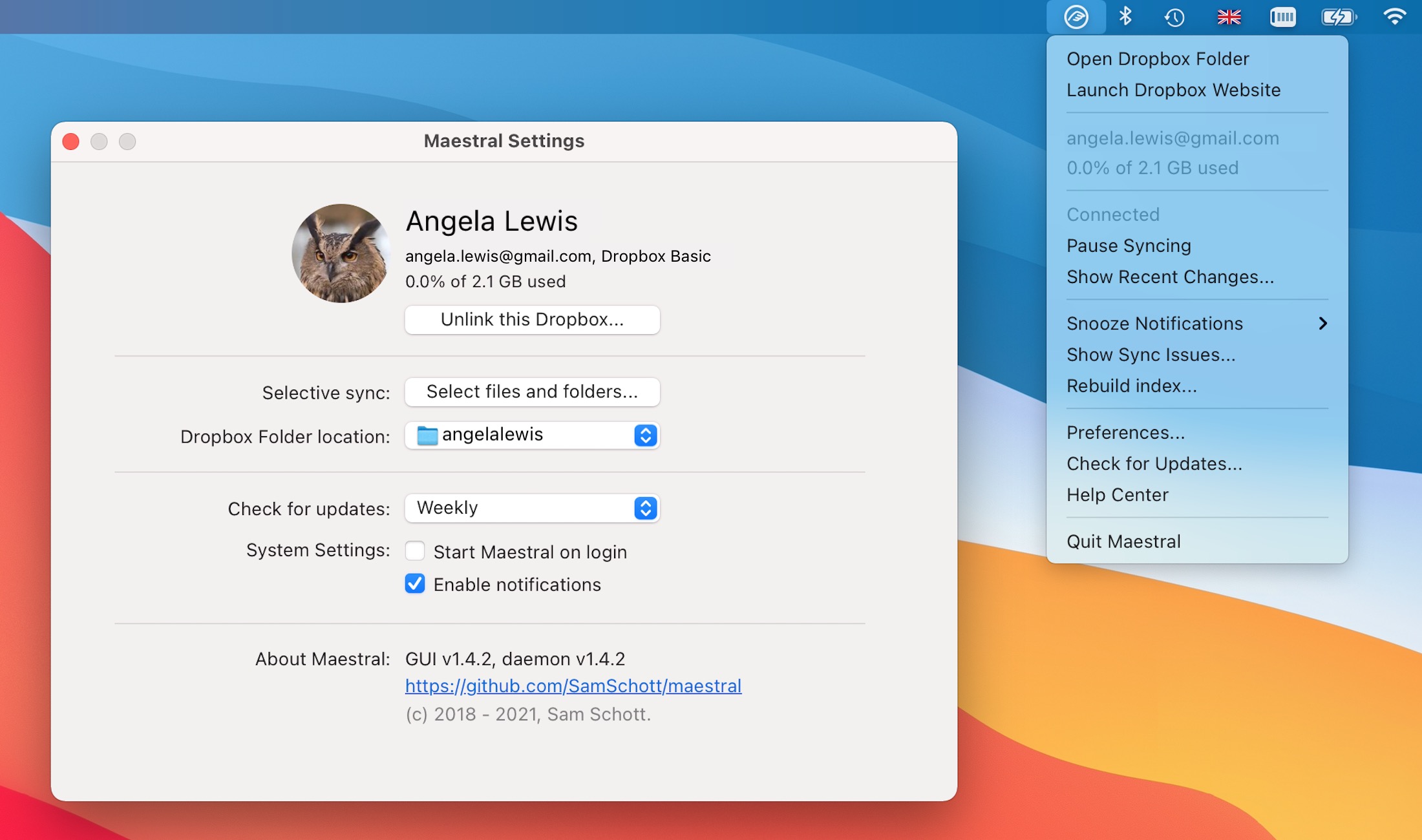
Over its seven-year life, Maestral has proven to be a popular client for users on platforms and file systems that are no longer directly supported by Dropbox. It has also been lauded for its simplicity, small app bundle size, and low memory usage compared to the official Dropbox app.
By cutting out Dropbox's client bloat, Maestral just runs silently in the background and syncs a local folder to Dropbox using the company's APIs. It also allows for configuring an unlimited number of Dropbox accounts, supports selective sync, and works on an unlimited number of devices – avoiding Dropbox's caps.
Schott, writing on the project's GitHub page:
This article, "Free Dropbox Client Maestral Will Eventually Stop Working" first appeared on MacRumors.com
Discuss this article in our forums
Over its seven-year life, Maestral has proven to be a popular client for users on platforms and file systems that are no longer directly supported by Dropbox. It has also been lauded for its simplicity, small app bundle size, and low memory usage compared to the official Dropbox app.
By cutting out Dropbox's client bloat, Maestral just runs silently in the background and syncs a local folder to Dropbox using the company's APIs. It also allows for configuring an unlimited number of Dropbox accounts, supports selective sync, and works on an unlimited number of devices – avoiding Dropbox's caps.
Schott, writing on the project's GitHub page:
As of 2026-07-28, this project is archived. It's been a fun challenge to develop a syncing client, but unfortunately, I find too little time to invest in Maestral these days. I've also moved away from using Dropbox myself.Schott says Maestral will still remain usable in the medium term – i.e., for as long as its certificates are valid – but it will no longer be actively maintained or receive updates. Unless someone else forks the project and takes it over, unfortunately it will eventually stop working.
Tag: Dropbox
This article, "Free Dropbox Client Maestral Will Eventually Stop Working" first appeared on MacRumors.com
Discuss this article in our forums
Recommended Comments
Join the conversation
You can post now and register later. If you have an account, sign in now to post with your account.