_811205.png)
_e196d8.png)
_32b3d9.png)
_1c53fe.png)

Apple's next Apple Watch Activity Challenge will begin on Thursday, January 1, with Apple Watch users able to earn an award by closing all three rings for seven days in a row in January.
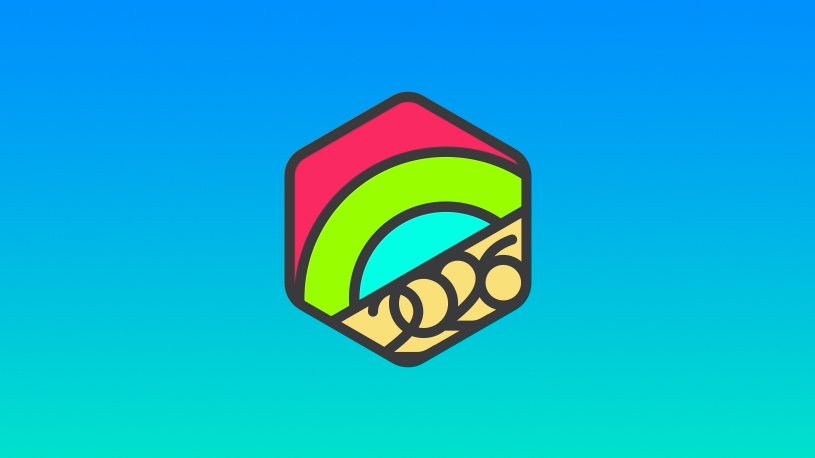
Apple Watch owners will need to complete their stand, exercise, and move goals for seven days sequentially at any time during the month of January to get the New Year's award. It will show up for Apple Watch owners starting on December 28, and can be completed between January 7 and January 31.
Like all of Apple's Activity Challenges, the New Year challenge will be accompanied by an award that can be viewed in the Fitness app as well as a series of animated stickers that can be used in the Messages app.




The Ring in the New Year Activity Challenge happens every January, and it is one of many Activity Challenges that Apple offers throughout the year to encourage people to meet their Fitness goals and stay active.
This article, "Get Ready to Earn the 2026 New Year Apple Watch Activity Challenge Badge" first appeared on MacRumors.com
Discuss this article in our forums
Start the year strong and stay active! Earn this award by closing all three Activity rings for seven days in a row in January.
Apple Watch owners will need to complete their stand, exercise, and move goals for seven days sequentially at any time during the month of January to get the New Year's award. It will show up for Apple Watch owners starting on December 28, and can be completed between January 7 and January 31.
Like all of Apple's Activity Challenges, the New Year challenge will be accompanied by an award that can be viewed in the Fitness app as well as a series of animated stickers that can be used in the Messages app.
The Ring in the New Year Activity Challenge happens every January, and it is one of many Activity Challenges that Apple offers throughout the year to encourage people to meet their Fitness goals and stay active.
Tag: Activity Challenge
This article, "Get Ready to Earn the 2026 New Year Apple Watch Activity Challenge Badge" first appeared on MacRumors.com
Discuss this article in our forums
Recommended Comments
Join the conversation
You can post now and register later. If you have an account, sign in now to post with your account.