_811205.png)
_e196d8.png)
_32b3d9.png)
_1c53fe.png)

Spam and cold calls have become such a nuisance that many people simply don't answer their phone unless they recognize the number. In iOS 26, though, you can learn about who's calling before you respond, thanks to a clever feature that intercepts unknown calls and asks the caller to identify themselves before your iPhone even rings.

The "Ask Reason for Calling" feature is kind of like having your own receptionist. When someone who isn't in your Contacts calls, your iPhone automatically answers the call with a polite automated message asking for their name and reason for calling. The caller is placed on hold while their response is transcribed to text and displayed on your screen, letting you decide whether to accept, decline, or ask for more information.
It's a decent upgrade from the existing "Silence Unknown Callers" option, which simply sends all unrecognized numbers straight to voicemail. With the new approach, legitimate callers – like your doctor or a delivery service – can identify themselves, whereas robocallers and spammers are likely to hang up when greeted by the automated response.
The following steps show you how to turn on the feature:
Open Settings on your iPhone.
Scroll down and tap Apps.
Select Phone.
Under the "Screen Unknown Callers" section, tap Ask Reason for Calling.
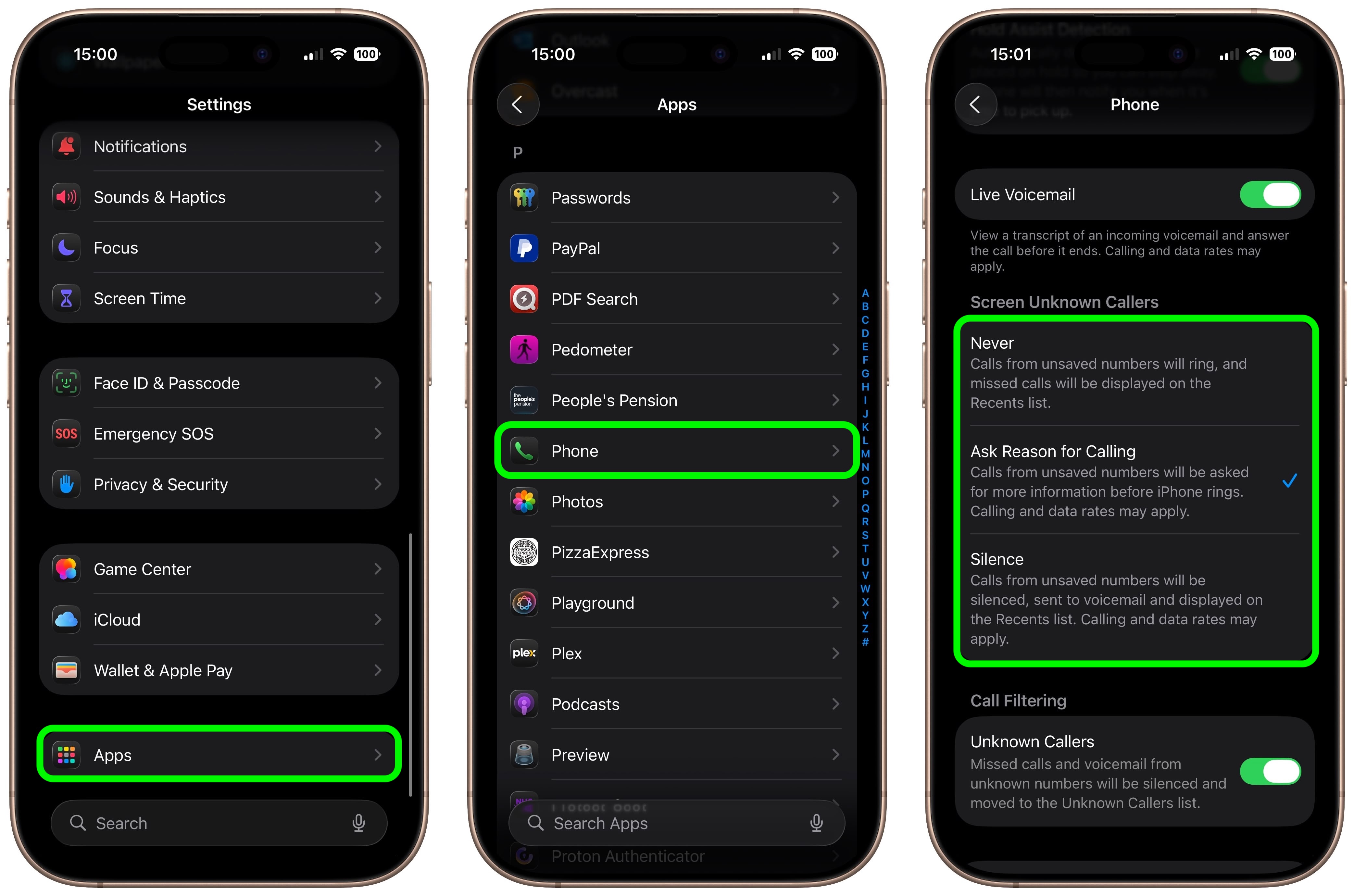
That's all there is to it. Your iPhone will now intercept calls from numbers not saved in your Contacts and request information before alerting you.
If you don't want to use the new Ask Reason for Calling feature, iOS 26 offers two alternative approaches for handling unknown numbers:
Never: With this setting, calls from unknown numbers ring normally, just like calls from saved contacts. Missed calls appear in your Recents list as usual. It's your typical iPhone calling experience.
To switch between these options, go to Settings ➝ Apps ➝ Phone, and select your preferred option under "Screen Unknown Callers."
The Ask Reason for Calling feature works best when you maintain an up-to-date Contacts list. Any number saved in Contacts will ring through normally without triggering the screening process, so make sure to add the details of legitimate contacts as soon as you know them.
This article, "Get Your iPhone to Ask Callers Who They Are Before You Answer" first appeared on MacRumors.com
Discuss this article in our forums
The "Ask Reason for Calling" feature is kind of like having your own receptionist. When someone who isn't in your Contacts calls, your iPhone automatically answers the call with a polite automated message asking for their name and reason for calling. The caller is placed on hold while their response is transcribed to text and displayed on your screen, letting you decide whether to accept, decline, or ask for more information.
It's a decent upgrade from the existing "Silence Unknown Callers" option, which simply sends all unrecognized numbers straight to voicemail. With the new approach, legitimate callers – like your doctor or a delivery service – can identify themselves, whereas robocallers and spammers are likely to hang up when greeted by the automated response.
How to Enable Ask Reason for Calling
The following steps show you how to turn on the feature:
Open Settings on your iPhone.
Scroll down and tap Apps.
Select Phone.
Under the "Screen Unknown Callers" section, tap Ask Reason for Calling.
That's all there is to it. Your iPhone will now intercept calls from numbers not saved in your Contacts and request information before alerting you.
Other Unknown Caller Screening Options
If you don't want to use the new Ask Reason for Calling feature, iOS 26 offers two alternative approaches for handling unknown numbers:
- Silence: This option automatically sends all calls from unsaved numbers to voicemail. The calls still appear in your Recents list, and you'll receive the voicemail if the caller leaves one. It's the same behavior as the "Silence Unknown Callers" toggle in iOS 18.
Never: With this setting, calls from unknown numbers ring normally, just like calls from saved contacts. Missed calls appear in your Recents list as usual. It's your typical iPhone calling experience.
To switch between these options, go to Settings ➝ Apps ➝ Phone, and select your preferred option under "Screen Unknown Callers."
The Ask Reason for Calling feature works best when you maintain an up-to-date Contacts list. Any number saved in Contacts will ring through normally without triggering the screening process, so make sure to add the details of legitimate contacts as soon as you know them.
This article, "Get Your iPhone to Ask Callers Who They Are Before You Answer" first appeared on MacRumors.com
Discuss this article in our forums
Recommended Comments
Join the conversation
You can post now and register later. If you have an account, sign in now to post with your account.