_811205.png)
_e196d8.png)
_32b3d9.png)
_1c53fe.png)

Google today said it is introducing updated file sharing features that will make it easier for Android users to send files to iPhone users.
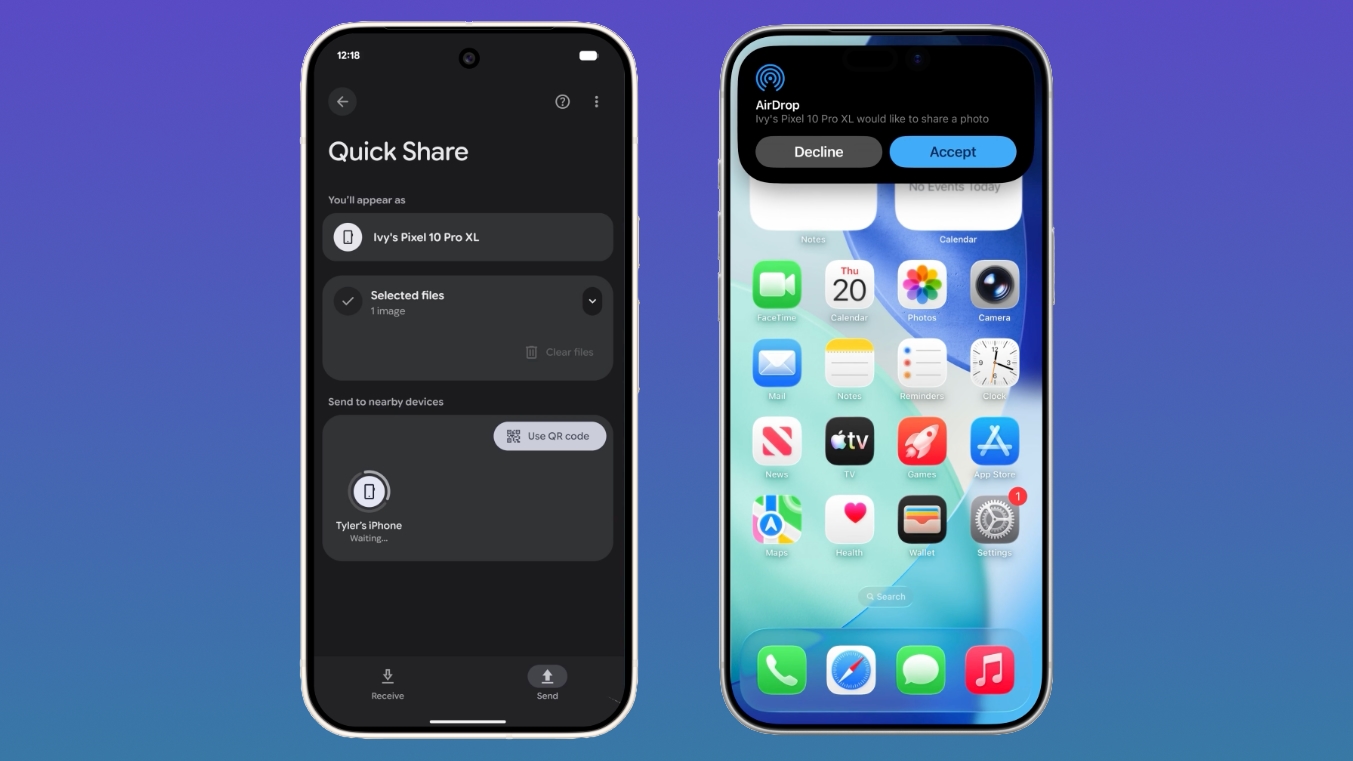
Quick Share is already compatible with Apple's AirDrop feature on select Android devices, but Google says the feature will expand to Samsung, OPPO, OnePlus, Vivo, Xiaomi, and HONOR devices in 2026.
On Android devices that are not compatible with AirDrop, Quick Share can be used to generate a QR code that can instantly share content with iOS devices via the cloud.
The QR code sharing feature is rolling out to all Android devices starting today, and will be fully available within the next month. Google says it also plans to make Quick Share available in apps like WhatsApp in the near future.
Google says that it also worked with Apple to make it easier to switch from an iPhone to an Android device, capabilities the two companies had to implement under Europe's Digital Markets Act. While Apple implemented the feature in iOS 26.3, Google says it will be coming to Samsung Galaxy and Google Pixel devices in 2026.
The transfer process will allow eSIM, passwords, photos, messages, apps, contacts, and Home Screen layout to migrate wirelessly from an iPhone to an Android device. Google has also implemented similar tools for simplifying switching between an Android device and an iPhone.
This article, "Google Makes It Easier to Share Files Between Android and iPhone" first appeared on MacRumors.com
Discuss this article in our forums
Quick Share is already compatible with Apple's AirDrop feature on select Android devices, but Google says the feature will expand to Samsung, OPPO, OnePlus, Vivo, Xiaomi, and HONOR devices in 2026.
On Android devices that are not compatible with AirDrop, Quick Share can be used to generate a QR code that can instantly share content with iOS devices via the cloud.
The QR code sharing feature is rolling out to all Android devices starting today, and will be fully available within the next month. Google says it also plans to make Quick Share available in apps like WhatsApp in the near future.
Google says that it also worked with Apple to make it easier to switch from an iPhone to an Android device, capabilities the two companies had to implement under Europe's Digital Markets Act. While Apple implemented the feature in iOS 26.3, Google says it will be coming to Samsung Galaxy and Google Pixel devices in 2026.
The transfer process will allow eSIM, passwords, photos, messages, apps, contacts, and Home Screen layout to migrate wirelessly from an iPhone to an Android device. Google has also implemented similar tools for simplifying switching between an Android device and an iPhone.
This article, "Google Makes It Easier to Share Files Between Android and iPhone" first appeared on MacRumors.com
Discuss this article in our forums
Recommended Comments
Join the conversation
You can post now and register later. If you have an account, sign in now to post with your account.