_811205.png)
_e196d8.png)
_32b3d9.png)
_1c53fe.png)

Google is rolling out a redesigned video editor on iOS devices, providing an updated design that is "faster and easier to use." There's a universal timeline with support for multi-clip editing and storytelling, plus an adaptive canvas that makes editing simpler.
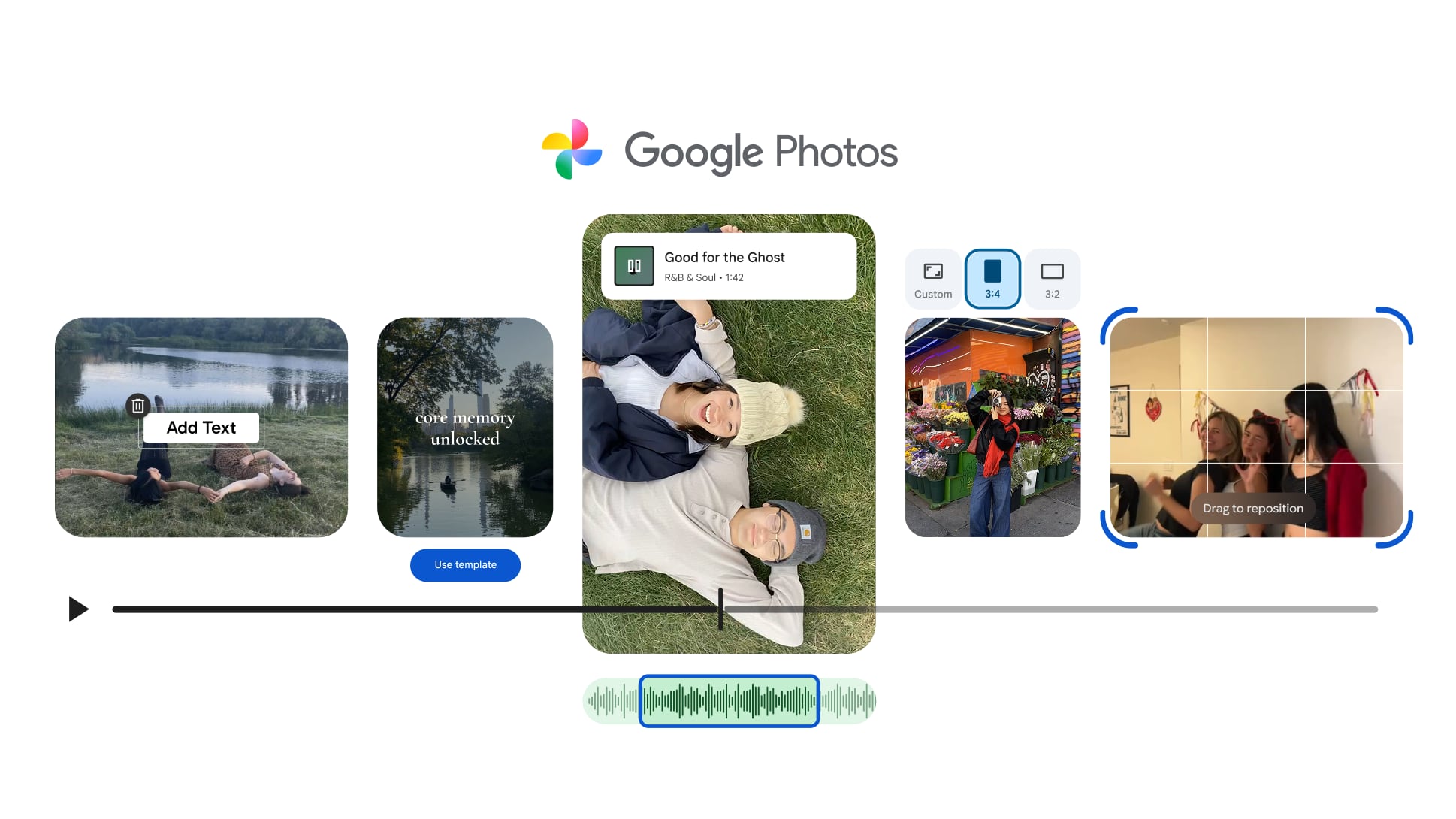
Tools that you need to edit photos and videos are easier to access, and Google says "everything you need is right where you expect it to be."
When creating videos, users can browse the Photos music library and quickly add a soundtrack to a highlight video.
There are also several features that are available on Android devices that could expand to iOS devices in the future. Android users have access to templates with pre-set formats that include built-in music, text, and cuts that are synced to a soundtrack, along with the option to add custom text overlays.
Google says that the new features will be available to users starting today.
This article, "Google Photos for iOS Gets Redesigned Video Editor" first appeared on MacRumors.com
Discuss this article in our forums
Tools that you need to edit photos and videos are easier to access, and Google says "everything you need is right where you expect it to be."
When creating videos, users can browse the Photos music library and quickly add a soundtrack to a highlight video.
There are also several features that are available on Android devices that could expand to iOS devices in the future. Android users have access to templates with pre-set formats that include built-in music, text, and cuts that are synced to a soundtrack, along with the option to add custom text overlays.
Google says that the new features will be available to users starting today.
This article, "Google Photos for iOS Gets Redesigned Video Editor" first appeared on MacRumors.com
Discuss this article in our forums
Recommended Comments
Join the conversation
You can post now and register later. If you have an account, sign in now to post with your account.