_811205.png)
_e196d8.png)
_32b3d9.png)
_1c53fe.png)

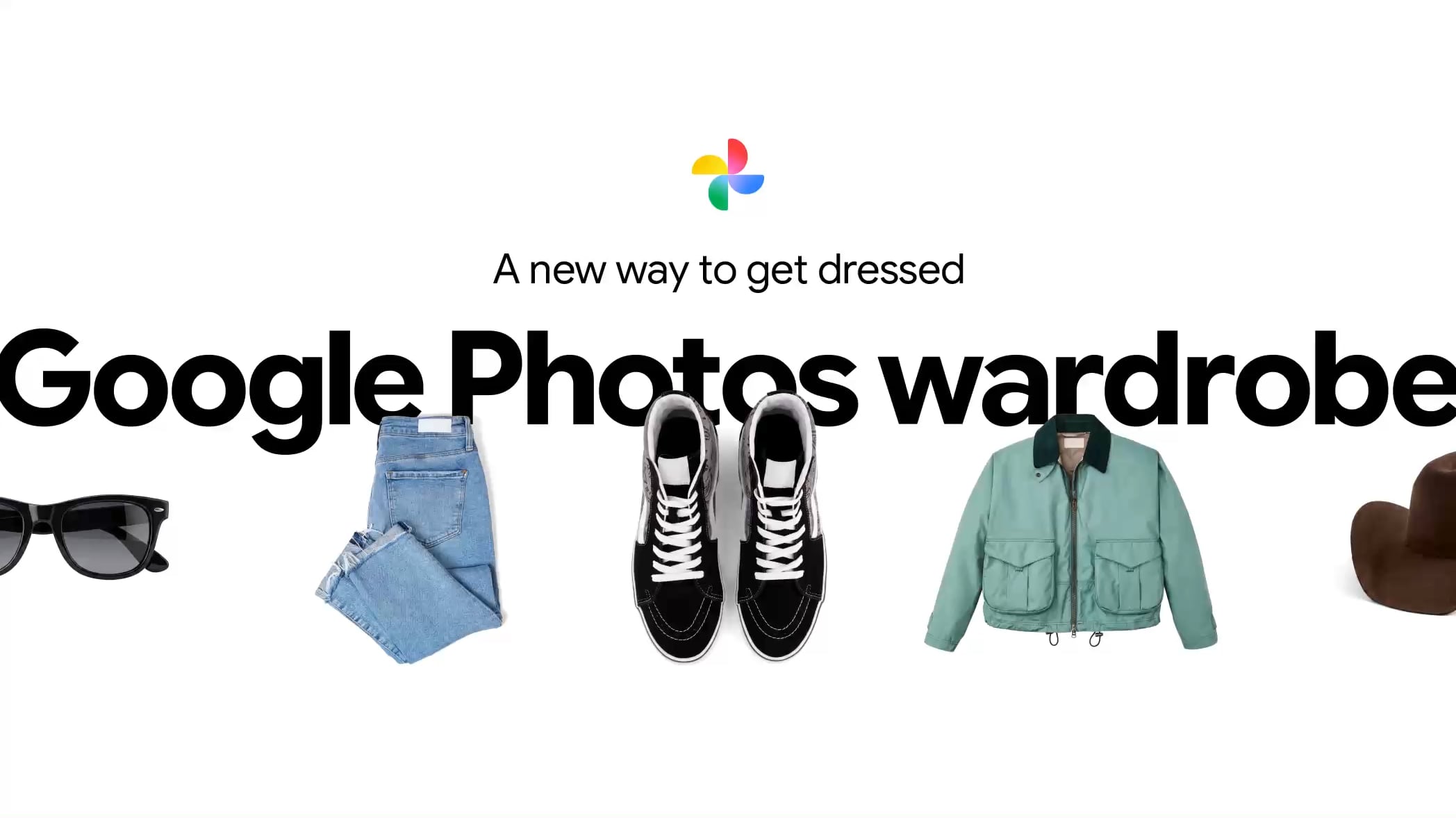
Google Photos is getting a new wardrobe planning feature that will help you decide what to wear. AI will pull in images of clothing from the Google Photos library, organizing clothing items into a digital closet. You will be able to put items together to create outfits, and even virtually try them with a digital avatar on to see how they'll look.
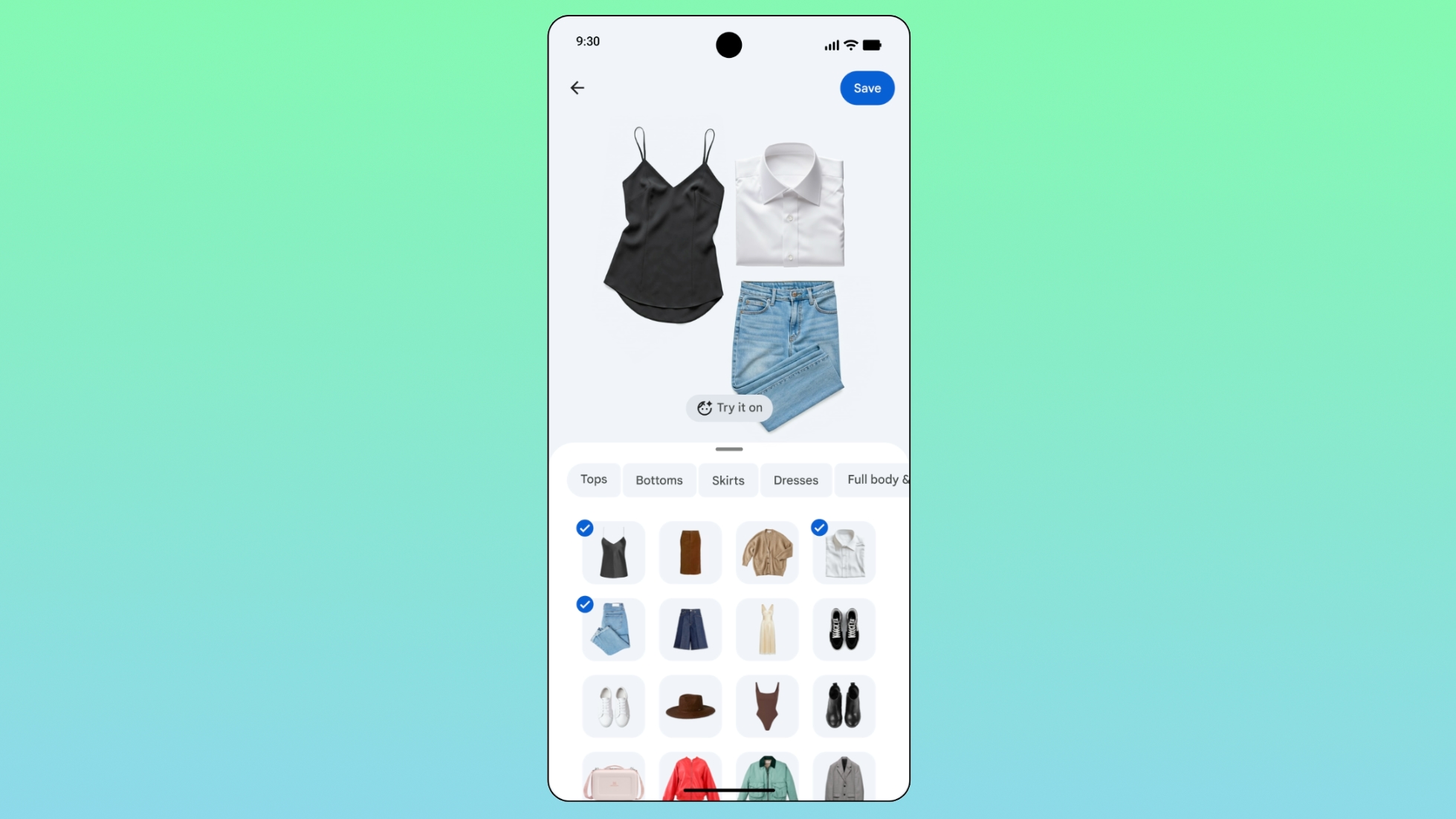
The Google Photos app will show all items of clothing in a new Wardrobe section in the Collections tab. Clothing can also be viewed in specific categories like tops or bottoms. Items of clothing can be mixed and matched to create outfits, and the results can be shared with friends or saved to a digital moodboard.
In the popular 1995 comedy Clueless, main character Cher Horowitz has an iconic digital wardrobe that Google seems to be making a reality with Google Photos. Cher uses a touchscreen computer to swipe through the clothes in her wardrobe, pairing different tops and bottoms to create an outfit. A built-in "Dress Me" button tells her if two items go together, and if they do, she can preview the clothes on a digital version of herself.
Google's version of the Clueless virtual wardrobe will be coming to Google Photos this summer. Google says it will be available to Android users first, and then iOS users.
This article, "Google Photos to Get AI 'Wardrobe' Feature" first appeared on MacRumors.com
Discuss this article in our forums
The Google Photos app will show all items of clothing in a new Wardrobe section in the Collections tab. Clothing can also be viewed in specific categories like tops or bottoms. Items of clothing can be mixed and matched to create outfits, and the results can be shared with friends or saved to a digital moodboard.
In the popular 1995 comedy Clueless, main character Cher Horowitz has an iconic digital wardrobe that Google seems to be making a reality with Google Photos. Cher uses a touchscreen computer to swipe through the clothes in her wardrobe, pairing different tops and bottoms to create an outfit. A built-in "Dress Me" button tells her if two items go together, and if they do, she can preview the clothes on a digital version of herself.
Google's version of the Clueless virtual wardrobe will be coming to Google Photos this summer. Google says it will be available to Android users first, and then iOS users.
This article, "Google Photos to Get AI 'Wardrobe' Feature" first appeared on MacRumors.com
Discuss this article in our forums
Recommended Comments
Join the conversation
You can post now and register later. If you have an account, sign in now to post with your account.