_811205.png)
_e196d8.png)
_32b3d9.png)
_1c53fe.png)

Google is expanding AI Mode in Search, allowing users to connect apps to improve search results and "get more done."
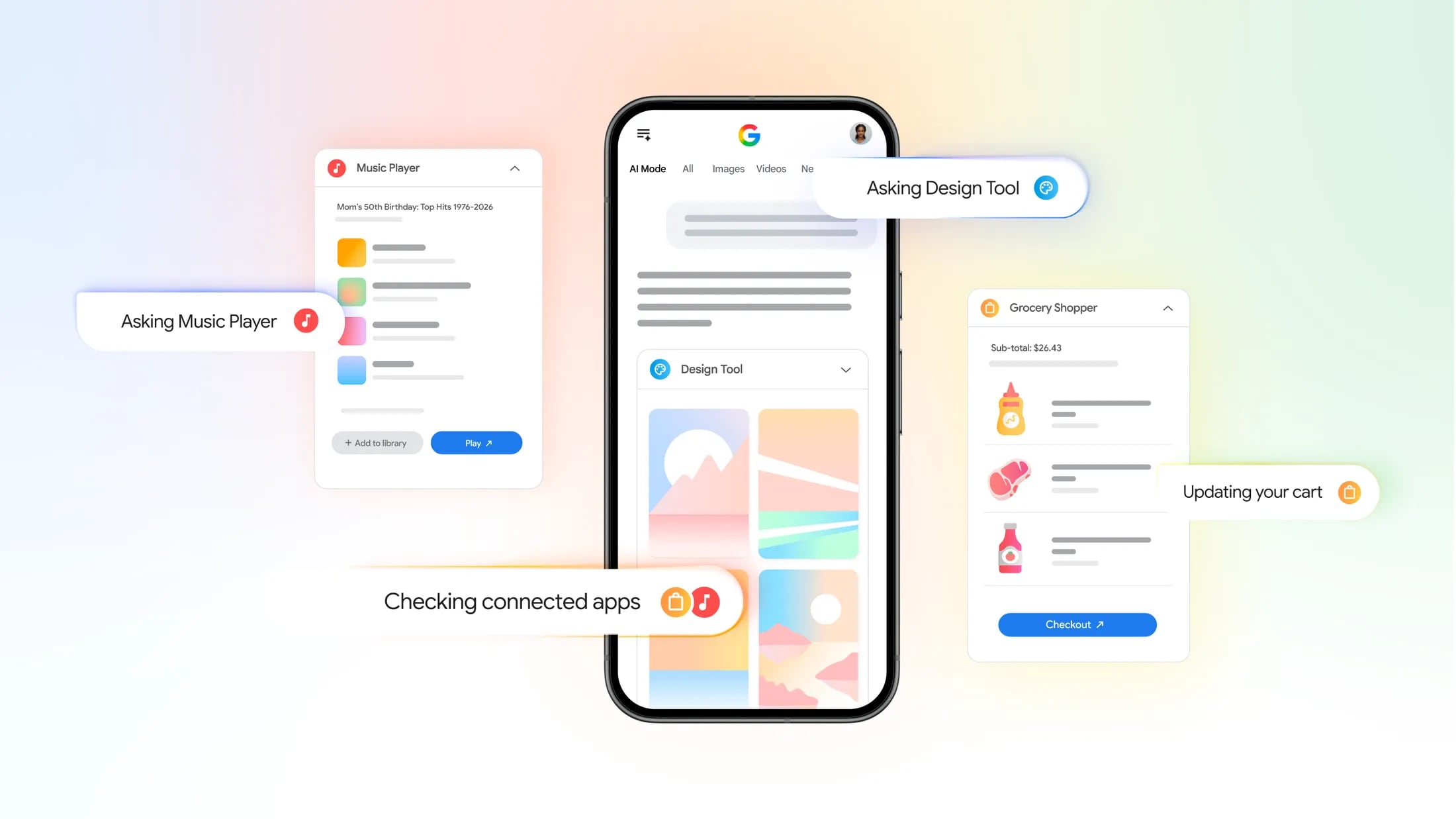
Instacart, YouTube Music, and Canva can be connected, and Google explains how the integrations can be useful:
Instacart - If you're using AI Mode to help you plan a grocery list, ingredients can be added right to an Instacart shopping cart for quick ordering.
Canva - If you're creating a flyer, you can get template options from Canva.
YouTube Music - You can use AI Mode to curate a playlist and save it to YouTube Music.
Instacart, Canva, and YouTube Music are the only apps that can be connected right now, but Google may add more in the future. Connected apps were previously available in Gemini, but the feature set is now being expanded to Search.
Connecting apps is limited to AI Mode in the United States, in English. Once an app is connected, users are able to access new features when making a request in Google Search AI Mode. Connected apps can be used in Search both on the desktop and through the Google Search iOS app.
Google suggests users turn on history and personalized recommendations to improve the Google Search experience. Google says it uses people's interactions with Search and the new AI features to develop and improve generative AI experiences.
This article, "Google Search Now Connects to Instacart, Canva and YouTube Music" first appeared on MacRumors.com
Discuss this article in our forums
Instacart, YouTube Music, and Canva can be connected, and Google explains how the integrations can be useful:
Instacart - If you're using AI Mode to help you plan a grocery list, ingredients can be added right to an Instacart shopping cart for quick ordering.
Canva - If you're creating a flyer, you can get template options from Canva.
YouTube Music - You can use AI Mode to curate a playlist and save it to YouTube Music.
Instacart, Canva, and YouTube Music are the only apps that can be connected right now, but Google may add more in the future. Connected apps were previously available in Gemini, but the feature set is now being expanded to Search.
Connecting apps is limited to AI Mode in the United States, in English. Once an app is connected, users are able to access new features when making a request in Google Search AI Mode. Connected apps can be used in Search both on the desktop and through the Google Search iOS app.
Google suggests users turn on history and personalized recommendations to improve the Google Search experience. Google says it uses people's interactions with Search and the new AI features to develop and improve generative AI experiences.
Tag: Google
This article, "Google Search Now Connects to Instacart, Canva and YouTube Music" first appeared on MacRumors.com
Discuss this article in our forums
Recommended Comments
Join the conversation
You can post now and register later. If you have an account, sign in now to post with your account.