_811205.png)
_e196d8.png)
_32b3d9.png)
_1c53fe.png)

Sebastiaan de With, co-founder of the popular iPhone camera app Halide, today announced that he has joined the Human Interface Design team at Apple.
"So excited to work with the very best team in the world on my favorite products," he said.
This marks a return to Apple for de With, who previously worked on things such as iCloud, MobileMe, and the Find My app. He has also completed design work for other companies, such as Sony, Mozilla, Oracle, HP, and EA, in the past.
de With is a well-known figure in the online Apple and photography communities.
Apple's design team is undergoing many changes. Last year, the company's former software design chief Alan Dye left for Meta, and Apple's hardware engineering chief and leading CEO candidate John Ternus was reportedly tapped to oversee the company's entire hardware and software design teams towards the end of last year.
Over the past several years, some Apple designers have left to work with Jony Ive, the legendary former Apple design chief. Ive left Apple in 2019 to start his own design firm LoveFrom, and he has been working with OpenAI on a new AI device.
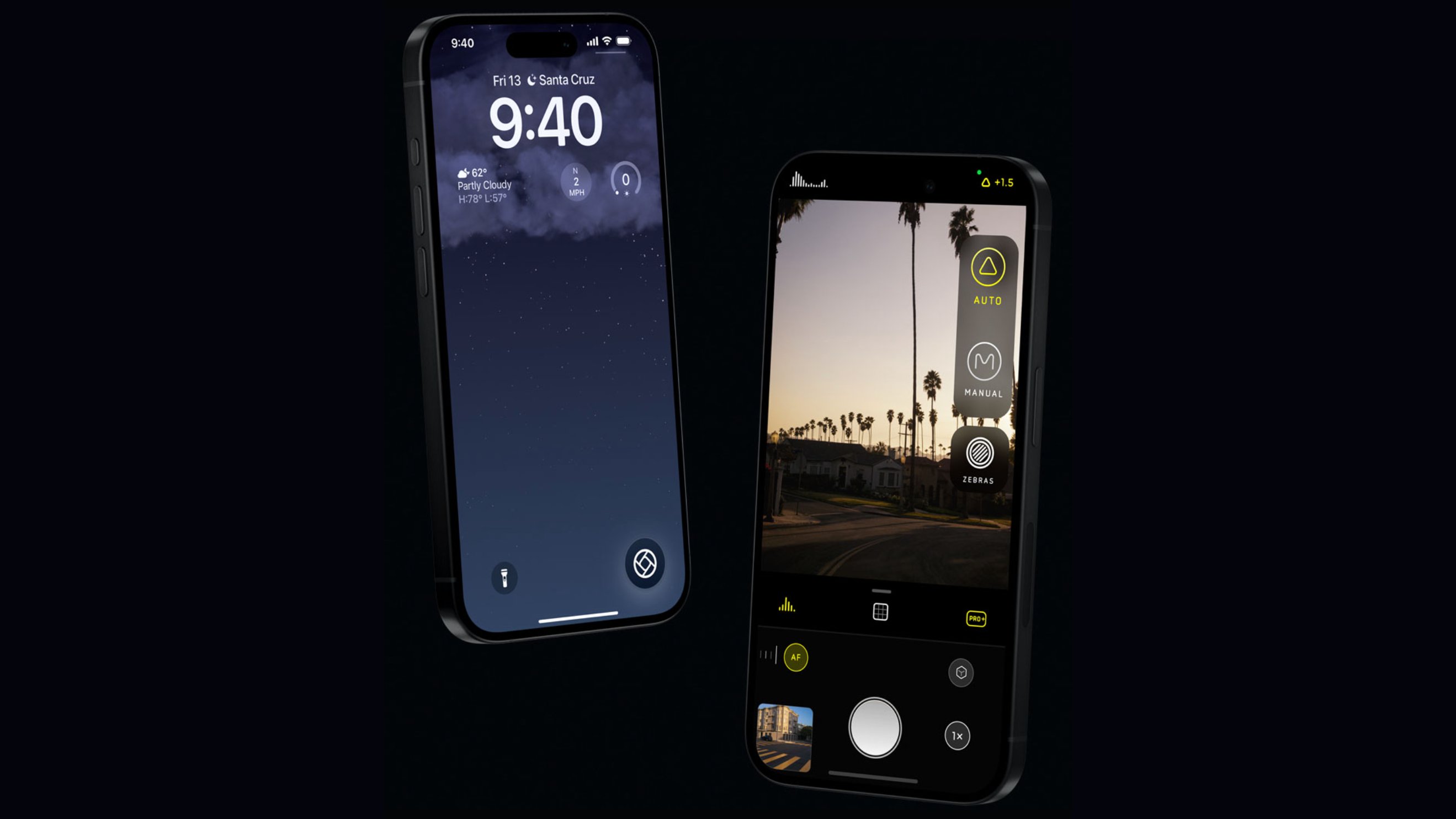
In related news, Halide's parent company Lux today launched a public preview of Halide Mark III, the next-generation version of its flagship camera app.
This article, "'Halide' Co-Founder Sebastiaan de With Joins Apple's Design Team" first appeared on MacRumors.com
Discuss this article in our forums
"So excited to work with the very best team in the world on my favorite products," he said.
This marks a return to Apple for de With, who previously worked on things such as iCloud, MobileMe, and the Find My app. He has also completed design work for other companies, such as Sony, Mozilla, Oracle, HP, and EA, in the past.
de With is a well-known figure in the online Apple and photography communities.
Apple's design team is undergoing many changes. Last year, the company's former software design chief Alan Dye left for Meta, and Apple's hardware engineering chief and leading CEO candidate John Ternus was reportedly tapped to oversee the company's entire hardware and software design teams towards the end of last year.
Over the past several years, some Apple designers have left to work with Jony Ive, the legendary former Apple design chief. Ive left Apple in 2019 to start his own design firm LoveFrom, and he has been working with OpenAI on a new AI device.
In related news, Halide's parent company Lux today launched a public preview of Halide Mark III, the next-generation version of its flagship camera app.
This article, "'Halide' Co-Founder Sebastiaan de With Joins Apple's Design Team" first appeared on MacRumors.com
Discuss this article in our forums
Recommended Comments
Join the conversation
You can post now and register later. If you have an account, sign in now to post with your account.