_811205.png)
_e196d8.png)
_32b3d9.png)
_1c53fe.png)

Apple today unveiled macOS Golden Gate, the next major version of its Mac operating system, during its WWDC 2026 keynote.
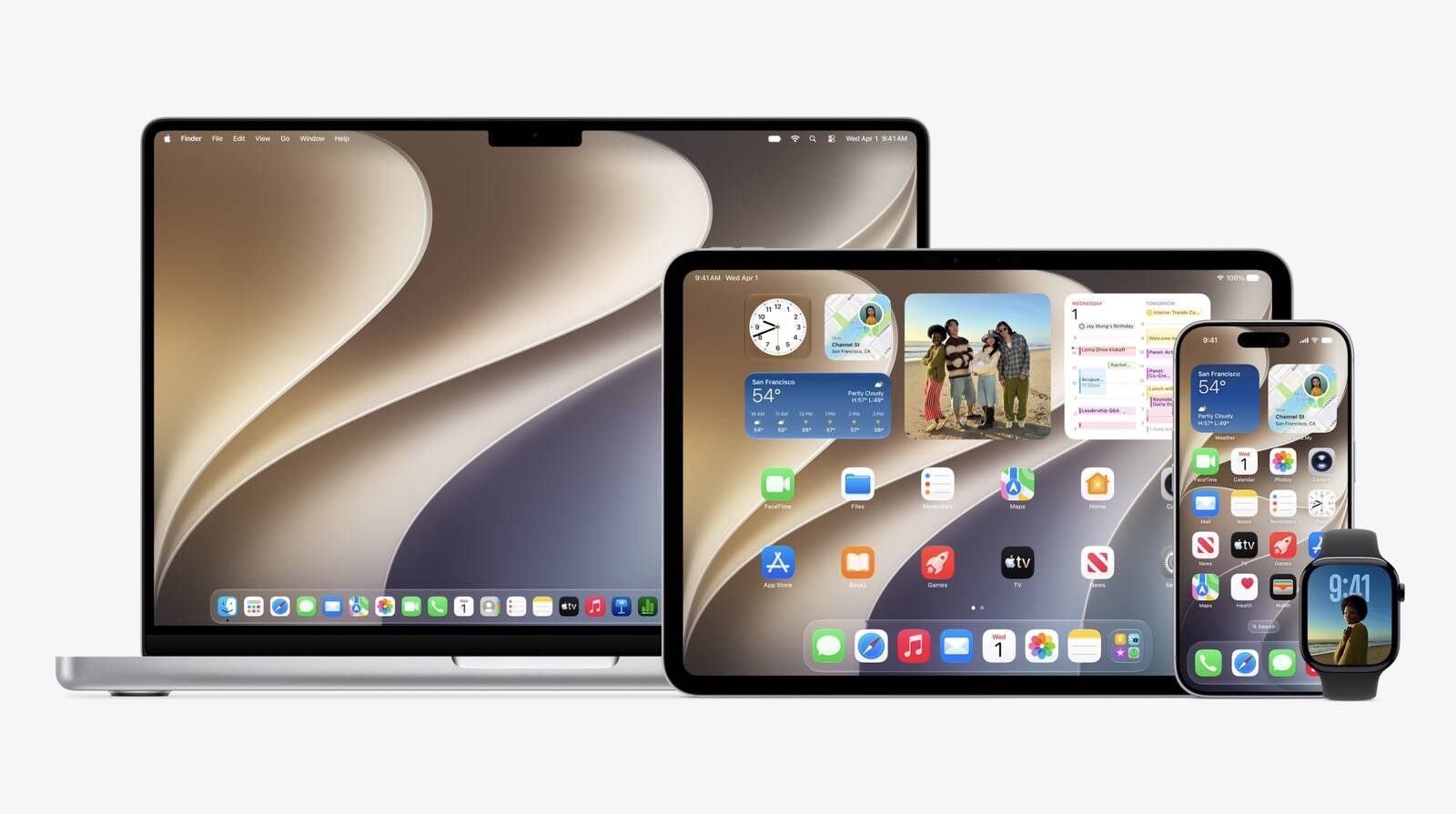
As expected, the update confirms the end of Intel Mac support. Apple said last year that macOS Tahoe would be the final release to run on pre-Apple silicon machines, and macOS 27 makes that official – you'll need an Apple silicon Mac to install it.
Here are the Macs compatible with macOS Golden Gate:
MacBook Neo (2026)
MacBook Air with Apple silicon (2020 and later)
MacBook Pro with Apple silicon (2020 and later)
iMac with Apple silicon (2021 and later)
Mac mini with Apple silicon (2020 and later)
Mac Studio with Apple silicon (2022 and later)
Mac Pro with Apple silicon (2023 and later)
Four models that ran macOS Tahoe didn't make the cut this year. They include the MacBook Pro (16-inch, 2019), the MacBook Pro (13-inch, 2020, Four Thunderbolt 3 ports), the iMac (2020), and the Mac Pro (2019).
Owners of those machines aren't entirely out of luck, however. Apple usually keeps issuing security fixes for the previous macOS version well after it's superseded, so anyone sticking with Tahoe will continue to get the necessary patches. But for the latest features, though, the only path forward is a newer Mac.
This article, "Here Are the Macs Compatible With macOS Golden Gate" first appeared on MacRumors.com
Discuss this article in our forums
As expected, the update confirms the end of Intel Mac support. Apple said last year that macOS Tahoe would be the final release to run on pre-Apple silicon machines, and macOS 27 makes that official – you'll need an Apple silicon Mac to install it.
Here are the Macs compatible with macOS Golden Gate:
MacBook Neo (2026)
MacBook Air with Apple silicon (2020 and later)
MacBook Pro with Apple silicon (2020 and later)
iMac with Apple silicon (2021 and later)
Mac mini with Apple silicon (2020 and later)
Mac Studio with Apple silicon (2022 and later)
Mac Pro with Apple silicon (2023 and later)
Four models that ran macOS Tahoe didn't make the cut this year. They include the MacBook Pro (16-inch, 2019), the MacBook Pro (13-inch, 2020, Four Thunderbolt 3 ports), the iMac (2020), and the Mac Pro (2019).
Owners of those machines aren't entirely out of luck, however. Apple usually keeps issuing security fixes for the previous macOS version well after it's superseded, so anyone sticking with Tahoe will continue to get the necessary patches. But for the latest features, though, the only path forward is a newer Mac.
Tag: WWDC 2026
This article, "Here Are the Macs Compatible With macOS Golden Gate" first appeared on MacRumors.com
Discuss this article in our forums
Recommended Comments
Join the conversation
You can post now and register later. If you have an account, sign in now to post with your account.