_811205.png)
_e196d8.png)
_32b3d9.png)
_1c53fe.png)

Apple is phasing out support for Rosetta 2, which is a feature that allows Intel-based apps to run on Apple silicon Macs. Rosetta is going to stop working for most apps in macOS 28, and when that happens, apps that use it will stop working.
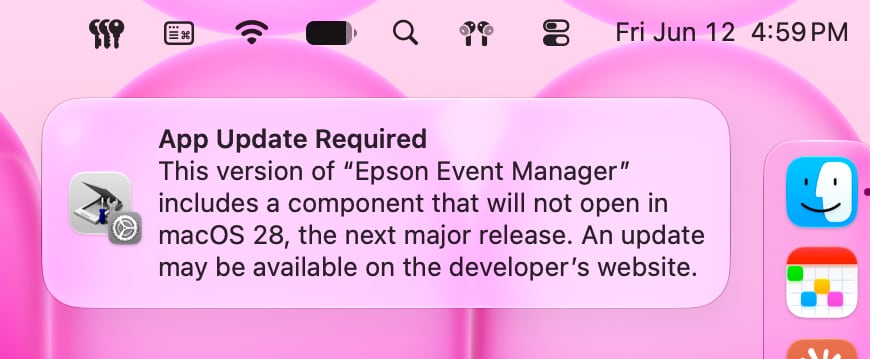
Apple began warning customers and companies about the upcoming sunsetting of Rosetta with macOS Tahoe, and the warnings go even further in macOS Golden Gate.
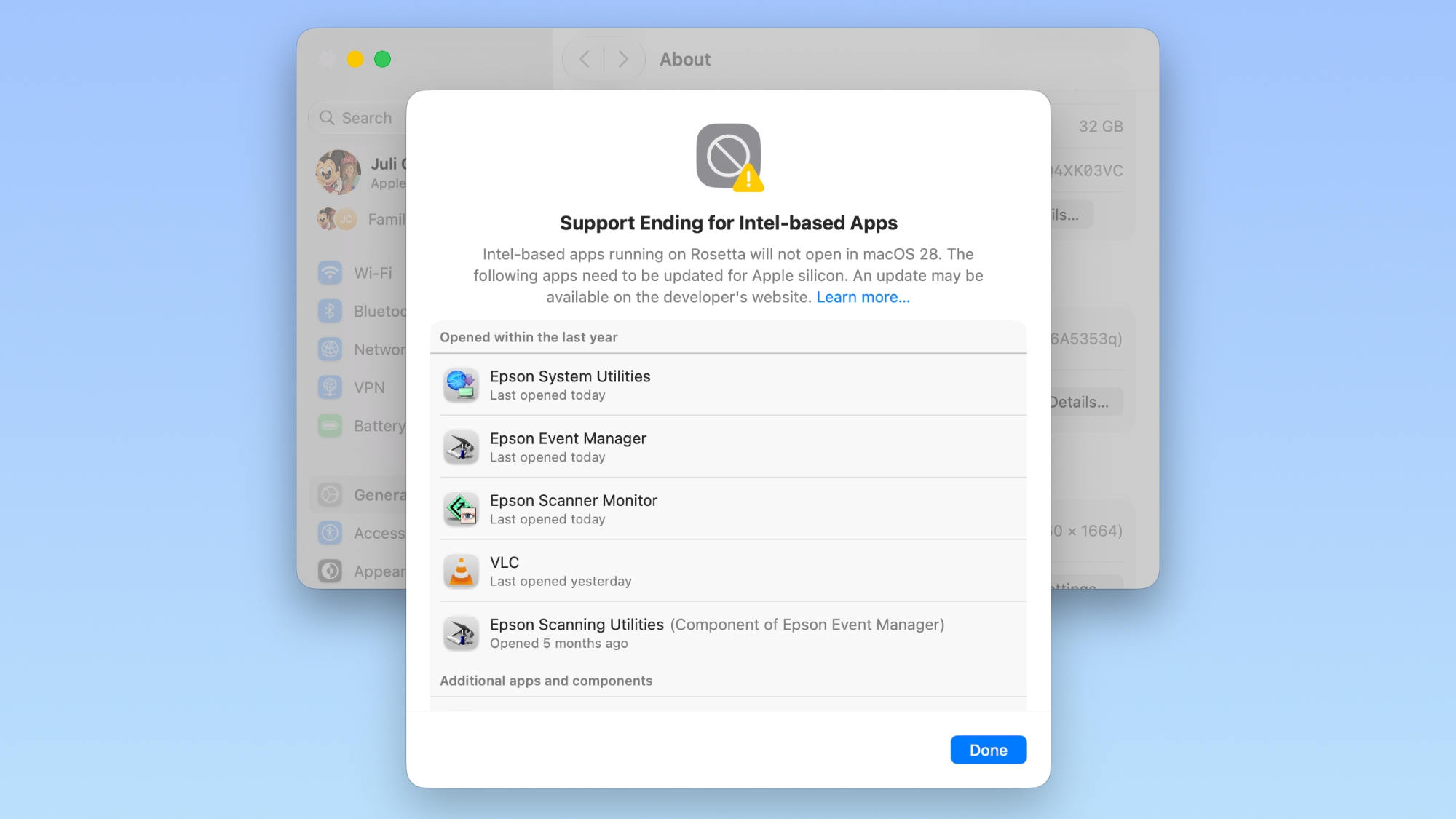
If you have apps that still use Rosetta, you'll get a warning every time you restart your Mac or open an Intel app. macOS Golden Gate also adds a new list where you can check which apps are going to stop working in the future.
You can get to the list by going to Settings > General > About > Intel-Based apps and clicking on the "Details" option.
The interface lists all of the apps that are going to stop working, giving Mac users plenty of time to contact app developers or find alternative apps.
macOS Golden Gate does not install Rosetta automatically, so if you still have these outdated Intel apps, there will be a short installation when you try to open one for the first time after upgrading to Golden Gate. Authentication plugins and other pre-login utilities that require Rosetta fail to load in macOS Golden Gate because of the limitation.
Apple designed Rosetta to help users and developers transition from Intel to Apple silicon, but Apple phased out the last Intel-based Mac years ago. Apple only sells Apple silicon Macs, and it is slowly ending support for Intel-based models.
macOS Tahoe was the final version of macOS available for Intel Macs, and macOS Golden Gate requires a Mac with an Apple silicon chip.
This article, "How to See Which Mac Apps Will Stop Working After macOS Golden Gate" first appeared on MacRumors.com
Discuss this article in our forums
Apple began warning customers and companies about the upcoming sunsetting of Rosetta with macOS Tahoe, and the warnings go even further in macOS Golden Gate.
If you have apps that still use Rosetta, you'll get a warning every time you restart your Mac or open an Intel app. macOS Golden Gate also adds a new list where you can check which apps are going to stop working in the future.
You can get to the list by going to Settings > General > About > Intel-Based apps and clicking on the "Details" option.
The interface lists all of the apps that are going to stop working, giving Mac users plenty of time to contact app developers or find alternative apps.
macOS Golden Gate does not install Rosetta automatically, so if you still have these outdated Intel apps, there will be a short installation when you try to open one for the first time after upgrading to Golden Gate. Authentication plugins and other pre-login utilities that require Rosetta fail to load in macOS Golden Gate because of the limitation.
Apple designed Rosetta to help users and developers transition from Intel to Apple silicon, but Apple phased out the last Intel-based Mac years ago. Apple only sells Apple silicon Macs, and it is slowly ending support for Intel-based models.
macOS Tahoe was the final version of macOS available for Intel Macs, and macOS Golden Gate requires a Mac with an Apple silicon chip.
Related Roundup: macOS Golden Gate
This article, "How to See Which Mac Apps Will Stop Working After macOS Golden Gate" first appeared on MacRumors.com
Discuss this article in our forums
Recommended Comments
Join the conversation
You can post now and register later. If you have an account, sign in now to post with your account.