_811205.png)
_e196d8.png)
_32b3d9.png)
_1c53fe.png)

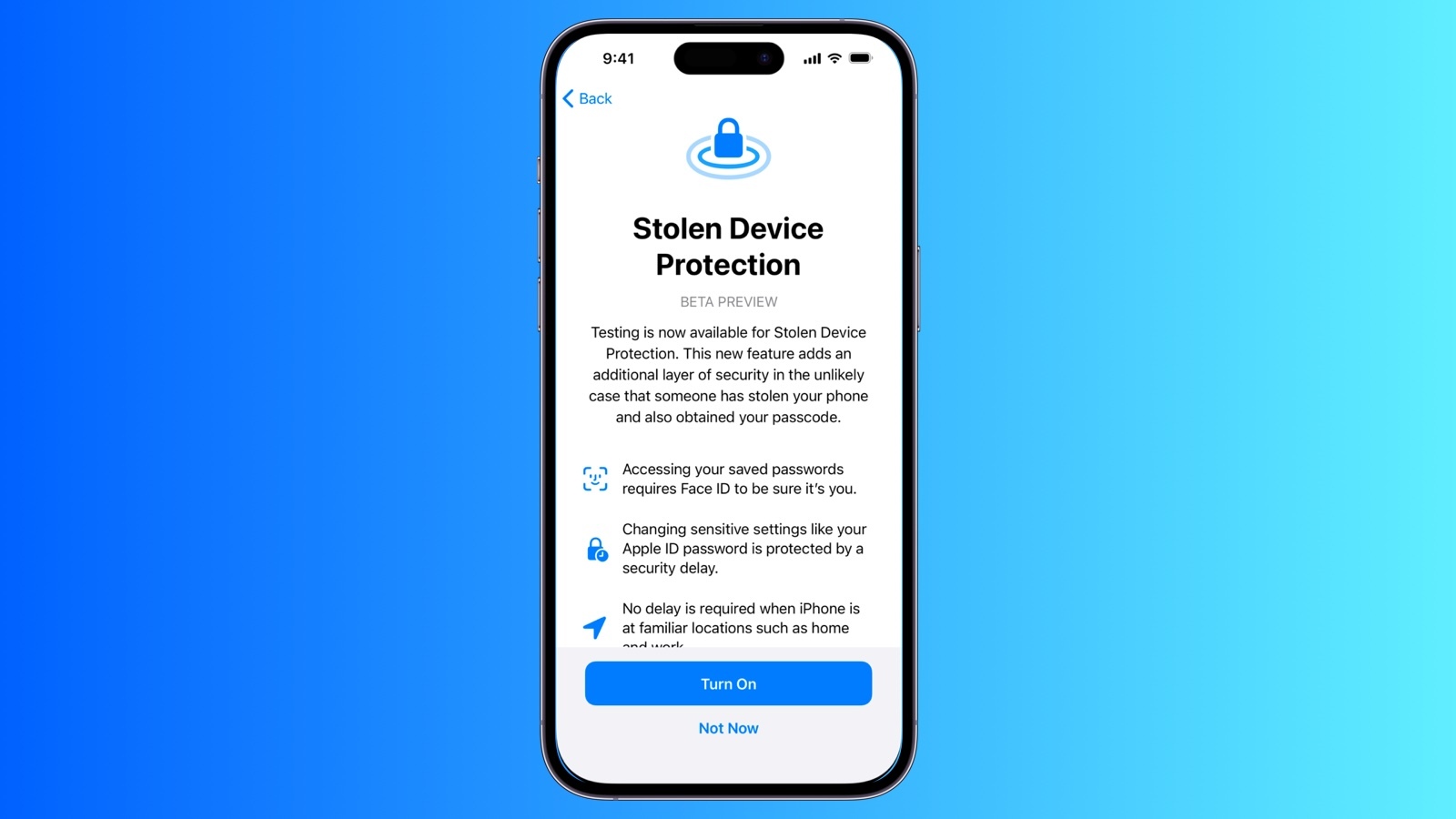
Starting with iOS 26.4, Stolen Device Protection will be enabled by default and turned on for all iPhone users. Stolen Device Protection adds extra security in case of physical iPhone theft.
Apple implemented Stolen Device Protection back in 2023 after reports about a new iPhone theft method. Thieves would spy on an intended victim to learn their passcode, then steal the target's iPhone. With the passcode, criminals were able to empty bank accounts, access passwords, and turn off Find My.
Stolen Device Protection requires additional authentication through Face ID or Touch ID to access certain iPhone features like the Passwords app, Lost mode in Find My, Safari purchases, and more. Some features are disabled entirely without authentication, while others have a one-hour security delay.
Actions requiring Face ID or Touch ID to complete:
Viewing/using passwords or passkeys saved in iCloud Keychain
Applying for a new Apple Card
Viewing an Apple Card virtual card
Turning off Lost Mode
Erasing all content and settings
Taking certain Apple Cash and Savings actions in Wallet
Using payment methods saved in Safari
Using your iPhone to set up a new device
These actions do not have a passcode backup, so you can't use a passcode to avoid using Face ID or Touch ID.
Actions that have a 1-hour security delay, and require two biometric authentications:
Changing your Apple ID password
Updating select Apple ID account security settings, including adding or removing a trusted device, trusted phone number, Recovery Key, or Recovery Contact
Changing your iPhone passcode
Adding or removing Face ID or Touch ID
Turning off Find My
Turning off Stolen Device Protection
Prior to iOS 26.4, Stolen Device Protection had to be enabled manually in the Face ID and Passcode section of the Settings app. There is an option to remove security delays when the iPhone is in a familiar location, which allows full functionality at home but protection when out and about.
iOS 26.4 is limited to developers at the current time, but a public beta will be coming in the near future. Apple plans to release the update in the spring.
This article, "iOS 26.4 Enables Stolen Device Protection by Default for All iPhones" first appeared on MacRumors.com
Discuss this article in our forums
Apple implemented Stolen Device Protection back in 2023 after reports about a new iPhone theft method. Thieves would spy on an intended victim to learn their passcode, then steal the target's iPhone. With the passcode, criminals were able to empty bank accounts, access passwords, and turn off Find My.
Stolen Device Protection requires additional authentication through Face ID or Touch ID to access certain iPhone features like the Passwords app, Lost mode in Find My, Safari purchases, and more. Some features are disabled entirely without authentication, while others have a one-hour security delay.
Actions requiring Face ID or Touch ID to complete:
Viewing/using passwords or passkeys saved in iCloud Keychain
Applying for a new Apple Card
Viewing an Apple Card virtual card
Turning off Lost Mode
Erasing all content and settings
Taking certain Apple Cash and Savings actions in Wallet
Using payment methods saved in Safari
Using your iPhone to set up a new device
These actions do not have a passcode backup, so you can't use a passcode to avoid using Face ID or Touch ID.
Actions that have a 1-hour security delay, and require two biometric authentications:
Changing your Apple ID password
Updating select Apple ID account security settings, including adding or removing a trusted device, trusted phone number, Recovery Key, or Recovery Contact
Changing your iPhone passcode
Adding or removing Face ID or Touch ID
Turning off Find My
Turning off Stolen Device Protection
Prior to iOS 26.4, Stolen Device Protection had to be enabled manually in the Face ID and Passcode section of the Settings app. There is an option to remove security delays when the iPhone is in a familiar location, which allows full functionality at home but protection when out and about.
iOS 26.4 is limited to developers at the current time, but a public beta will be coming in the near future. Apple plans to release the update in the spring.
Related Forum: iOS 26
This article, "iOS 26.4 Enables Stolen Device Protection by Default for All iPhones" first appeared on MacRumors.com
Discuss this article in our forums
Recommended Comments
Join the conversation
You can post now and register later. If you have an account, sign in now to post with your account.