_811205.png)
_e196d8.png)
_32b3d9.png)
_1c53fe.png)

Apple tested end-to-end encryption (E2EE) for RCS messages exchanged between iPhone and Android users in the iOS 26.4 beta, but Apple made it clear the functionality was not going to launch in the iOS 26.4 update.
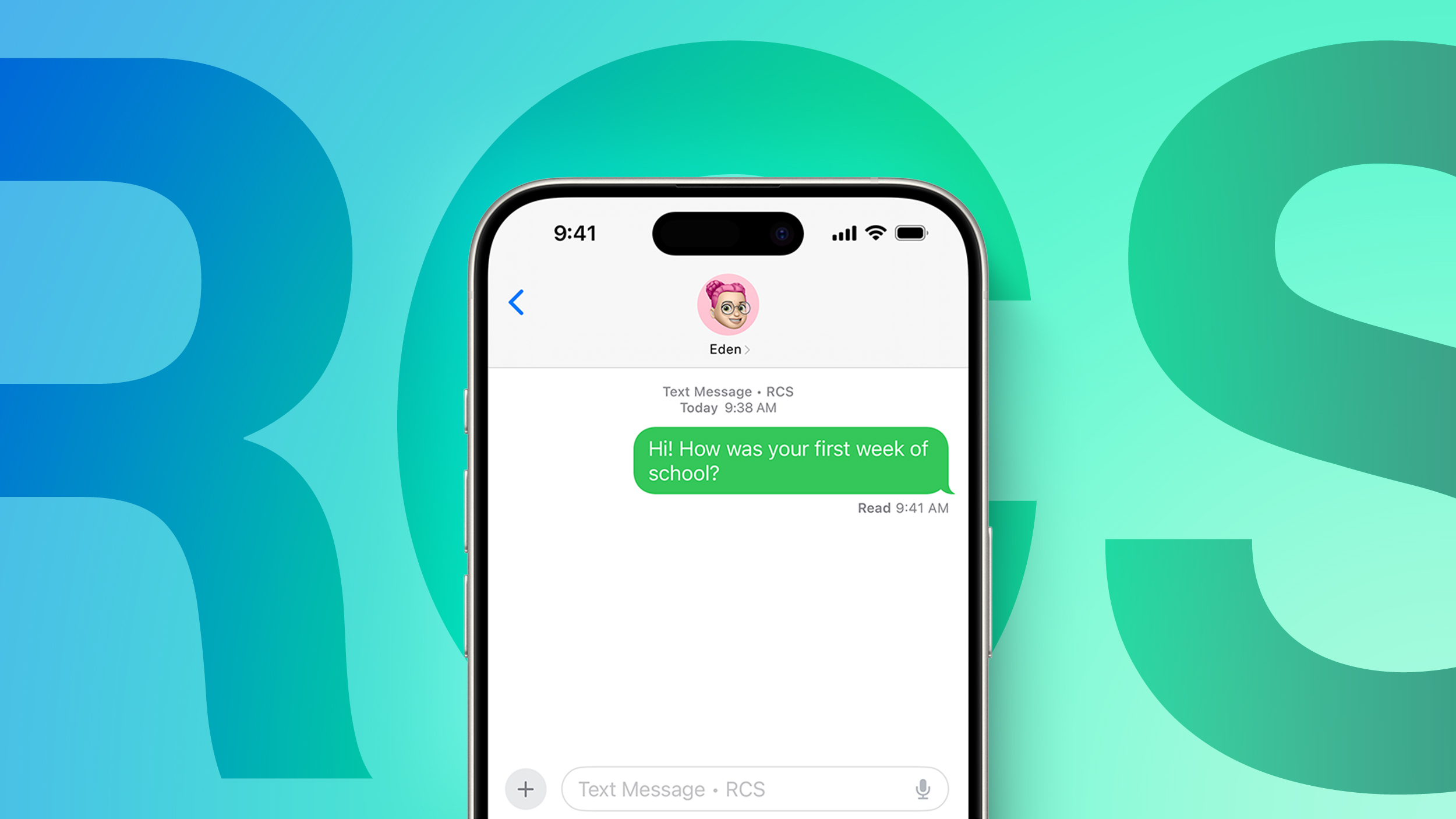
E2EE for RCS was removed before iOS 26.4 was released, but the feature is back in the iOS 26.5 beta as Apple continues testing it.
In the Messages section of the Settings app, the End-to-End Encryption toggle is back in the RCS options, and like before, it is turned on by default.
End-to-end encryption ensures that messages sent between devices cannot be intercepted and read by a third party. Right now, RCS messages sent between Android and iPhone users do not have E2EE, but RCS messages between Android users do. iMessages exchanged between iPhone users have always had end-to-end encryption.
E2EE is in beta and is not available to all devices or carriers in iOS 26.5. Conversations that are encrypted have a lock symbol.
This article, "iOS 26.5 Beta Continues RCS End-to-End Encryption Testing for iPhone and Android Messages" first appeared on MacRumors.com
Discuss this article in our forums
E2EE for RCS was removed before iOS 26.4 was released, but the feature is back in the iOS 26.5 beta as Apple continues testing it.
In the Messages section of the Settings app, the End-to-End Encryption toggle is back in the RCS options, and like before, it is turned on by default.
End-to-end encryption ensures that messages sent between devices cannot be intercepted and read by a third party. Right now, RCS messages sent between Android and iPhone users do not have E2EE, but RCS messages between Android users do. iMessages exchanged between iPhone users have always had end-to-end encryption.
E2EE is in beta and is not available to all devices or carriers in iOS 26.5. Conversations that are encrypted have a lock symbol.
Related Forum: iOS 26
This article, "iOS 26.5 Beta Continues RCS End-to-End Encryption Testing for iPhone and Android Messages" first appeared on MacRumors.com
Discuss this article in our forums
Recommended Comments
Join the conversation
You can post now and register later. If you have an account, sign in now to post with your account.