_811205.png)
_e196d8.png)
_32b3d9.png)
_1c53fe.png)

Apple was rumored to be working on an AI health service, but it was scrapped well before the iOS 27 beta came out. It could resurface in the future, but for now, there are a handful of health and fitness changes in the update.

Apple redesigned the Browse section of the Health app, and it now uses a card-style interface instead of a list. It is more colorful and easier to see the different categories.
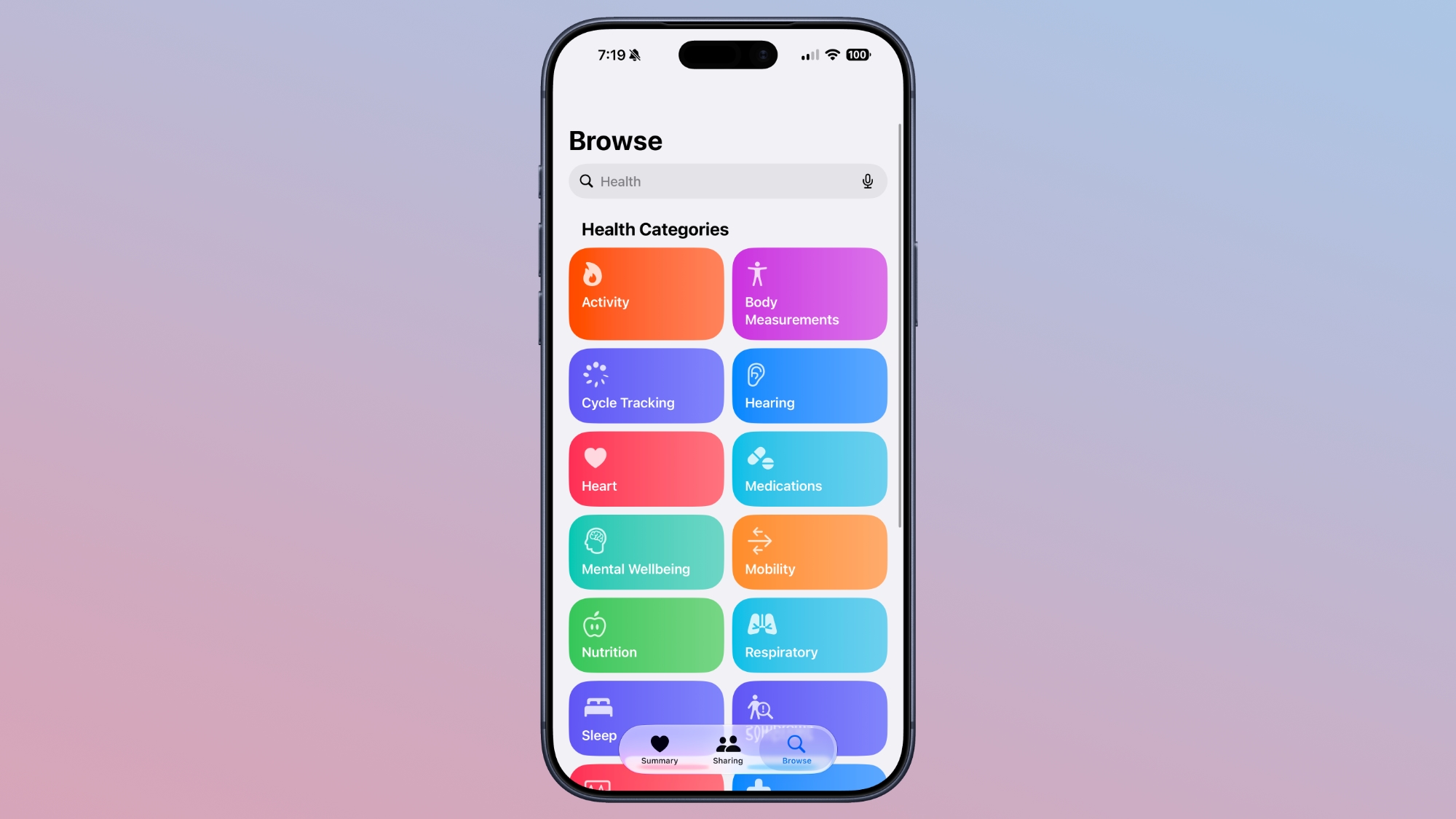
The app also has a single bottom navigation bar that incorporates a search/browse button, instead of a separate search button.
Visual Intelligence has a new nutrition feature that can tell you the nutritional value of what you're eating. You can open the Camera app to the new Siri mode and take a photo of a food item to get feedback.
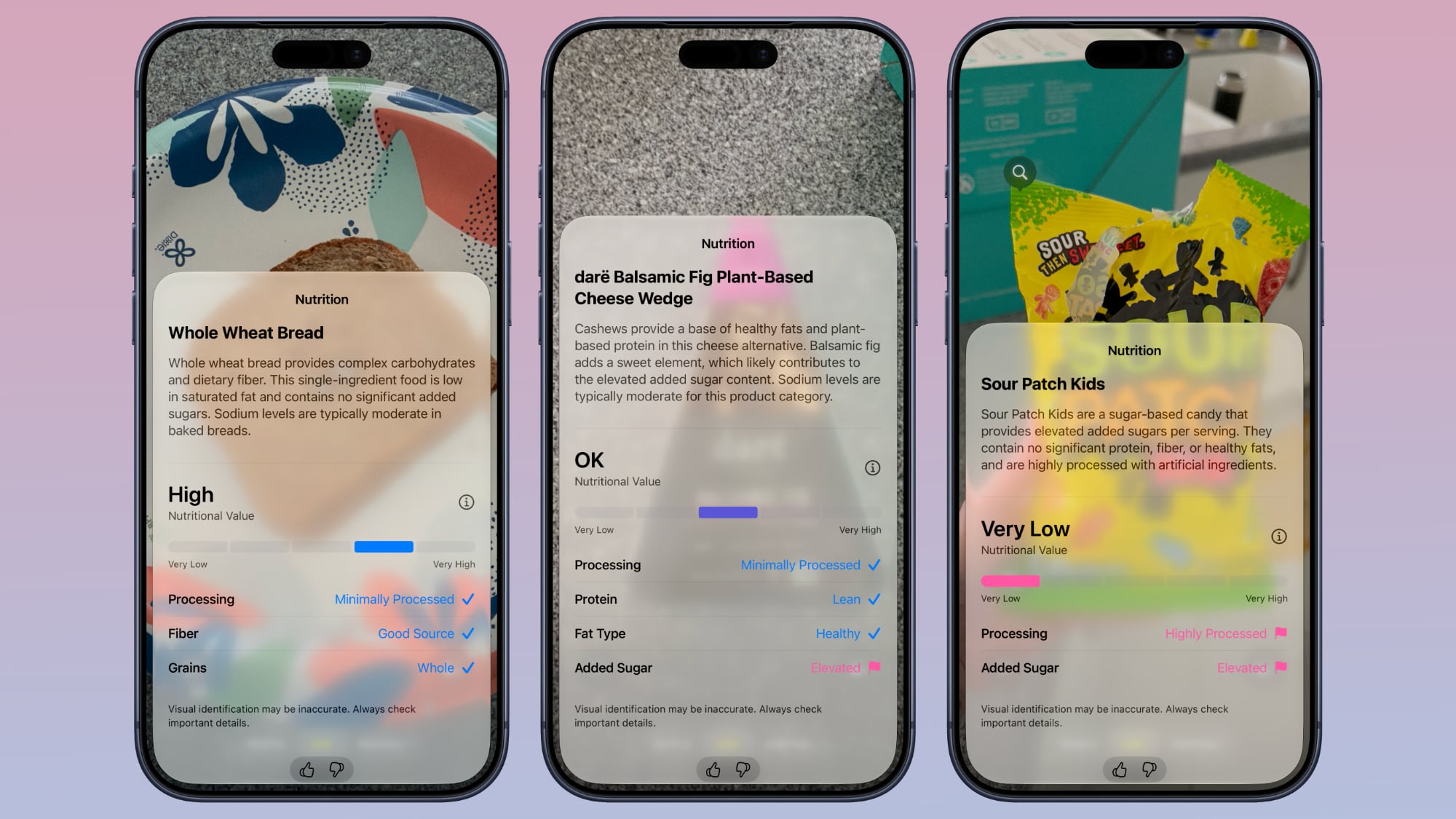
It does not give exact calorie counts, but it lets you know if a food is heavily processed, if it has protein, if it's high in sugar, and more. It gives food a nutritional value ranking between very low and very high. Data does not sync to the Health app, but it's still useful.
Visual Intelligence requires an iPhone 15 Pro or later.
Cycle Tracking is expanding with perimenopause/menopause support. The Health app now sends notifications when logged cycle patterns are suggestive of perimenopause.
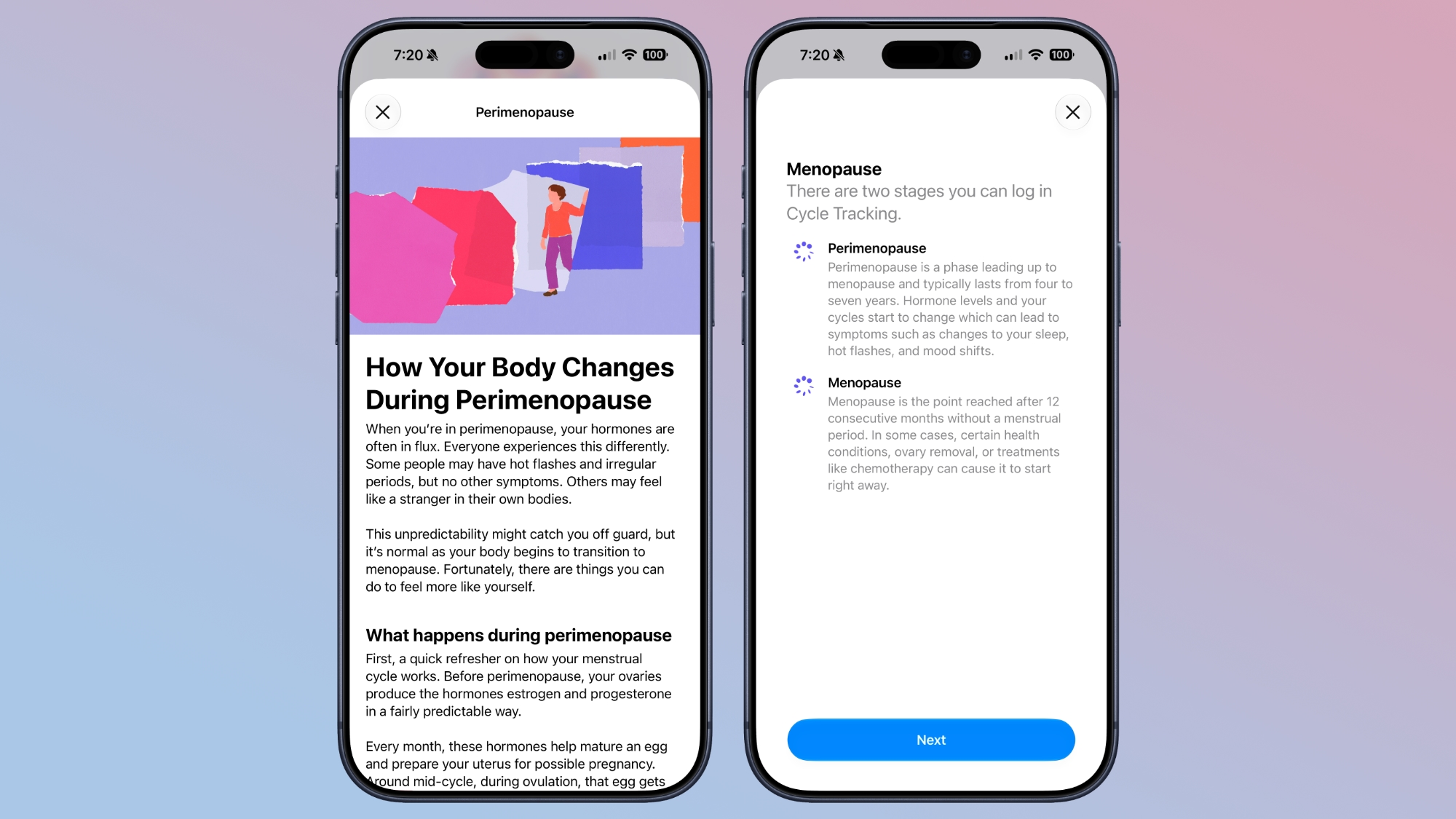
The feature uses long-term cycle data to flag the perimenopause hormonal transition that can begin a decade or more before menopause. Cycle deviation alerts are based on the user's logged cycle history and are for users age 40 and above.
Users can keep track of symptoms and access educational resources that offer guidance and support.
Apple also added new Fitness+ workouts for perimenopause and menopause.
Data syncs to the Health app quicker than before thanks to performance improvements Apple implemented.
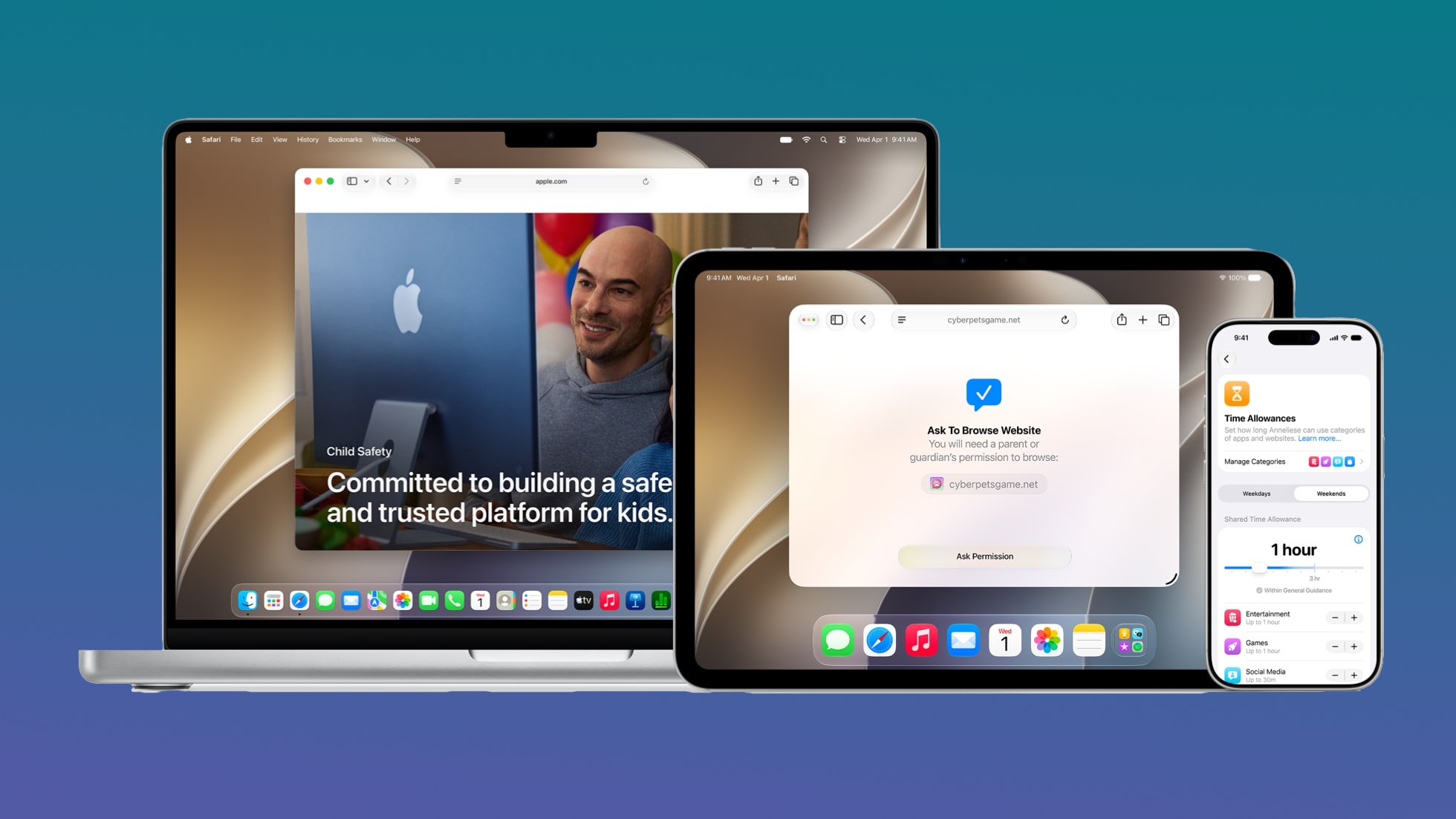
There are several new Child Safety features that give parents more control over the content their children are seeing. Apple is including guidance based on expert health research to help parents make decisions about managing child accounts.
Route maps that populate the Fitness app after workouts are more accurate in iOS 27. During treadmill workouts, distance is also reflected more accurately than before.
Step counts will sync between the Health and Fitness apps.
GymKit has expanded to the iPhone, which can pair with treadmills, indoor bikes, and other exercise equipment for data syncing. GymKit was previously an Apple Watch feature, but now iPhone users won't need a watch to use it.
GymKit can sync calories, distance, speed, incline, and pace.
iOS 27 is available to developers, with a public beta planned for July. It will launch to the public this fall.
This article, "iOS 27: All the New Health and Fitness Features" first appeared on MacRumors.com
Discuss this article in our forums
Design
Apple redesigned the Browse section of the Health app, and it now uses a card-style interface instead of a list. It is more colorful and easier to see the different categories.
The app also has a single bottom navigation bar that incorporates a search/browse button, instead of a separate search button.
Visual Intelligence
Visual Intelligence has a new nutrition feature that can tell you the nutritional value of what you're eating. You can open the Camera app to the new Siri mode and take a photo of a food item to get feedback.
It does not give exact calorie counts, but it lets you know if a food is heavily processed, if it has protein, if it's high in sugar, and more. It gives food a nutritional value ranking between very low and very high. Data does not sync to the Health app, but it's still useful.
Visual Intelligence requires an iPhone 15 Pro or later.
Cycle Tracking
Cycle Tracking is expanding with perimenopause/menopause support. The Health app now sends notifications when logged cycle patterns are suggestive of perimenopause.
The feature uses long-term cycle data to flag the perimenopause hormonal transition that can begin a decade or more before menopause. Cycle deviation alerts are based on the user's logged cycle history and are for users age 40 and above.
Users can keep track of symptoms and access educational resources that offer guidance and support.
Apple also added new Fitness+ workouts for perimenopause and menopause.
Faster Data Updates
Data syncs to the Health app quicker than before thanks to performance improvements Apple implemented.
Child Safety
There are several new Child Safety features that give parents more control over the content their children are seeing. Apple is including guidance based on expert health research to help parents make decisions about managing child accounts.
Route and Distance Accuracy
Route maps that populate the Fitness app after workouts are more accurate in iOS 27. During treadmill workouts, distance is also reflected more accurately than before.
Step Count
Step counts will sync between the Health and Fitness apps.
GymKit
GymKit has expanded to the iPhone, which can pair with treadmills, indoor bikes, and other exercise equipment for data syncing. GymKit was previously an Apple Watch feature, but now iPhone users won't need a watch to use it.
GymKit can sync calories, distance, speed, incline, and pace.
Launch Date
iOS 27 is available to developers, with a public beta planned for July. It will launch to the public this fall.
This article, "iOS 27: All the New Health and Fitness Features" first appeared on MacRumors.com
Discuss this article in our forums
Recommended Comments
Join the conversation
You can post now and register later. If you have an account, sign in now to post with your account.