_811205.png)
_e196d8.png)
_32b3d9.png)
_1c53fe.png)

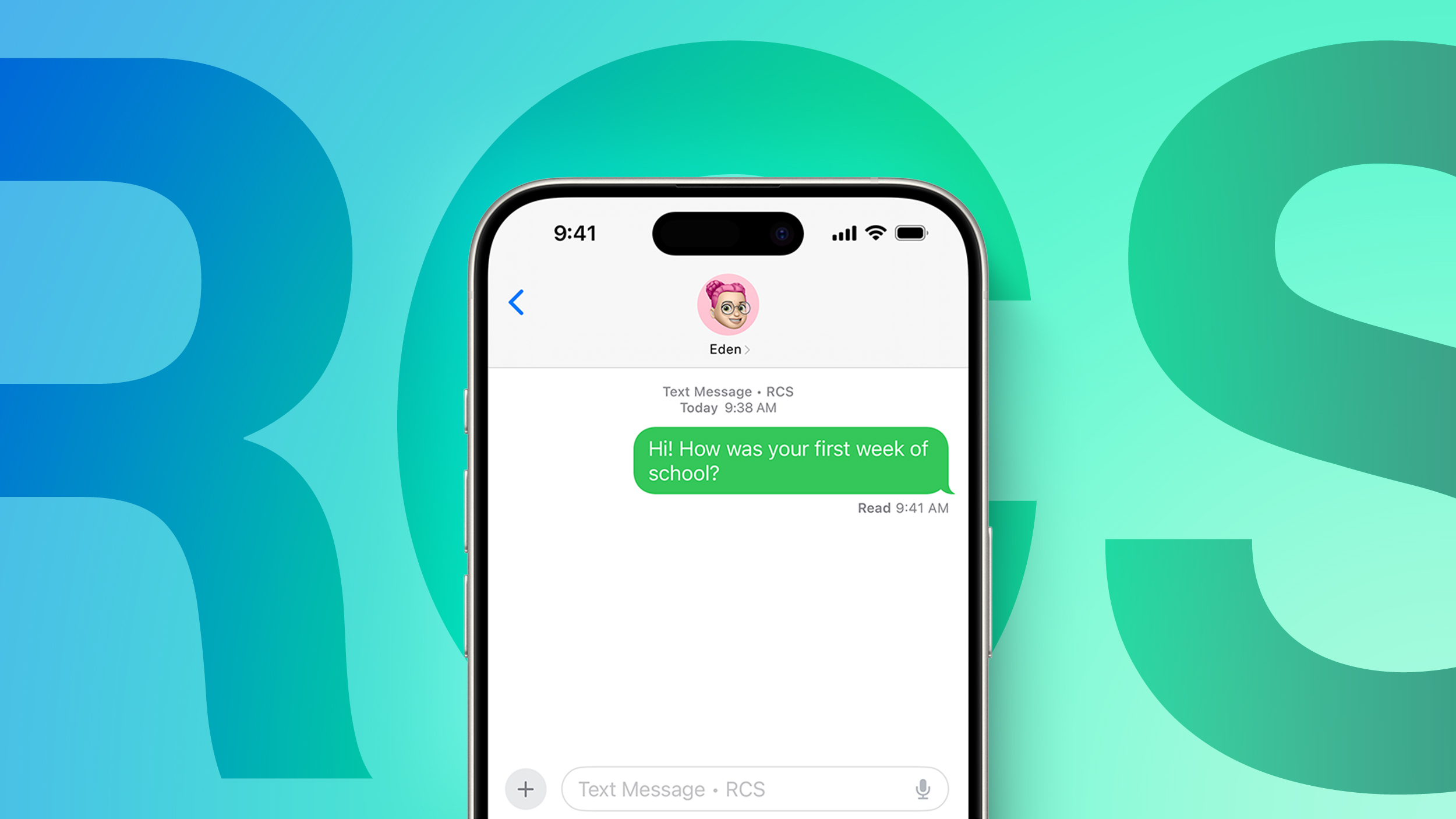
With the second beta of iOS 27, Apple added support for replying to a specific message in an RCS conversation with an Android user.
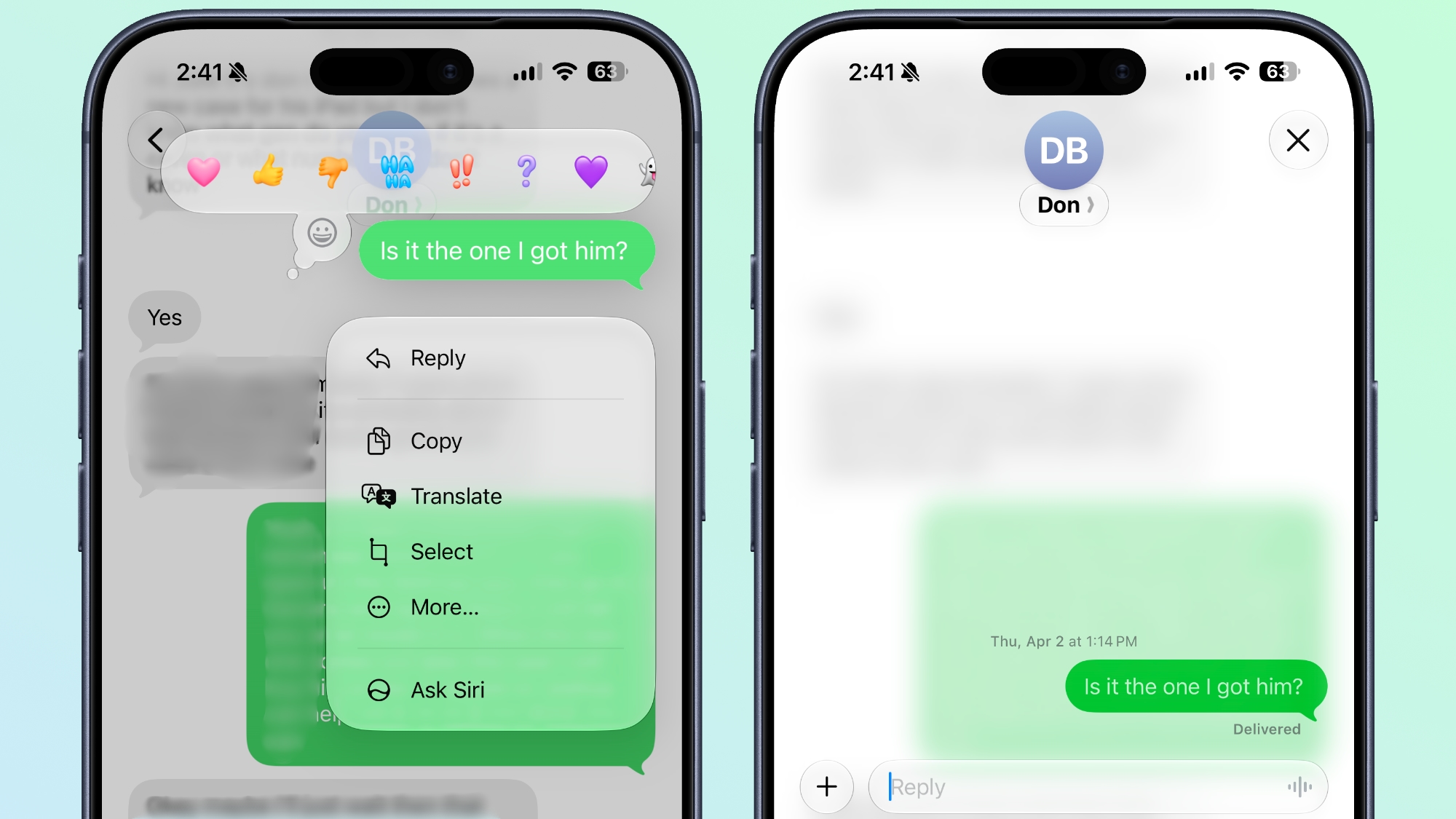
You can now long press on a message to get to the option to reply, and it works the same way that it does with iMessage.
iOS 27 also displays tapback/reaction emoji to images and videos properly. In iOS 26, it would use a text descriptor, such as [x loved an image] instead of showing the emoji. In iOS 27, the emoji shows up on the image or video as it does in an iMessage conversation.
Apple added support for RCS in iOS 18, and has been improving it since then. iOS 26.5 added encryption for RCS messages sent between iPhone and Android users, and now more of the RCS features are being implemented.
For RCS reply threading to work properly, both the sender and the recipient need to have a smartphone and carrier that supports RCS.
iOS 27 is limited to developers currently, but it will be available to the public when Apple releases a public beta in July. The software will see an official launch in September.
This article, "iOS 27 Beta 2 Adds Inline Replies to iPhone-to-Android RCS Chats" first appeared on MacRumors.com
Discuss this article in our forums
You can now long press on a message to get to the option to reply, and it works the same way that it does with iMessage.
iOS 27 also displays tapback/reaction emoji to images and videos properly. In iOS 26, it would use a text descriptor, such as [x loved an image] instead of showing the emoji. In iOS 27, the emoji shows up on the image or video as it does in an iMessage conversation.
Apple added support for RCS in iOS 18, and has been improving it since then. iOS 26.5 added encryption for RCS messages sent between iPhone and Android users, and now more of the RCS features are being implemented.
For RCS reply threading to work properly, both the sender and the recipient need to have a smartphone and carrier that supports RCS.
iOS 27 is limited to developers currently, but it will be available to the public when Apple releases a public beta in July. The software will see an official launch in September.
This article, "iOS 27 Beta 2 Adds Inline Replies to iPhone-to-Android RCS Chats" first appeared on MacRumors.com
Discuss this article in our forums
Recommended Comments
Join the conversation
You can post now and register later. If you have an account, sign in now to post with your account.