_811205.png)
_e196d8.png)
_32b3d9.png)
_1c53fe.png)

The Calendar and Reminders apps in iOS 27 let you create events and reminders using natural language commands, making it easier to manage your schedule and task list.
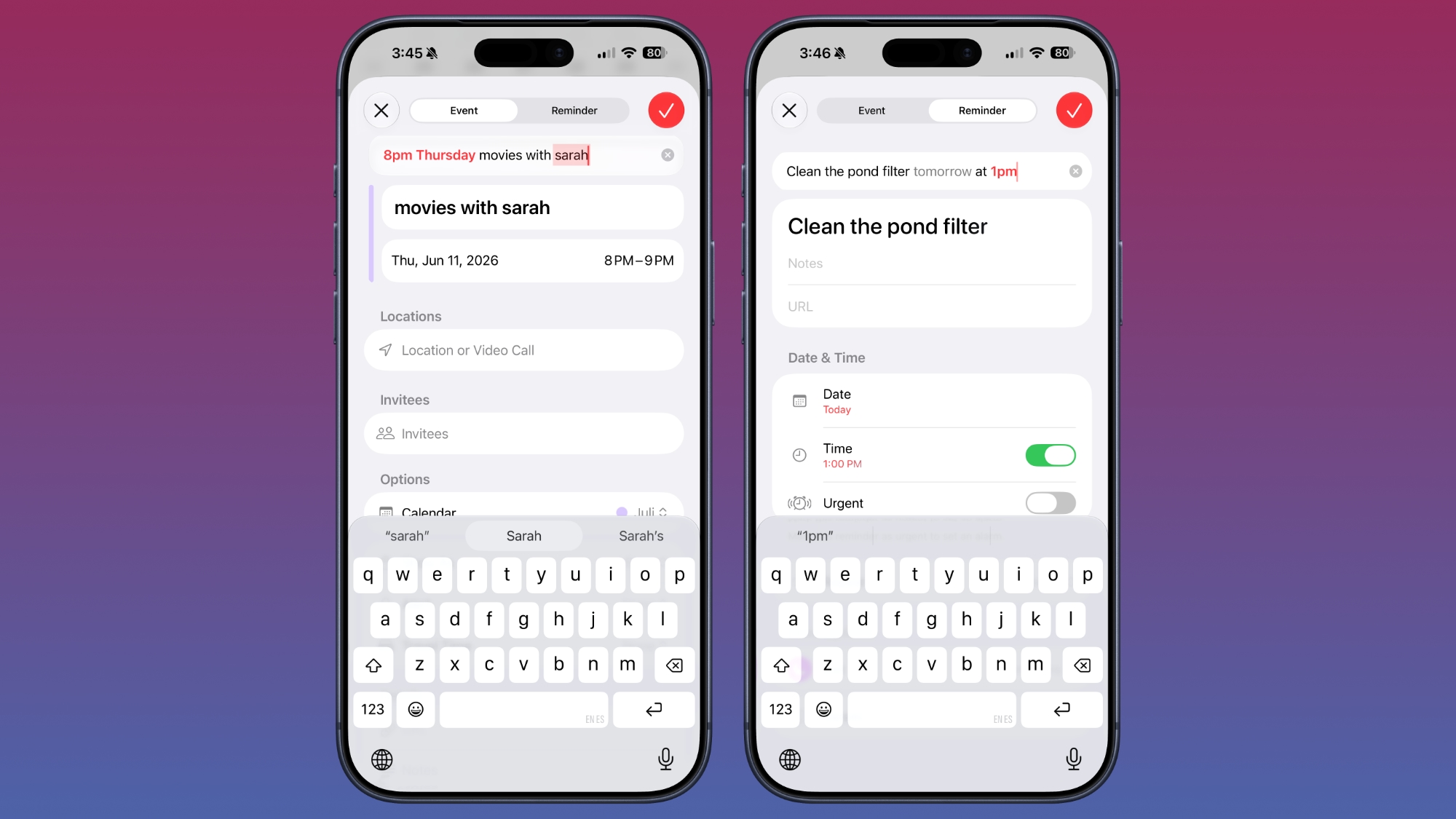
You can tap the "+" button in the Calendar app and then type in something like "Movies with Sarah at 8pm on Thursday" to schedule an event. You don't need to go to the specific day to create an event, and you can instead just tap when the date and time suggestions appear as you type. You can also use timing like "every week" to set up a recurring event.
Reminders work in a similar way, and you can type in something like "Remind me to go grocery shopping at 2pm on Thursday" to set up a reminder for that date and time.
Apple says editing an event in Calendar is also simpler. If you have a meeting that's every week and update it to every other week, the Calendar app will intelligently adjust frequency for all future events.
Visual Intelligence integrates with Calendar and Reminders, so if you're looking at an event online and take a screenshot, or if you snap a photo of a flyer with your phone, you can have relevant information added to the Calendar app automatically. Siri is also able to intelligently add events to the Calendar app with natural language requests.
iOS 27 is limited to developers right now, but Apple plans to make a public beta available in July.
This article, "iOS 27 Calendar and Reminders Apps Get New AI Features and Natural Language Support" first appeared on MacRumors.com
Discuss this article in our forums
You can tap the "+" button in the Calendar app and then type in something like "Movies with Sarah at 8pm on Thursday" to schedule an event. You don't need to go to the specific day to create an event, and you can instead just tap when the date and time suggestions appear as you type. You can also use timing like "every week" to set up a recurring event.
Reminders work in a similar way, and you can type in something like "Remind me to go grocery shopping at 2pm on Thursday" to set up a reminder for that date and time.
Apple says editing an event in Calendar is also simpler. If you have a meeting that's every week and update it to every other week, the Calendar app will intelligently adjust frequency for all future events.
Visual Intelligence integrates with Calendar and Reminders, so if you're looking at an event online and take a screenshot, or if you snap a photo of a flyer with your phone, you can have relevant information added to the Calendar app automatically. Siri is also able to intelligently add events to the Calendar app with natural language requests.
iOS 27 is limited to developers right now, but Apple plans to make a public beta available in July.
Related Roundup: iOS 27
This article, "iOS 27 Calendar and Reminders Apps Get New AI Features and Natural Language Support" first appeared on MacRumors.com
Discuss this article in our forums
Recommended Comments
Join the conversation
You can post now and register later. If you have an account, sign in now to post with your account.