_811205.png)
_e196d8.png)
_32b3d9.png)
_1c53fe.png)

iOS 27 includes three enhancements for FaceTime, with the most notable one being a dual camera feature on some newer iPhone models.
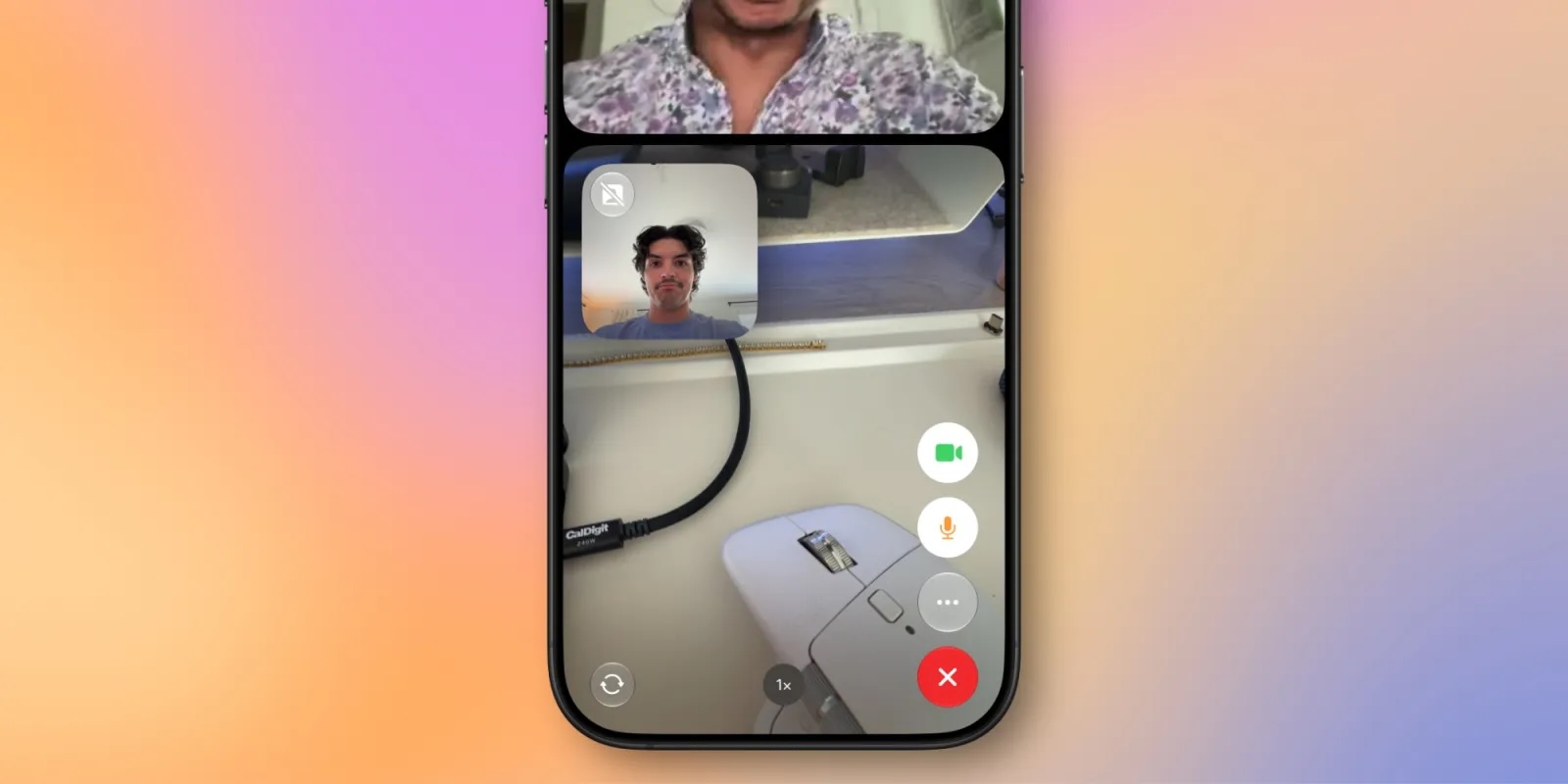
On the iPhone 17, iPhone 17 Pro, iPhone 17 Pro Max, and iPhone Air, a Dual Capture feature allows you to record video of yourself and what is in front of you at the same time. Starting with iOS 27, this feature is now supported in the FaceTime app on these devices, allowing you to show both your front and rear camera views on a video call.
9to5Mac tested the feature on the iOS 27 beta, as seen in the screenshot below. Tapping on the camera flip button in the bottom-left corner of the viewfinder automatically turns on Dual Capture mode and begins showing the rear camera view alongside the front camera view. You can turn off the front camera view at any time if you prefer to.
If the person on the other end of the call has an older iPhone, they can still view your dual camera feed as long as their device is running iOS 27.
The other two FaceTime improvements on iOS 27:
Live Captions are now available in Traditional ChineseiOS 27 is currently available in developer beta, with a public beta to follow in July. The update is expected to be released widely in September.
This article, "iOS 27 Improves FaceTime in Three Ways" first appeared on MacRumors.com
Discuss this article in our forums
On the iPhone 17, iPhone 17 Pro, iPhone 17 Pro Max, and iPhone Air, a Dual Capture feature allows you to record video of yourself and what is in front of you at the same time. Starting with iOS 27, this feature is now supported in the FaceTime app on these devices, allowing you to show both your front and rear camera views on a video call.
9to5Mac tested the feature on the iOS 27 beta, as seen in the screenshot below. Tapping on the camera flip button in the bottom-left corner of the viewfinder automatically turns on Dual Capture mode and begins showing the rear camera view alongside the front camera view. You can turn off the front camera view at any time if you prefer to.
If the person on the other end of the call has an older iPhone, they can still view your dual camera feed as long as their device is running iOS 27.
The other two FaceTime improvements on iOS 27:
- Improved FaceTime quality on poor connections
Live Captions are now available in Traditional ChineseiOS 27 is currently available in developer beta, with a public beta to follow in July. The update is expected to be released widely in September.
Tag: FaceTime
This article, "iOS 27 Improves FaceTime in Three Ways" first appeared on MacRumors.com
Discuss this article in our forums
Recommended Comments
Join the conversation
You can post now and register later. If you have an account, sign in now to post with your account.