_811205.png)
_e196d8.png)
_32b3d9.png)
_1c53fe.png)

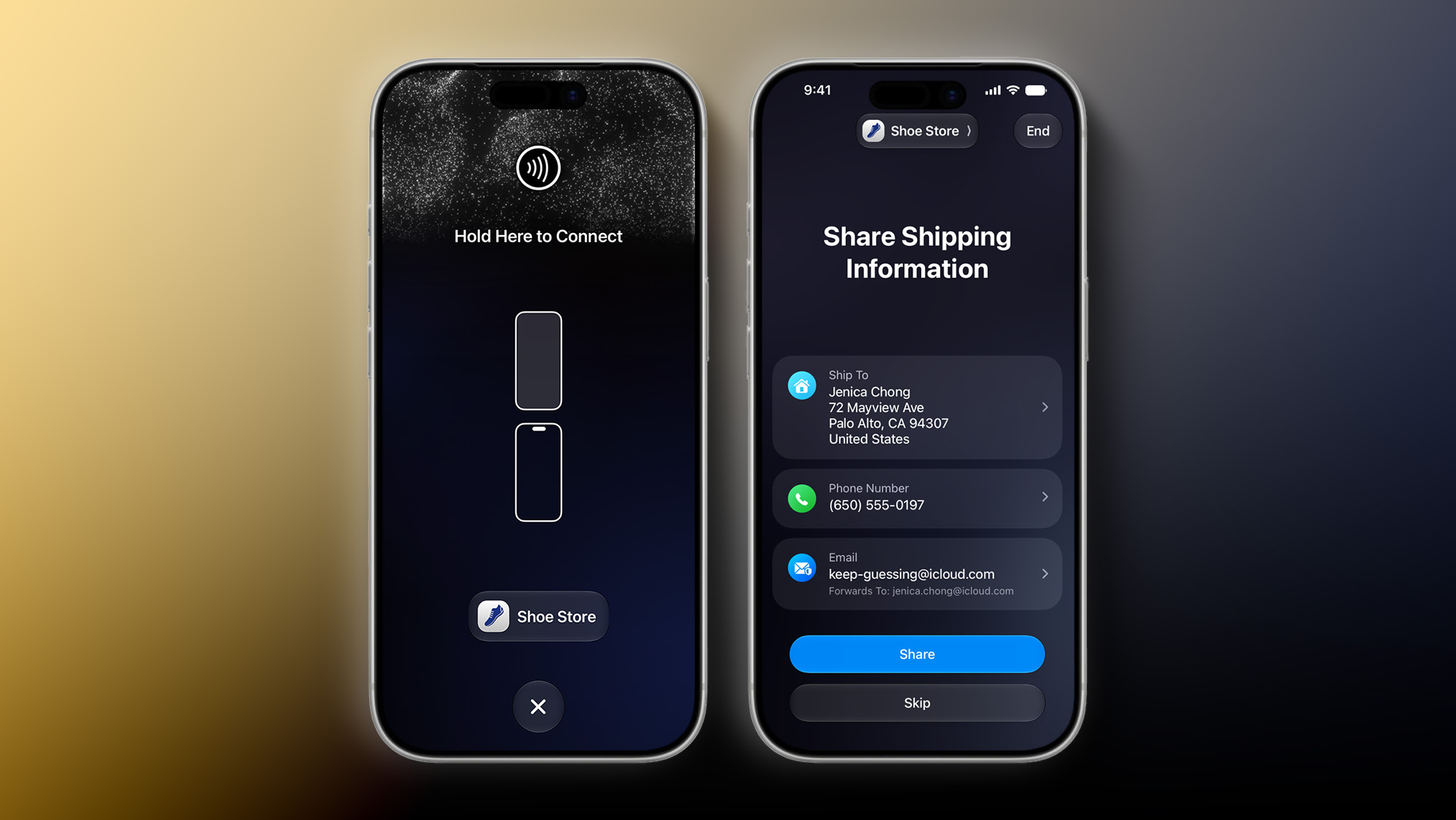
iOS 27 has a new "Tap to Share" feature that lets merchants use their iPhone to connect to a customer's device with an NFC tap for the purpose of data exchange. This is useful for small business owners, vendors at local markets, and so forth.
Tap to Share is an extension of the existing Tap to Pay on iPhone feature, which lets merchants accept contactless payments on an iPhone, with no point-of-sale hardware required. The latter feature allows customers to pay by simply tapping their iPhone or Apple Watch, contactless credit card or debit card, or other contactless payment option on the merchant's iPhone. Payment is securely completed using NFC, like Apple Pay.
During an active Tap to Pay on iPhone session, iOS 27 users can now share contact details for membership sign-up, provide a shipping address or email for receipts, add or share Apple Wallet passes, view their cart, and pay with Apple Pay.
Tap to Share requires an iPhone 12 or newer, and the feature is not currently available in the European Economic Area (EEA), which consists of all of the countries in the EU plus Iceland, Liechtenstein, and Norway. Apple did not explain why the feature is not immediately launching in the EEA or provide a timeframe for future availability there.
This article, "iOS 27 Introduces New 'Tap to Share' Feature, But Not Available in EU" first appeared on MacRumors.com
Discuss this article in our forums
Tap to Share is an extension of the existing Tap to Pay on iPhone feature, which lets merchants accept contactless payments on an iPhone, with no point-of-sale hardware required. The latter feature allows customers to pay by simply tapping their iPhone or Apple Watch, contactless credit card or debit card, or other contactless payment option on the merchant's iPhone. Payment is securely completed using NFC, like Apple Pay.
During an active Tap to Pay on iPhone session, iOS 27 users can now share contact details for membership sign-up, provide a shipping address or email for receipts, add or share Apple Wallet passes, view their cart, and pay with Apple Pay.
Tap to Share requires an iPhone 12 or newer, and the feature is not currently available in the European Economic Area (EEA), which consists of all of the countries in the EU plus Iceland, Liechtenstein, and Norway. Apple did not explain why the feature is not immediately launching in the EEA or provide a timeframe for future availability there.
Related Roundup: iOS 27
Tag: European Union
This article, "iOS 27 Introduces New 'Tap to Share' Feature, But Not Available in EU" first appeared on MacRumors.com
Discuss this article in our forums
Recommended Comments
Join the conversation
You can post now and register later. If you have an account, sign in now to post with your account.