_811205.png)
_e196d8.png)
_32b3d9.png)
_1c53fe.png)

When AirPods owners connect to their iPhone running iOS 27, they'll see a completely revamped settings menu for their earbuds that does a better job at organizing all of the feature options that Apple has added over the last few years.
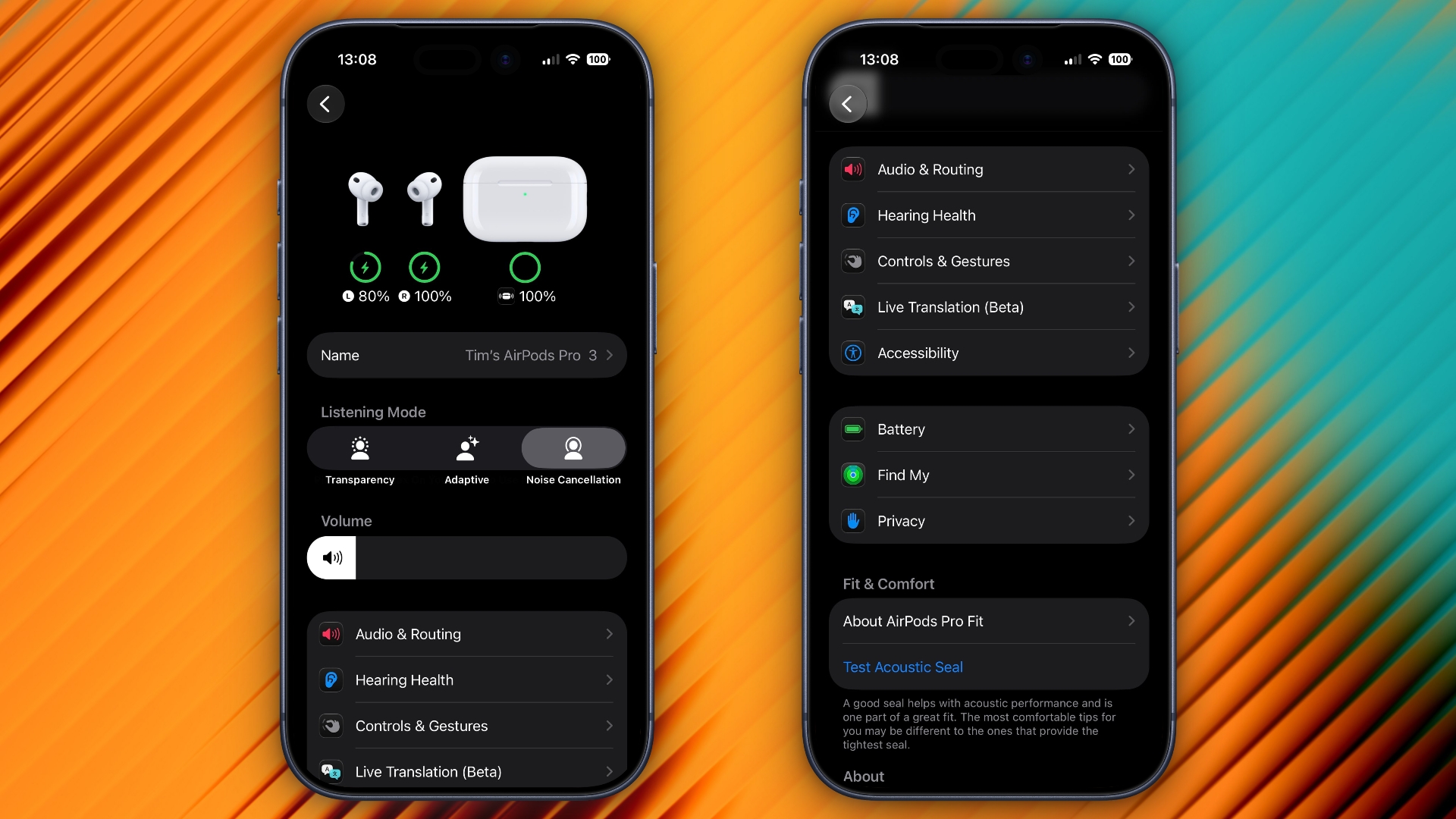
In the first iOS 27 developer beta, released on Monday, the new settings menu can be accessed in the same way as the old one – i.e. by appearing only when your AirPods are paired with your iPhone – but the menu itself is now a lot more easy to navigate.
Apple has added a volume slider under the Listening Mode toggles, while the Hearing Health, Call Controls/Camera Control, Live Translation and Adaptive Audio sections have been condensed into separate menus identified by new icons: Accessibility, Audio & Routing, Hearing Health, and Controls & Gestures. There are also new menus for Battery, Privacy, and Find My options.
The new design makes the AirPods settings menu a lot more compact, and it no longer feels like you have to endlessly scroll to try and find the option you're after. Apple has also implemented the redesign in System Settings for macOS 27 Golden Gate.
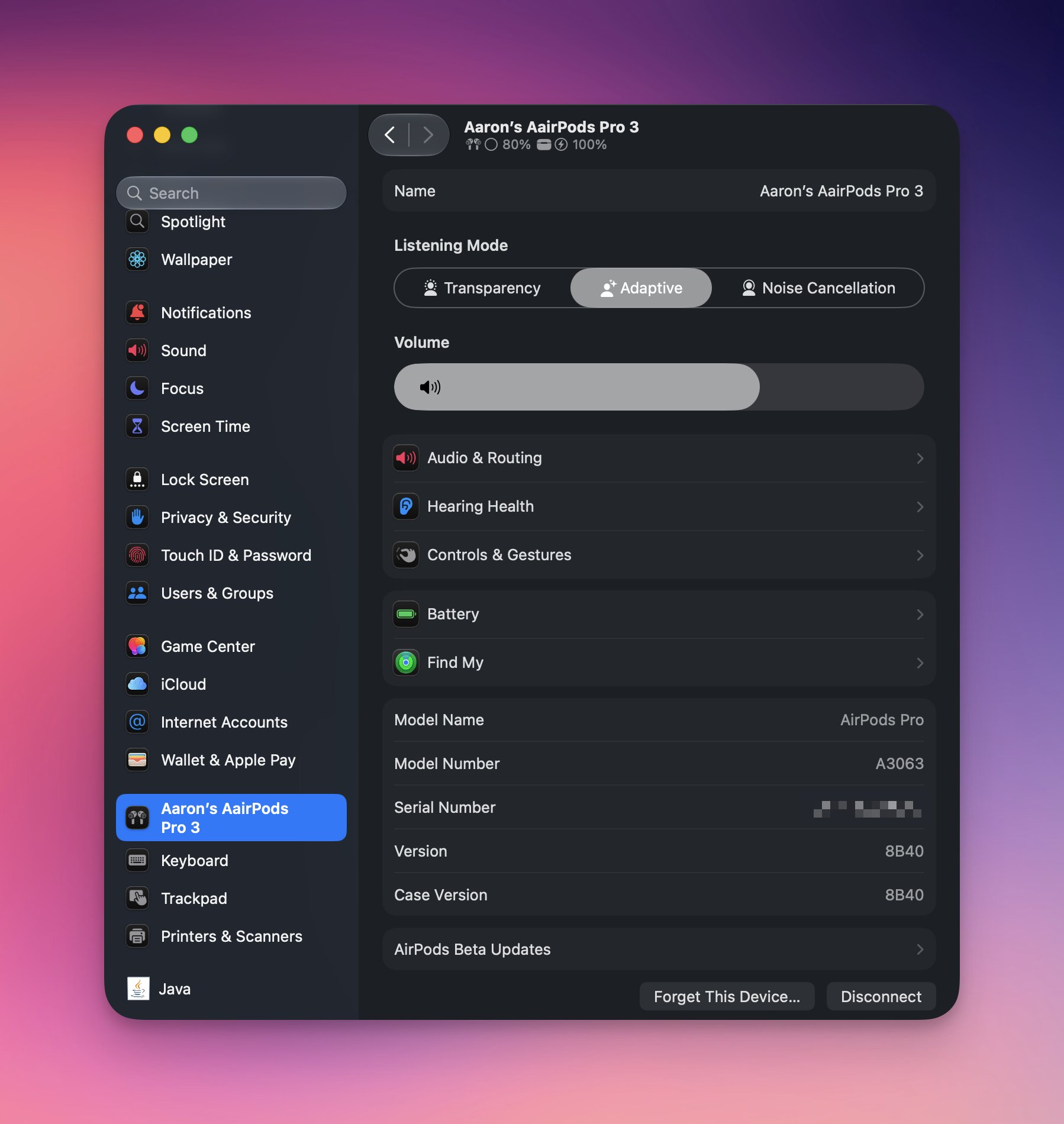
Apple plans to release a public beta version of iOS 27 and macOS 27 next month, with a general release of the updates expected in the fall.
This article, "iOS 27 Introduces Overhauled AirPods Settings Menu" first appeared on MacRumors.com
Discuss this article in our forums
In the first iOS 27 developer beta, released on Monday, the new settings menu can be accessed in the same way as the old one – i.e. by appearing only when your AirPods are paired with your iPhone – but the menu itself is now a lot more easy to navigate.
Apple has added a volume slider under the Listening Mode toggles, while the Hearing Health, Call Controls/Camera Control, Live Translation and Adaptive Audio sections have been condensed into separate menus identified by new icons: Accessibility, Audio & Routing, Hearing Health, and Controls & Gestures. There are also new menus for Battery, Privacy, and Find My options.
The new design makes the AirPods settings menu a lot more compact, and it no longer feels like you have to endlessly scroll to try and find the option you're after. Apple has also implemented the redesign in System Settings for macOS 27 Golden Gate.
Apple plans to release a public beta version of iOS 27 and macOS 27 next month, with a general release of the updates expected in the fall.
Buyer's Guide: AirPods (Caution)
Related Forum: AirPods
This article, "iOS 27 Introduces Overhauled AirPods Settings Menu" first appeared on MacRumors.com
Discuss this article in our forums
Recommended Comments
Join the conversation
You can post now and register later. If you have an account, sign in now to post with your account.