_811205.png)
_e196d8.png)
_32b3d9.png)
_1c53fe.png)

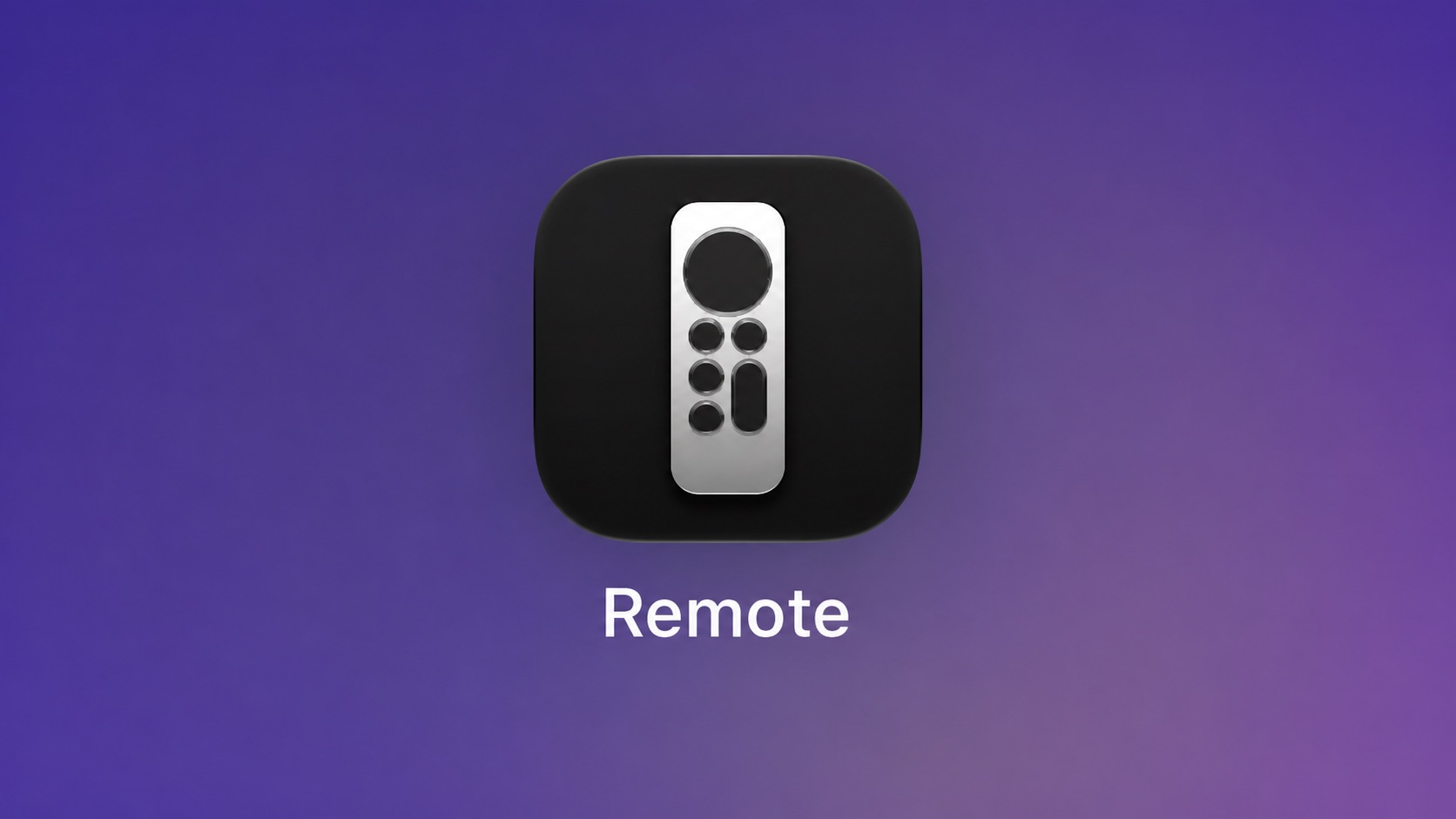 Starting with iOS 27, the virtual Apple TV remote can be added to the iPhone's Home Screen again, rather than being limited to Control Center. To do so, swipe down on the Home Screen and search for "remote." Next, tap and hold on the Remote app and drag it to your Home Screen. Alternatively, you can find it in the App Library.
Apple used to offer an Apple TV Remote app in the App Store, but it was removed in 2020.
Tag: Home Screen
Buyer's Guide: Apple TV (Don't Buy)
Related Forum: Apple TV and Home Theater
This article, "iOS 27 Lets You Add Apple TV Remote to Your iPhone's Home Screen" first appeared on MacRumors.com
Discuss this article in our forums
Recommended Comments
Join the conversation
You can post now and register later. If you have an account, sign in now to post with your account.