_811205.png)
_e196d8.png)
_32b3d9.png)
_1c53fe.png)

Bloomberg's Mark Gurman today revealed another iOS 27 change: notifications will slide in from the left side of the screen instead of from the top.
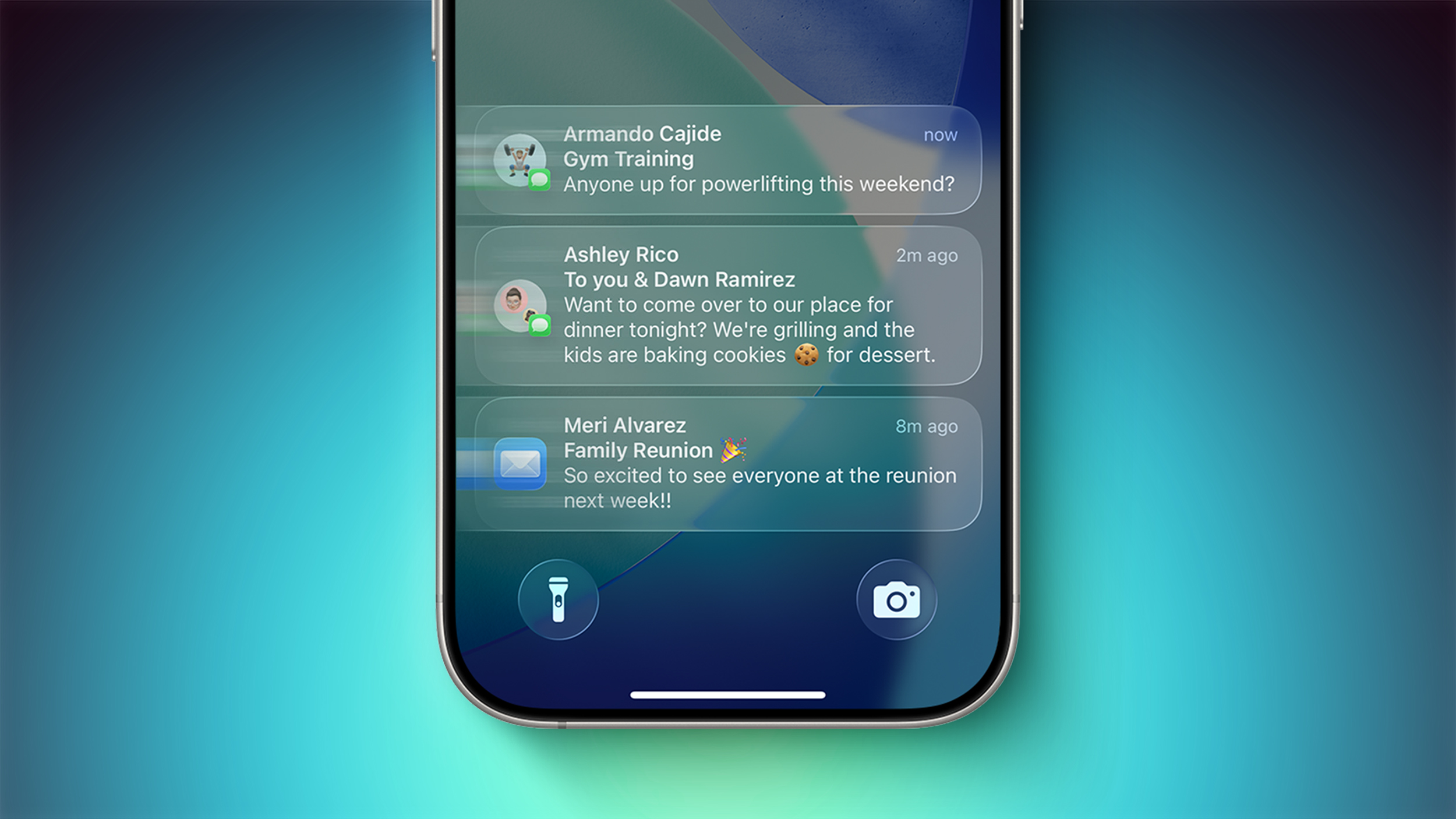
In addition, accessing Notification Center on iOS 27 will require swiping down on the top-left corner of the screen. If you swipe down on the Dynamic Island area, a new "Search or Ask" interface tied to the revamped Siri will appear, instead of Notification Center. This change may be limited to the iPhone 15 Pro and newer if the "Search or Ask" interface ends up requiring an iPhone model with Apple Intelligence.
Apple is set to unveil iOS 27 during its WWDC 2026 keynote on Monday, and the first developer beta should be available on the same day. A public beta typically follows in July, and the update should be widely released in September.
This article, "iOS 27 Notifications Will Slide in From Left Side of Your iPhone's Screen" first appeared on MacRumors.com
Discuss this article in our forums
In addition, accessing Notification Center on iOS 27 will require swiping down on the top-left corner of the screen. If you swipe down on the Dynamic Island area, a new "Search or Ask" interface tied to the revamped Siri will appear, instead of Notification Center. This change may be limited to the iPhone 15 Pro and newer if the "Search or Ask" interface ends up requiring an iPhone model with Apple Intelligence.
Apple is set to unveil iOS 27 during its WWDC 2026 keynote on Monday, and the first developer beta should be available on the same day. A public beta typically follows in July, and the update should be widely released in September.
Related Roundup: iOS 27
Tags: Bloomberg, Mark Gurman
This article, "iOS 27 Notifications Will Slide in From Left Side of Your iPhone's Screen" first appeared on MacRumors.com
Discuss this article in our forums
Recommended Comments
Join the conversation
You can post now and register later. If you have an account, sign in now to post with your account.