_811205.png)
_e196d8.png)
_32b3d9.png)
_1c53fe.png)

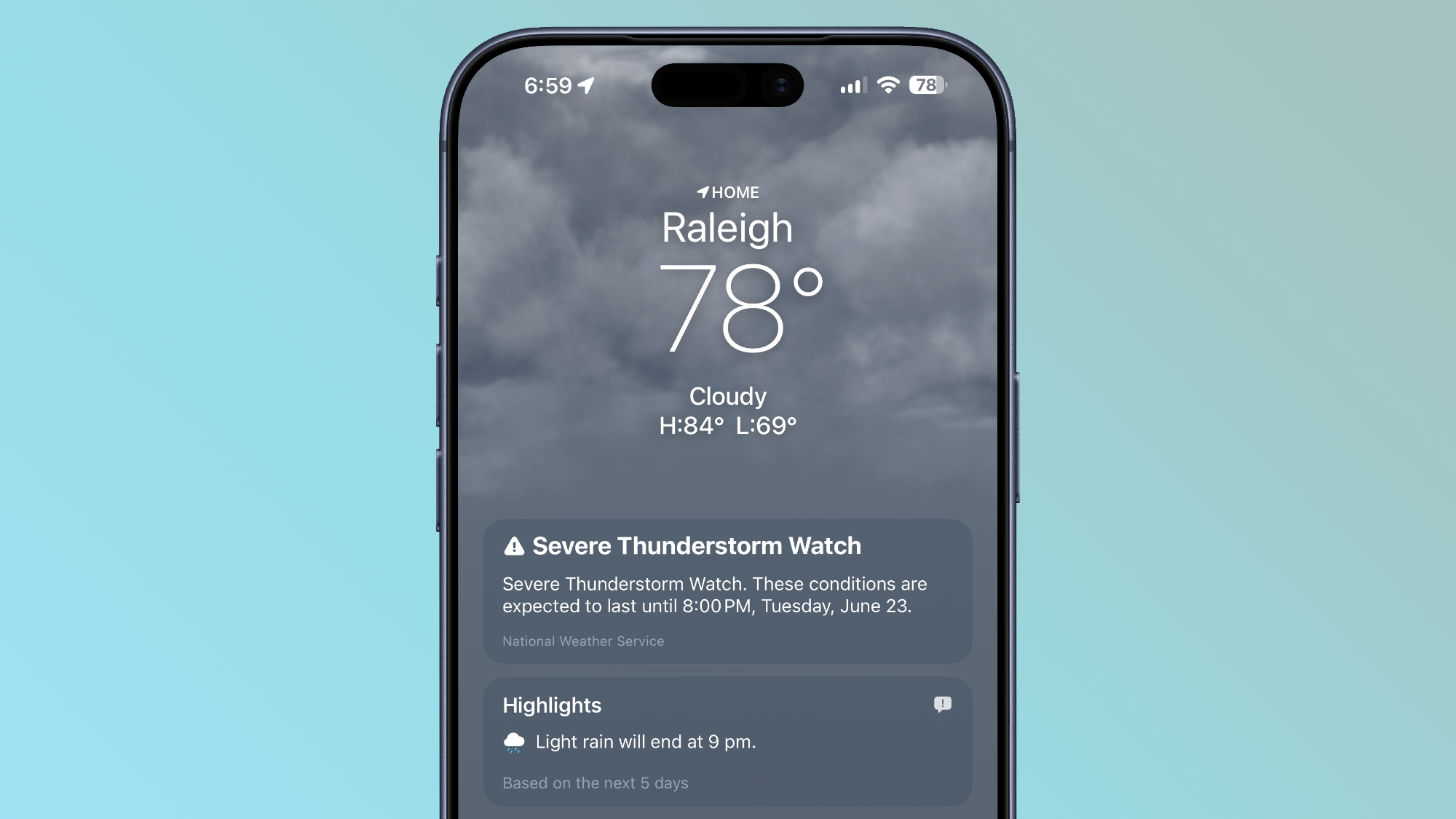
There are no new AI features in the iOS 27 Weather app, but Apple did make improvements to the layout. It's now easier to see at-a-glance information for weather conditions.

The top of the Weather app now has a Highlights section that shows you need-to-know weather information for the day.
There are new views for the Conditions section of the main Weather app interface. In addition to viewing temperature and current condition on an hourly basis, you can toggle over to a precipitation or wind view.
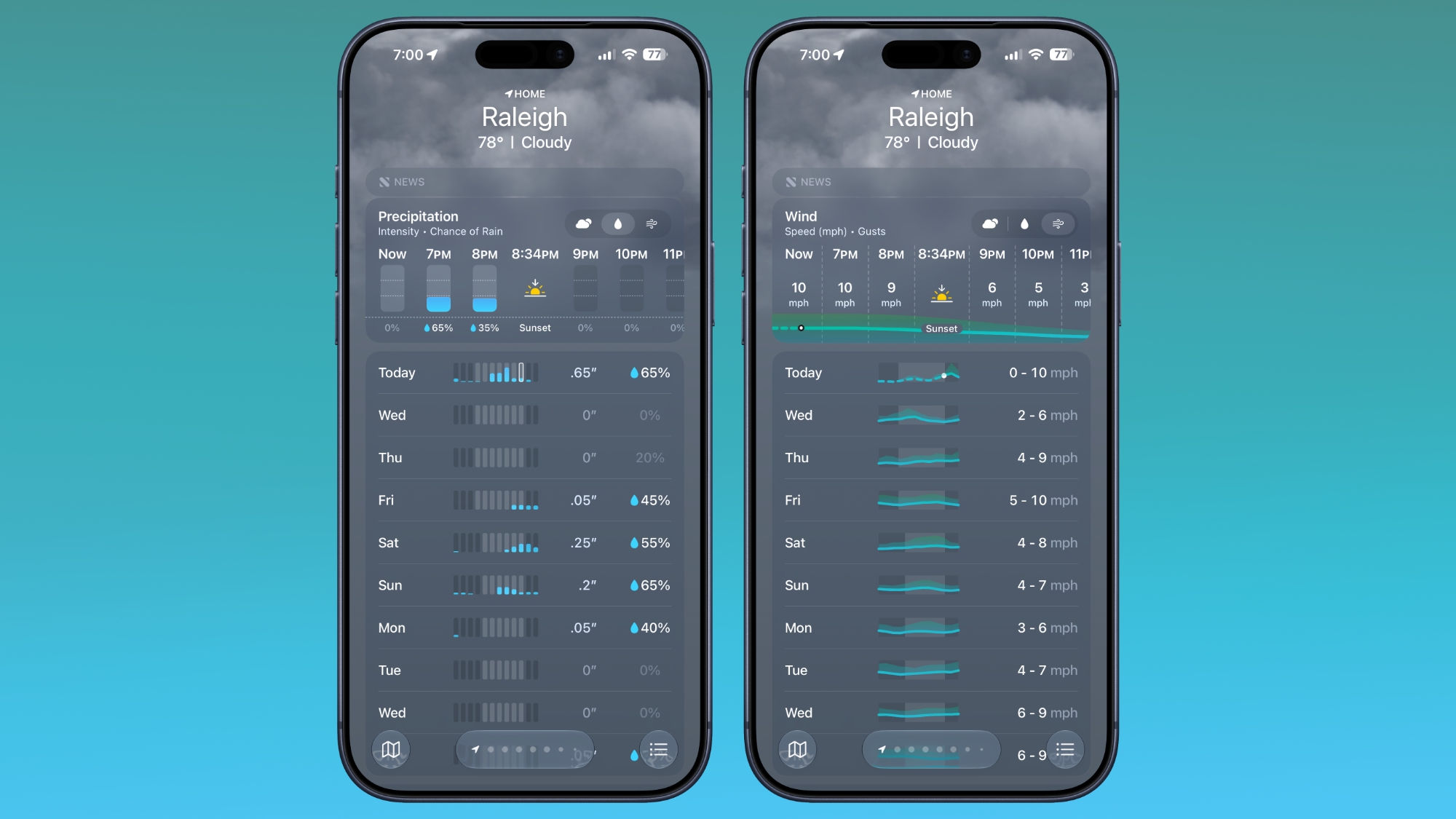
Precipitation shows you an hour-by-hour chance of rain forecast, while wind displays a breakdown of wind speed.
The 10-day view also changes when you swap between the different condition options so you can see precipitation and wind overviews for the next 10 days without having to tap into a more detailed view.
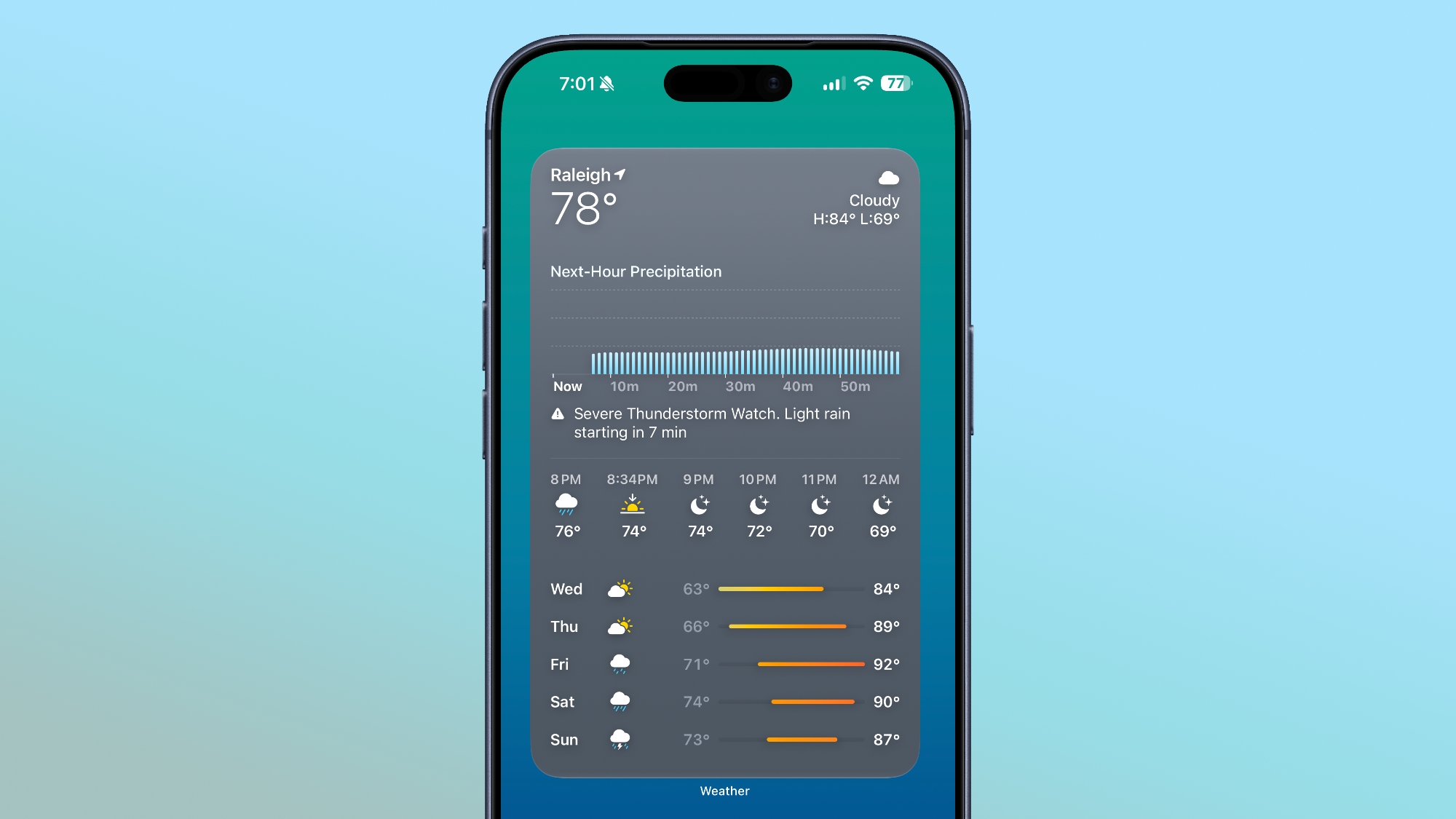
There's a new extra large size available for Home Screen widgets, which is applicable to the Weather app. You can set the Weather app to take up an entire app page.
There are a long list of new features in iOS 27, with details available in our iOS 27 roundup.
This article, "iOS 27 Weather App: All the New Features" first appeared on MacRumors.com
Discuss this article in our forums
Highlights
The top of the Weather app now has a Highlights section that shows you need-to-know weather information for the day.
Conditions
There are new views for the Conditions section of the main Weather app interface. In addition to viewing temperature and current condition on an hourly basis, you can toggle over to a precipitation or wind view.
Precipitation shows you an hour-by-hour chance of rain forecast, while wind displays a breakdown of wind speed.
10-Day View
The 10-day view also changes when you swap between the different condition options so you can see precipitation and wind overviews for the next 10 days without having to tap into a more detailed view.
Widgets
There's a new extra large size available for Home Screen widgets, which is applicable to the Weather app. You can set the Weather app to take up an entire app page.
More iOS 27 Features
There are a long list of new features in iOS 27, with details available in our iOS 27 roundup.
This article, "iOS 27 Weather App: All the New Features" first appeared on MacRumors.com
Discuss this article in our forums
Recommended Comments
Join the conversation
You can post now and register later. If you have an account, sign in now to post with your account.