_811205.png)
_e196d8.png)
_32b3d9.png)
_1c53fe.png)

Starting with iOS 27, Apple's Weather app offers new hourly and 10-day overviews for precipitation and wind that you can quickly view at a glance.
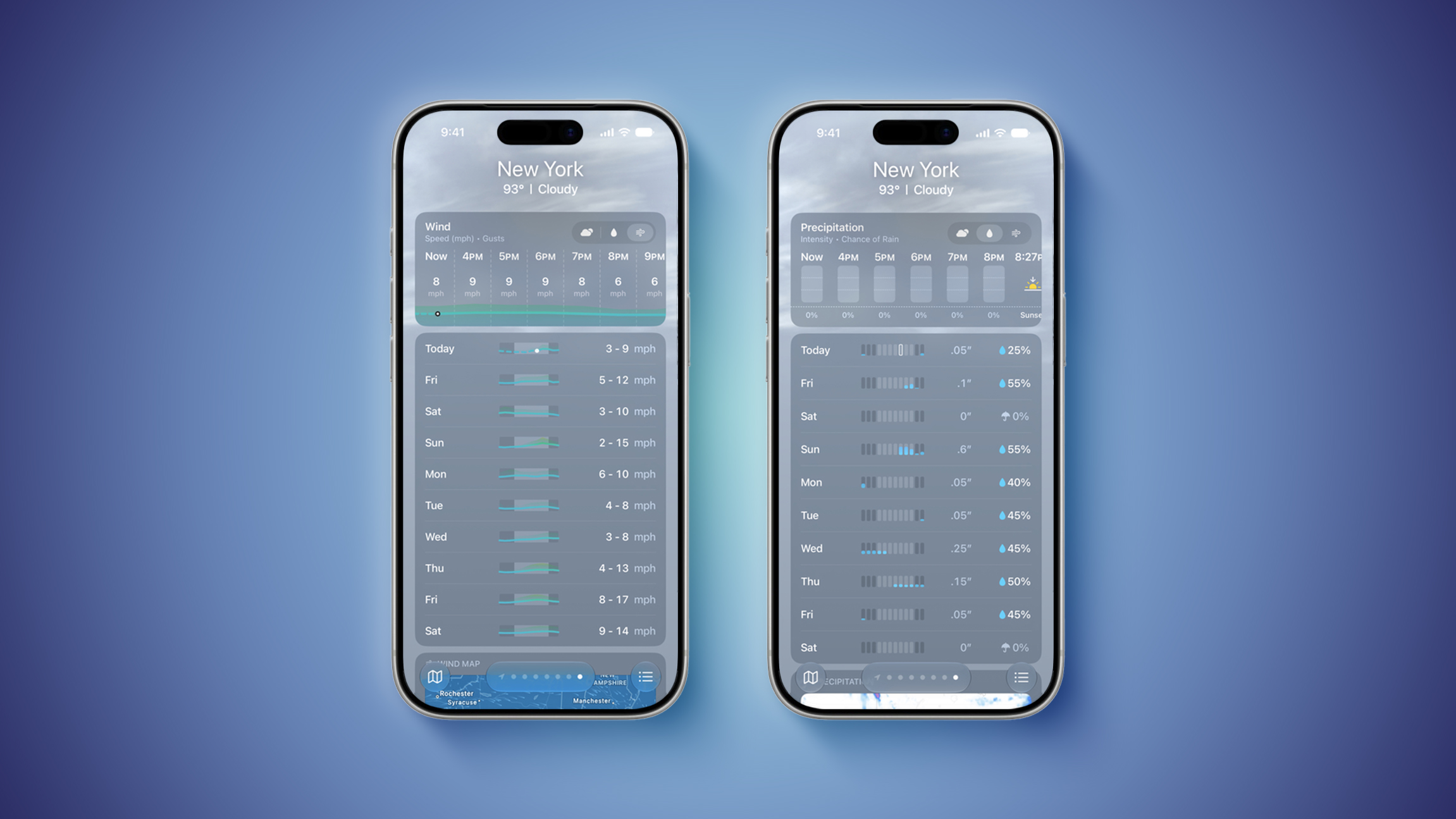
While this sort of information was already accessible elsewhere in the app, you can now quickly tap between conditions, precipitation, and wind overviews.
You can view the percentage chance of rain or snow each hour and day, as well as estimated wind speeds, and the information is accompanied by visuals.
iOS 27 is currently in beta. The update is expected to be released in September.
This article, "iOS 27's Weather App Has a New Way to View Forecasts" first appeared on MacRumors.com
Discuss this article in our forums
While this sort of information was already accessible elsewhere in the app, you can now quickly tap between conditions, precipitation, and wind overviews.
You can view the percentage chance of rain or snow each hour and day, as well as estimated wind speeds, and the information is accompanied by visuals.
iOS 27 is currently in beta. The update is expected to be released in September.
Tag: Apple Weather
This article, "iOS 27's Weather App Has a New Way to View Forecasts" first appeared on MacRumors.com
Discuss this article in our forums
Recommended Comments
Join the conversation
You can post now and register later. If you have an account, sign in now to post with your account.