_811205.png)
_e196d8.png)
_32b3d9.png)
_1c53fe.png)

Apple's iPhone 17 models are its most popular iPhones to date, Apple CFO Kevan Parekh told the Financial Times. Both Parekh and Apple CEO Tim Cook attributed Apple's stellar Q2 2026 performance to iPhone sales.
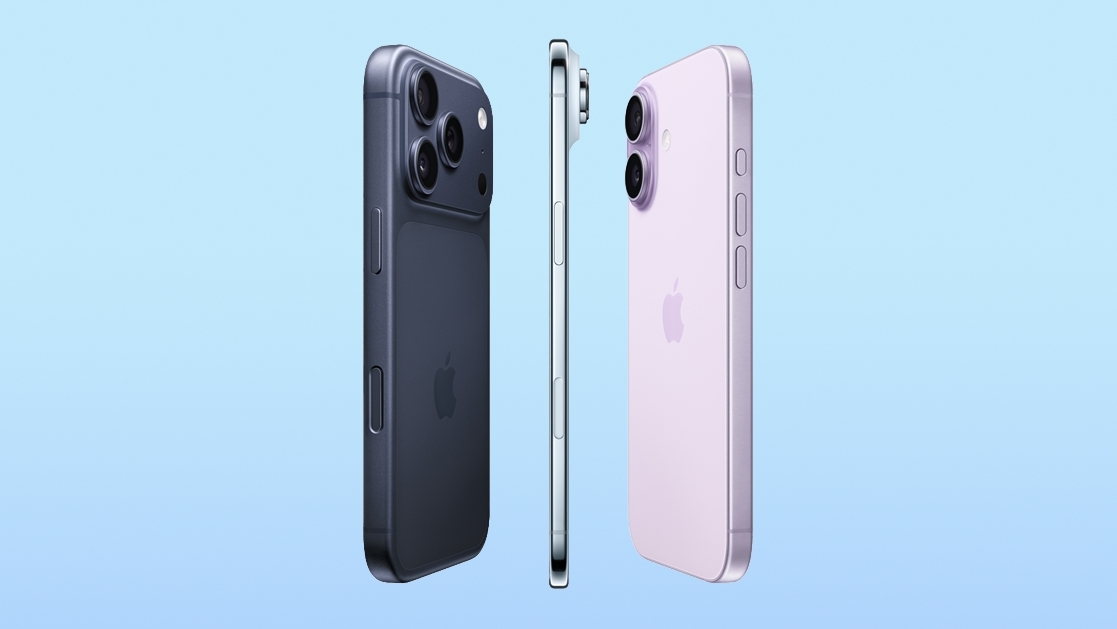
"The iPhone 17 family is now the most popular line-up in our history... we believe we gained market share during the quarter," said Parekh. Cook told Reuters that iPhone demand was "off the charts," and that supply was constrained despite the impressive sales.
"And there's just a little less flexibility in the supply chain at the moment for getting more parts," Cook said. Apple's iPhone sales were held back by the A19 and A19 Pro chips that it gets from TSMC, as TSMC also manufactures AI chips.
Parekh said that memory had an "increasing impact" between the first and second quarters of 2026.
Issues with chip supply and increasing problems acquiring RAM could potentially have an impact on the iPhone 18 lineup that Apple is expected to introduce this September. The lineup will include Apple's first foldable iPhone.
The current iPhone 17 family includes the iPhone 17, iPhone 17 Pro, iPhone 17 Pro Max, iPhone 17e, and iPhone Air.
This article, "iPhone 17 Is Apple's Most Popular Lineup Ever" first appeared on MacRumors.com
Discuss this article in our forums
"The iPhone 17 family is now the most popular line-up in our history... we believe we gained market share during the quarter," said Parekh. Cook told Reuters that iPhone demand was "off the charts," and that supply was constrained despite the impressive sales.
"And there's just a little less flexibility in the supply chain at the moment for getting more parts," Cook said. Apple's iPhone sales were held back by the A19 and A19 Pro chips that it gets from TSMC, as TSMC also manufactures AI chips.
Parekh said that memory had an "increasing impact" between the first and second quarters of 2026.
Issues with chip supply and increasing problems acquiring RAM could potentially have an impact on the iPhone 18 lineup that Apple is expected to introduce this September. The lineup will include Apple's first foldable iPhone.
The current iPhone 17 family includes the iPhone 17, iPhone 17 Pro, iPhone 17 Pro Max, iPhone 17e, and iPhone Air.
Related Roundups: iPhone 17, iPhone 17 Pro
Tag: Earnings
Buyer's Guide: iPhone 17 (Neutral), iPhone 17 Pro (Neutral)
Related Forum: iPhone
This article, "iPhone 17 Is Apple's Most Popular Lineup Ever" first appeared on MacRumors.com
Discuss this article in our forums
Recommended Comments
Join the conversation
You can post now and register later. If you have an account, sign in now to post with your account.