_811205.png)
_e196d8.png)
_32b3d9.png)
_1c53fe.png)

Back in September, the Apple TV streaming service's broadcast of the pivotal Boston Red Sox vs. Detroit Tigers game at Fenway Park incorporated live footage captured with the iPhone 17 Pro, and now the device has been enshrined in MLB history.
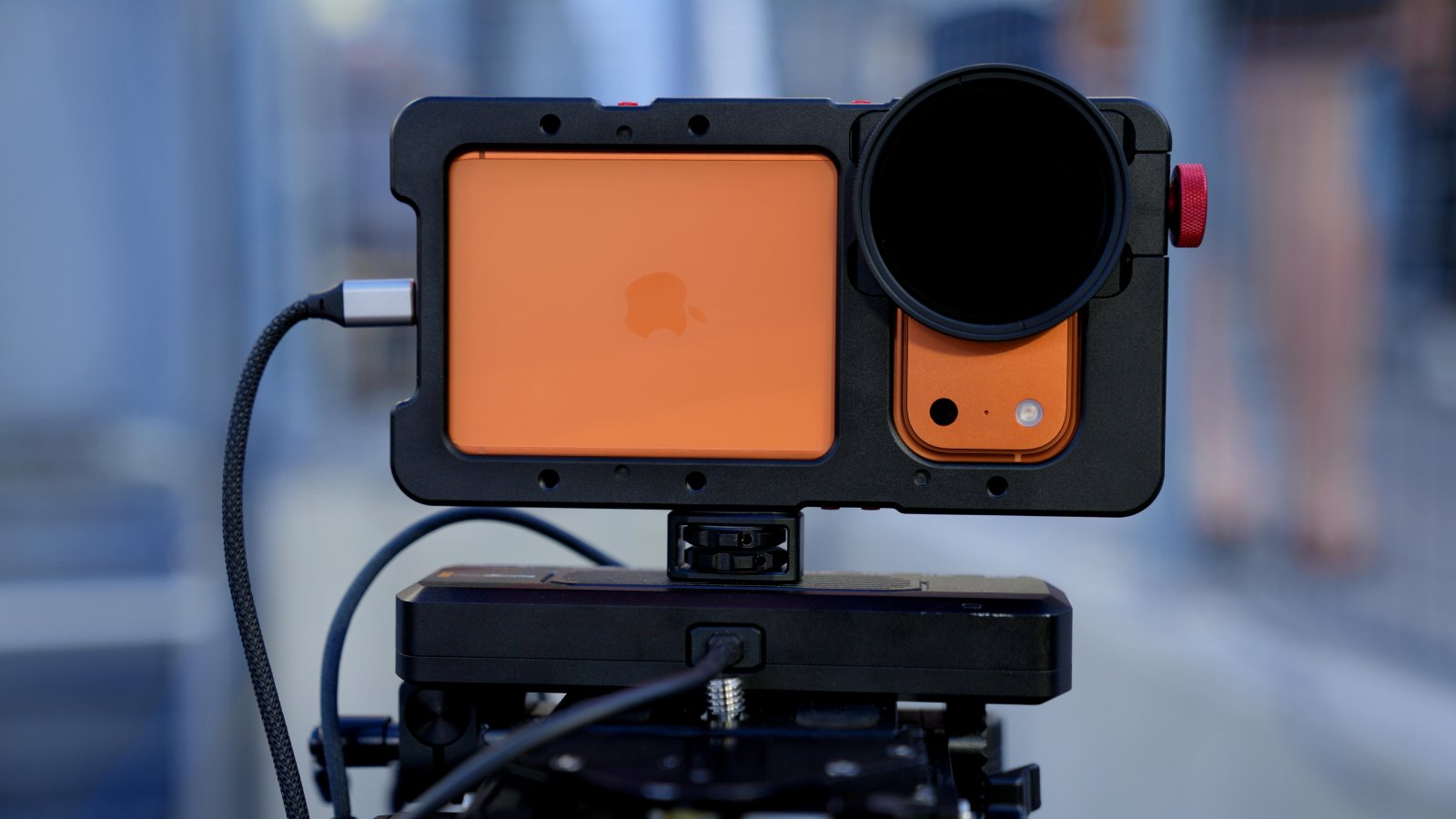
Apple this week announced that the National Baseball Hall of Fame and Museum has added one of the four iPhone 17 Pro devices that captured the Red Sox clinching a postseason berth with a thrilling walk-off win over the Tigers to its permanent collection in Cooperstown, New York. More details are available on the Hall of Fame's website.
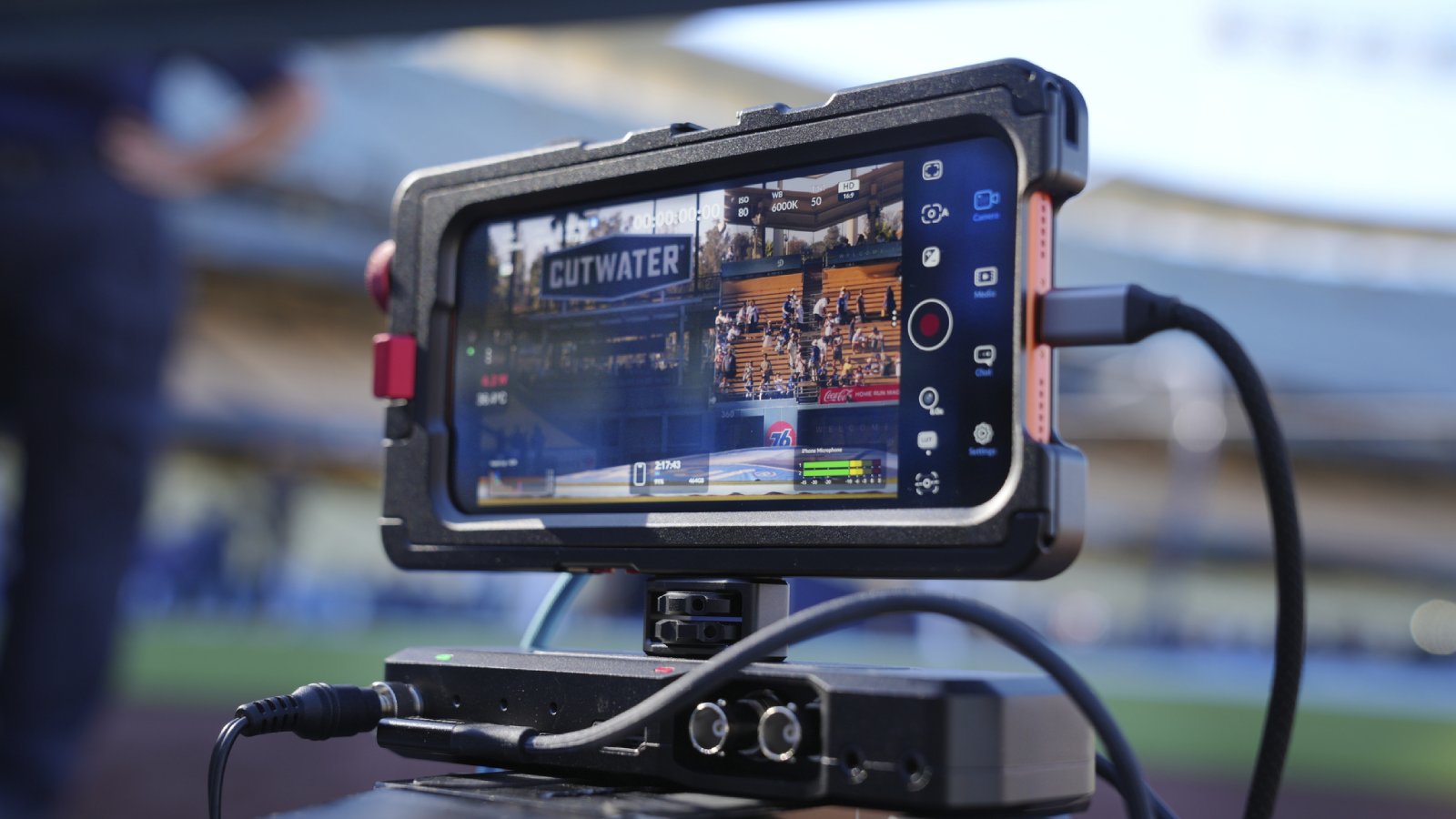
A weekly "Friday Night Baseball" doubleheader of MLB games returns to Apple TV for the 2026 season starting Friday, March 27. The games are included with an Apple TV subscription, at no additional cost. In the U.S., Apple TV costs $12.99 per month.
Throughout the 2026 season, Apple said iPhones will be further integrated into the lineup of cameras used for select "Friday Night Baseball" broadcasts.
This article, "iPhone 17 Pro is Now Part of MLB History" first appeared on MacRumors.com
Discuss this article in our forums
Apple this week announced that the National Baseball Hall of Fame and Museum has added one of the four iPhone 17 Pro devices that captured the Red Sox clinching a postseason berth with a thrilling walk-off win over the Tigers to its permanent collection in Cooperstown, New York. More details are available on the Hall of Fame's website.
A weekly "Friday Night Baseball" doubleheader of MLB games returns to Apple TV for the 2026 season starting Friday, March 27. The games are included with an Apple TV subscription, at no additional cost. In the U.S., Apple TV costs $12.99 per month.
Throughout the 2026 season, Apple said iPhones will be further integrated into the lineup of cameras used for select "Friday Night Baseball" broadcasts.
Related Roundup: iPhone 17 Pro
Tags: Apple TV Service, MLB
Buyer's Guide: iPhone 17 Pro (Neutral)
Related Forum: iPhone
This article, "iPhone 17 Pro is Now Part of MLB History" first appeared on MacRumors.com
Discuss this article in our forums
Recommended Comments
Join the conversation
You can post now and register later. If you have an account, sign in now to post with your account.