_811205.png)
_e196d8.png)
_32b3d9.png)
_1c53fe.png)

Six skiers who survived the avalanche near Lake Tahoe on Tuesday used the Emergency SOS via satellite feature on the iPhone to get help, reports The New York Times. Emergency SOS via satellite lets iPhone users communicate with emergency responders via text when a cellular or Wi-Fi connection is not available.
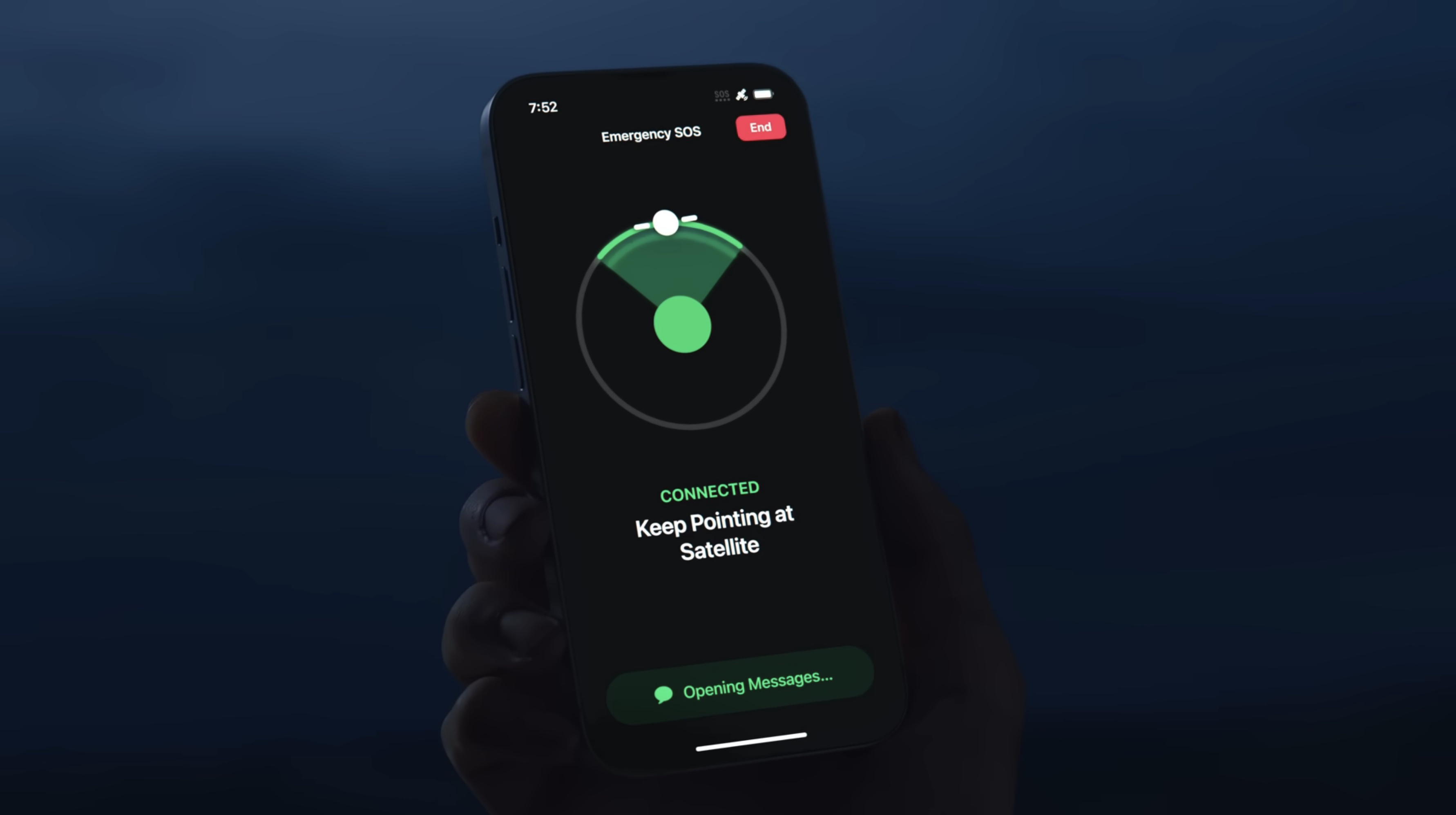
The skiers were able to stay connected to the Nevada County Sheriff's Office for several hours while rescue efforts were coordinated. "One of my personnel was communicating with one of the guides over a four-hour period, giving information back to the Nevada sheriff's office and coordinating what rescues could be permitted," said Don O'Keefe, law enforcement chief for California's Office of Emergency Services.
Emergency SOS via satellite is available on the iPhone 14 and later, as well as the Apple Watch Ultra 3. Apple offers the functionality for free.
Emergency SOS via satellite has been credited with helping people in multiple off-grid emergencies, from car accidents to wild fires. The feature works in Australia, Austria, Belgium, Canada, France, Germany, Ireland, Italy, Japan, Luxembourg, Mexico, the Netherlands, New Zealand, Portugal, Spain, Switzerland, the U.K., and the U.S.
This article, "iPhone's Emergency SOS via Satellite Feature Helped Rescue Skiers Caught in Lake Tahoe Avalanche" first appeared on MacRumors.com
Discuss this article in our forums
The skiers were able to stay connected to the Nevada County Sheriff's Office for several hours while rescue efforts were coordinated. "One of my personnel was communicating with one of the guides over a four-hour period, giving information back to the Nevada sheriff's office and coordinating what rescues could be permitted," said Don O'Keefe, law enforcement chief for California's Office of Emergency Services.
Emergency SOS via satellite is available on the iPhone 14 and later, as well as the Apple Watch Ultra 3. Apple offers the functionality for free.
Emergency SOS via satellite has been credited with helping people in multiple off-grid emergencies, from car accidents to wild fires. The feature works in Australia, Austria, Belgium, Canada, France, Germany, Ireland, Italy, Japan, Luxembourg, Mexico, the Netherlands, New Zealand, Portugal, Spain, Switzerland, the U.K., and the U.S.
This article, "iPhone's Emergency SOS via Satellite Feature Helped Rescue Skiers Caught in Lake Tahoe Avalanche" first appeared on MacRumors.com
Discuss this article in our forums
Recommended Comments
Join the conversation
You can post now and register later. If you have an account, sign in now to post with your account.