_811205.png)
_e196d8.png)
_32b3d9.png)
_1c53fe.png)

Lock maker Kwikset today added CarPlay integration to the Kwikset app, which means iPhone owners can lock or unlock Kwikset smart locks directly from the car's dashboard.
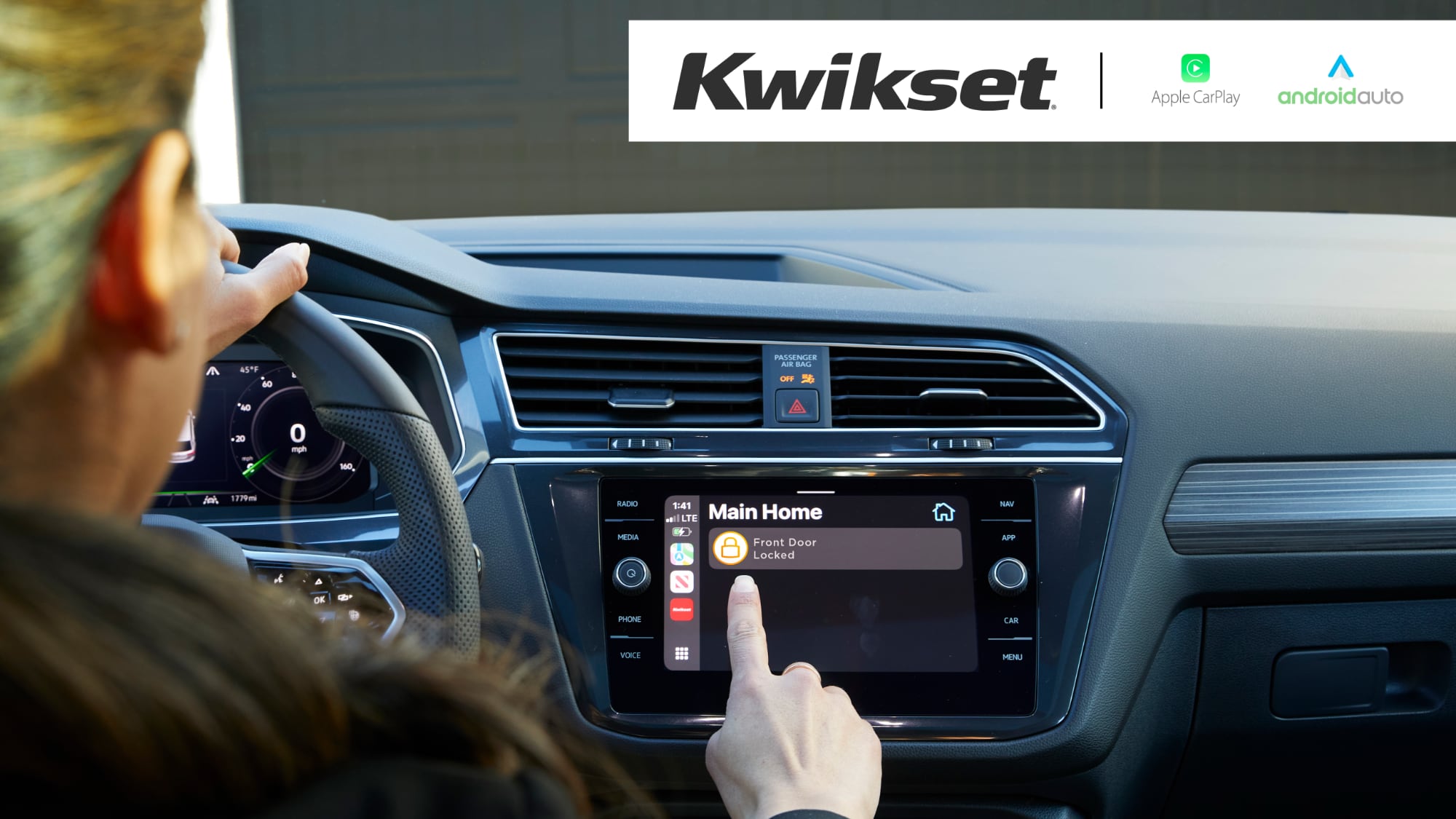
The feature works with Kwikset locks that are controlled with the Kwikset app, and it allows locks to be accessed without the need to open the app on an iPhone. When arriving home or leaving, vehicle owners can use CarPlay to unlock or lock their home's doors.
When an iPhone is connected to CarPlay, the Kwikset app is shown alongside other third-party apps, so users can choose their home and lock or unlock their home door with a tap.
Kwikset new CarPlay functionality is designed for Kwikset locks that include the Halo Touch, Halo Keypad, Halo Touchscreen, Halo Select, and Halo Select Plus. The feature does not work with Kwikset Halo locks that are set to Matter mode. Kwikset is also adding the same integration for Android Auto.
This article, "Kwikset Smart Locks Can Now Be Controlled Through Apple CarPlay" first appeared on MacRumors.com
Discuss this article in our forums
The feature works with Kwikset locks that are controlled with the Kwikset app, and it allows locks to be accessed without the need to open the app on an iPhone. When arriving home or leaving, vehicle owners can use CarPlay to unlock or lock their home's doors.
When an iPhone is connected to CarPlay, the Kwikset app is shown alongside other third-party apps, so users can choose their home and lock or unlock their home door with a tap.
Kwikset new CarPlay functionality is designed for Kwikset locks that include the Halo Touch, Halo Keypad, Halo Touchscreen, Halo Select, and Halo Select Plus. The feature does not work with Kwikset Halo locks that are set to Matter mode. Kwikset is also adding the same integration for Android Auto.
Related Roundup: CarPlay
Tag: Kwikset
Related Forum: HomePod, HomeKit, CarPlay, Home & Auto Technology
This article, "Kwikset Smart Locks Can Now Be Controlled Through Apple CarPlay" first appeared on MacRumors.com
Discuss this article in our forums
Recommended Comments
Join the conversation
You can post now and register later. If you have an account, sign in now to post with your account.