_811205.png)
_e196d8.png)
_32b3d9.png)
_1c53fe.png)

Apple has continued posting short videos featuring its new Little Finder Guy mascot on TikTok and YouTube Shorts, taking advantage of the popularity of the anthropomorphized Mac Finder icon.
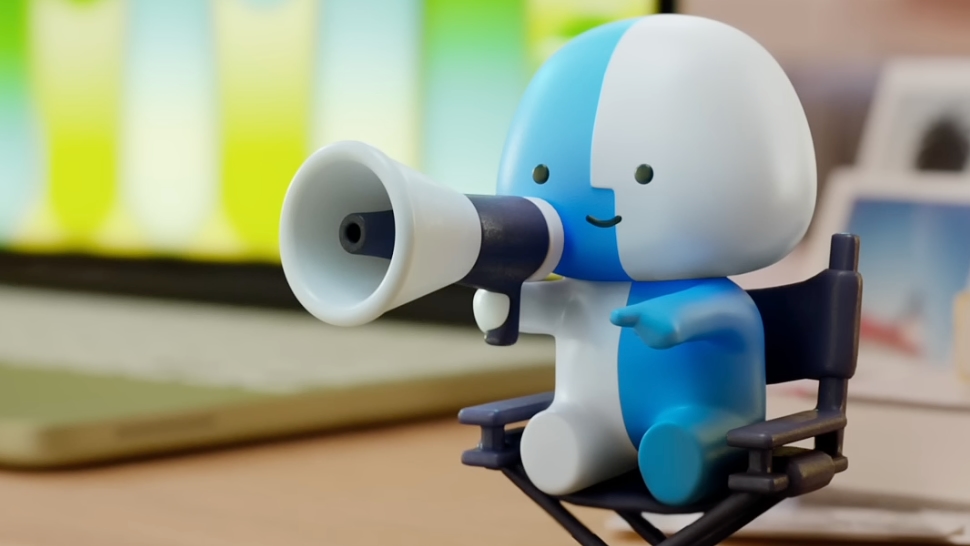
The short videos promote the MacBook Neo through a series of Mac tips, all of which include Little Finder Guy in cute poses. A video about journaling features the character with a book and a pen, while another about the Passwords app has Little Finder Guy with a magnifying glass.
Apple has shared nine Little Finder Guy videos this week, and on TikTok, the thumbnails for the videos come together to make a Little Finder Guy mosaic on the Apple TikTok page.
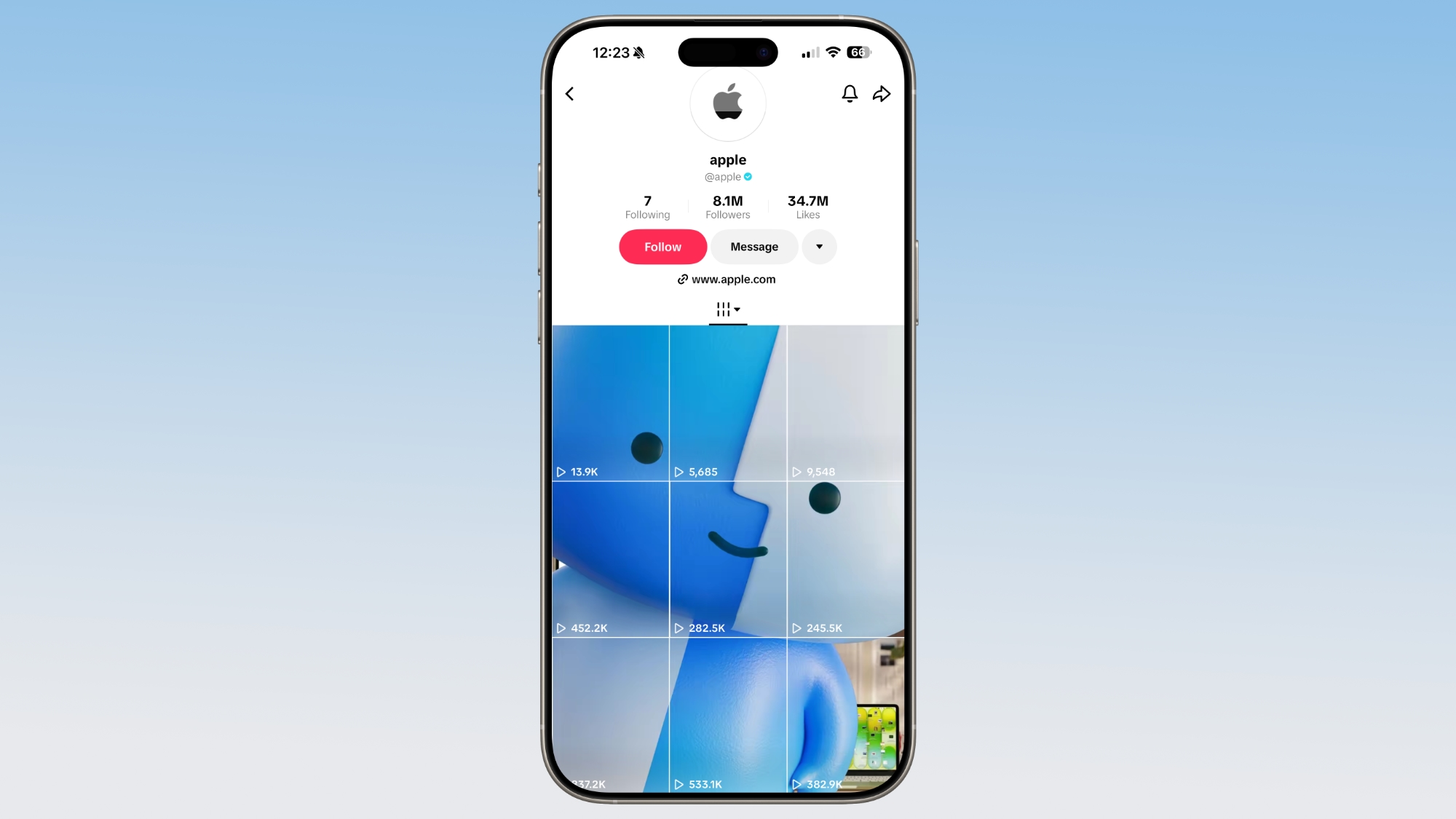
Now that Apple has likely completed its Little Finder Guy image on TikTok, videos with the character could stop or become less frequent, but Apple might opt to keep the mascot around because of how it's caught on.
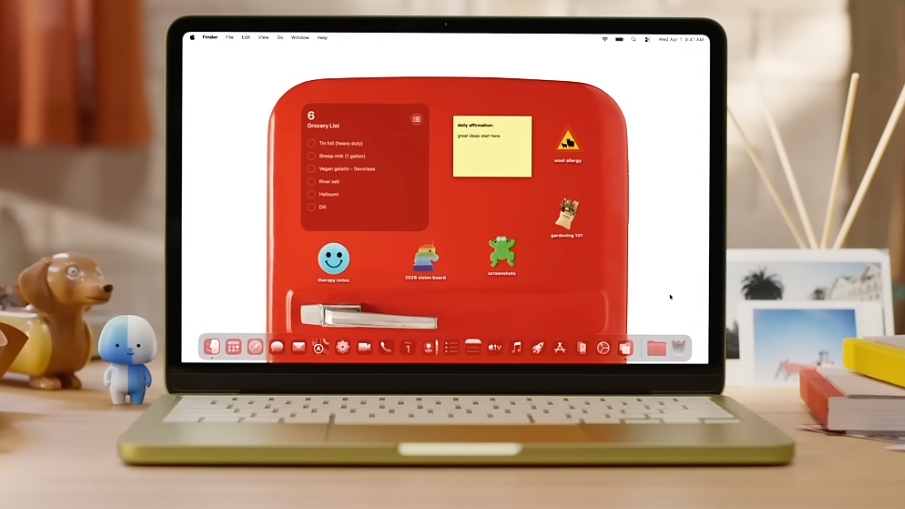
Apple introduced Little Finder Guy after launching the MacBook Neo in early March, and Apple users immediately liked the character. Stephen Hackett of 512 Pixels created a 3D print version, and Basic Apple Guy has a series of mockups, plus stickers for sale. PCalc's James Thomson also made a set of 5K Little Finder Guy wallpapers.
This article, "Little Finder Guy Stars in Nine New Apple TikTok and YouTube Videos" first appeared on MacRumors.com
Discuss this article in our forums
The short videos promote the MacBook Neo through a series of Mac tips, all of which include Little Finder Guy in cute poses. A video about journaling features the character with a book and a pen, while another about the Passwords app has Little Finder Guy with a magnifying glass.
Apple has shared nine Little Finder Guy videos this week, and on TikTok, the thumbnails for the videos come together to make a Little Finder Guy mosaic on the Apple TikTok page.
Now that Apple has likely completed its Little Finder Guy image on TikTok, videos with the character could stop or become less frequent, but Apple might opt to keep the mascot around because of how it's caught on.
Apple introduced Little Finder Guy after launching the MacBook Neo in early March, and Apple users immediately liked the character. Stephen Hackett of 512 Pixels created a 3D print version, and Basic Apple Guy has a series of mockups, plus stickers for sale. PCalc's James Thomson also made a set of 5K Little Finder Guy wallpapers.
Tags: Little Finder Guy, TikTok
This article, "Little Finder Guy Stars in Nine New Apple TikTok and YouTube Videos" first appeared on MacRumors.com
Discuss this article in our forums
Recommended Comments
Join the conversation
You can post now and register later. If you have an account, sign in now to post with your account.