_811205.png)
_e196d8.png)
_32b3d9.png)
_1c53fe.png)

In watchOS 26, the Smart Stack for your Apple Watch is pretty clever. The collection of widgets can be pulled up with a scroll of the Digital Crown, and shows you relevant information throughout your day. But sometimes, its eagerness to help can be a bit much, especially when it comes to Live Activities.
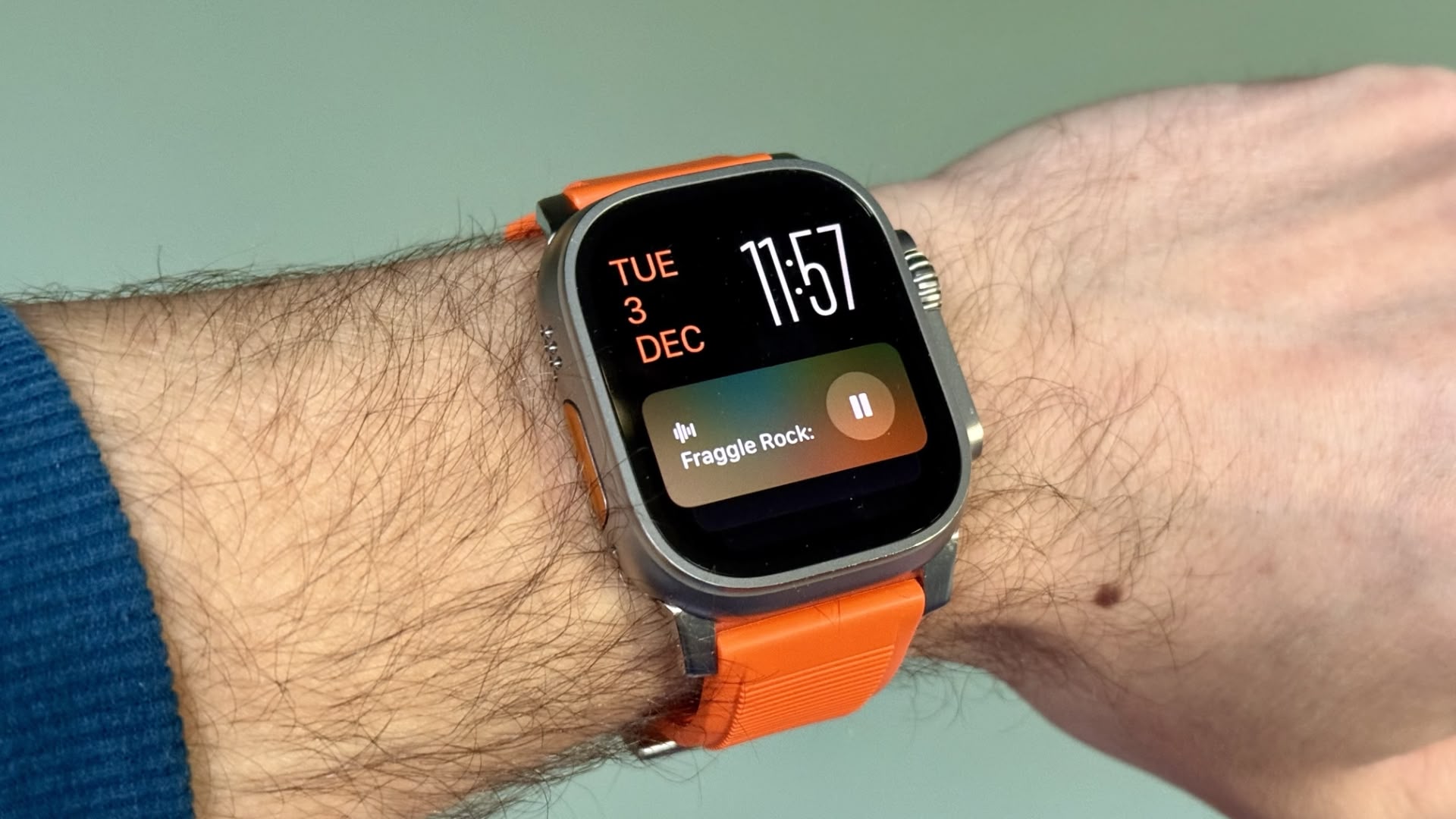
You're probably familiar with this scenario: You raise your wrist expecting to see your customized watch face, but it's been replaced by media playback controls because someone's watching your Apple TV, or a timer you set earlier for cooking that still has ages left to run. Live Activities in the Smart Stack can clearly be useful, but having them automatically take over your display isn't always ideal. Here's how to take back control:
Open Settings on your Apple Watch.
Tap Smart Stack.
Select Live Activities.
Toggle off the switch next to Auto-Launch Live Activities.
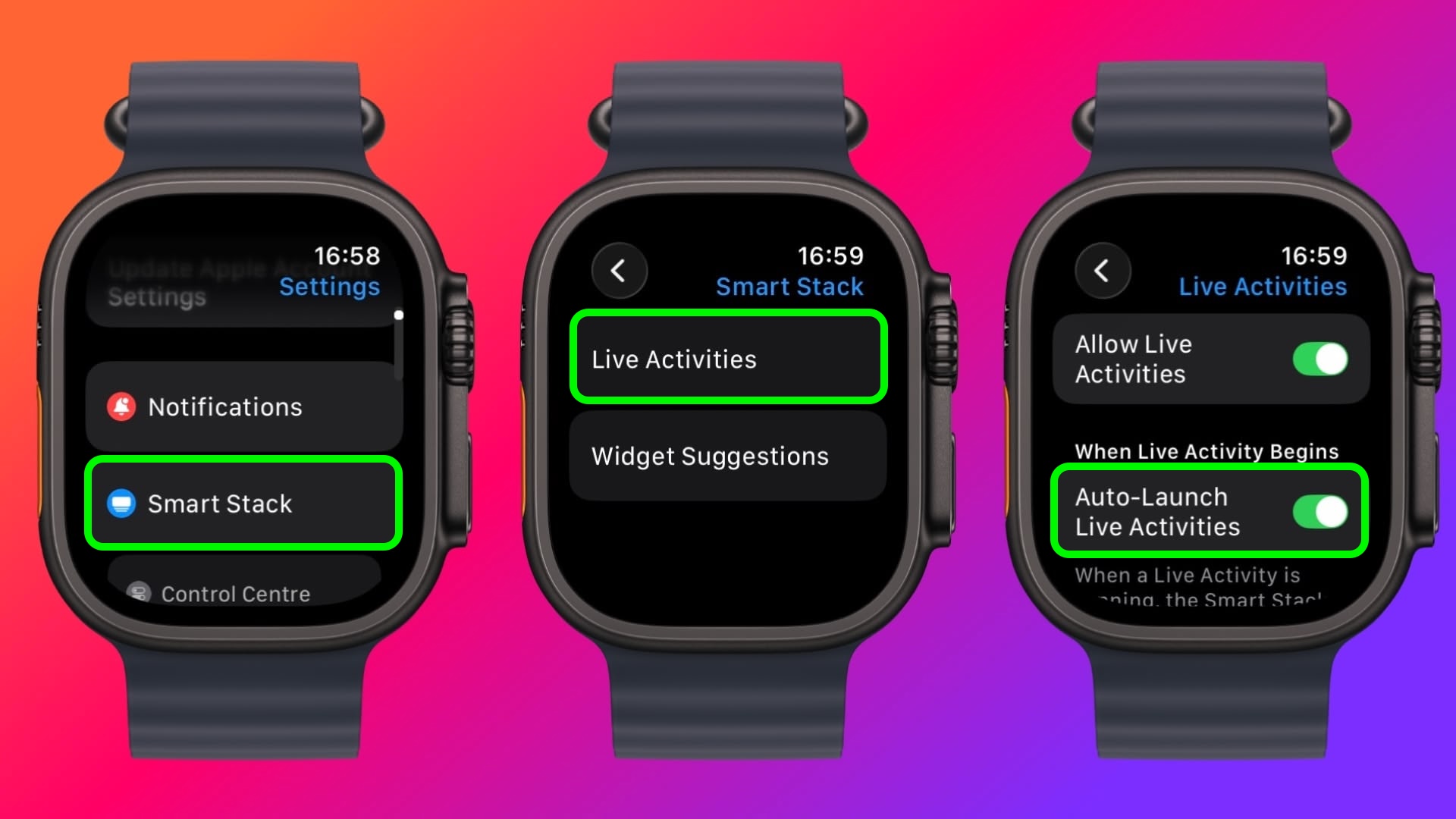
After disabling auto-launch, Live Activities will still be available in your Smart Stack when you want them – you'll just need to manually scroll to see them instead of having them pop up automatically.
If you want more granular control, you're in luck. From the same settings screen you can control which Apple apps display Live Activities. Using the Watch app on your iPhone, you can also manage Live Activities settings for third-party apps. This lets you keep the notifications you find useful while preventing the less important ones from interrupting your watch face.
Pro Tip: If it's just those persistent media controls that bug you, head to Media Apps in the same settings menu and turn off Live Activities completely, or alternatively under "Auto-Launch," select Off or Smart Stack for a more focused watch face experience.
This article, "Live Activities Taking Over Your Apple Watch? Here's the Fix" first appeared on MacRumors.com
Discuss this article in our forums
You're probably familiar with this scenario: You raise your wrist expecting to see your customized watch face, but it's been replaced by media playback controls because someone's watching your Apple TV, or a timer you set earlier for cooking that still has ages left to run. Live Activities in the Smart Stack can clearly be useful, but having them automatically take over your display isn't always ideal. Here's how to take back control:
Open Settings on your Apple Watch.
Tap Smart Stack.
Select Live Activities.
Toggle off the switch next to Auto-Launch Live Activities.
After disabling auto-launch, Live Activities will still be available in your Smart Stack when you want them – you'll just need to manually scroll to see them instead of having them pop up automatically.
If you want more granular control, you're in luck. From the same settings screen you can control which Apple apps display Live Activities. Using the Watch app on your iPhone, you can also manage Live Activities settings for third-party apps. This lets you keep the notifications you find useful while preventing the less important ones from interrupting your watch face.
Pro Tip: If it's just those persistent media controls that bug you, head to Media Apps in the same settings menu and turn off Live Activities completely, or alternatively under "Auto-Launch," select Off or Smart Stack for a more focused watch face experience.
This article, "Live Activities Taking Over Your Apple Watch? Here's the Fix" first appeared on MacRumors.com
Discuss this article in our forums
Recommended Comments
Join the conversation
You can post now and register later. If you have an account, sign in now to post with your account.