_811205.png)
_e196d8.png)
_32b3d9.png)
_1c53fe.png)

The colorful new wallpapers that Apple introduced with the MacBook Neo are available for all Macs in the fourth beta of macOS Tahoe 26.4 that came out for developers today.
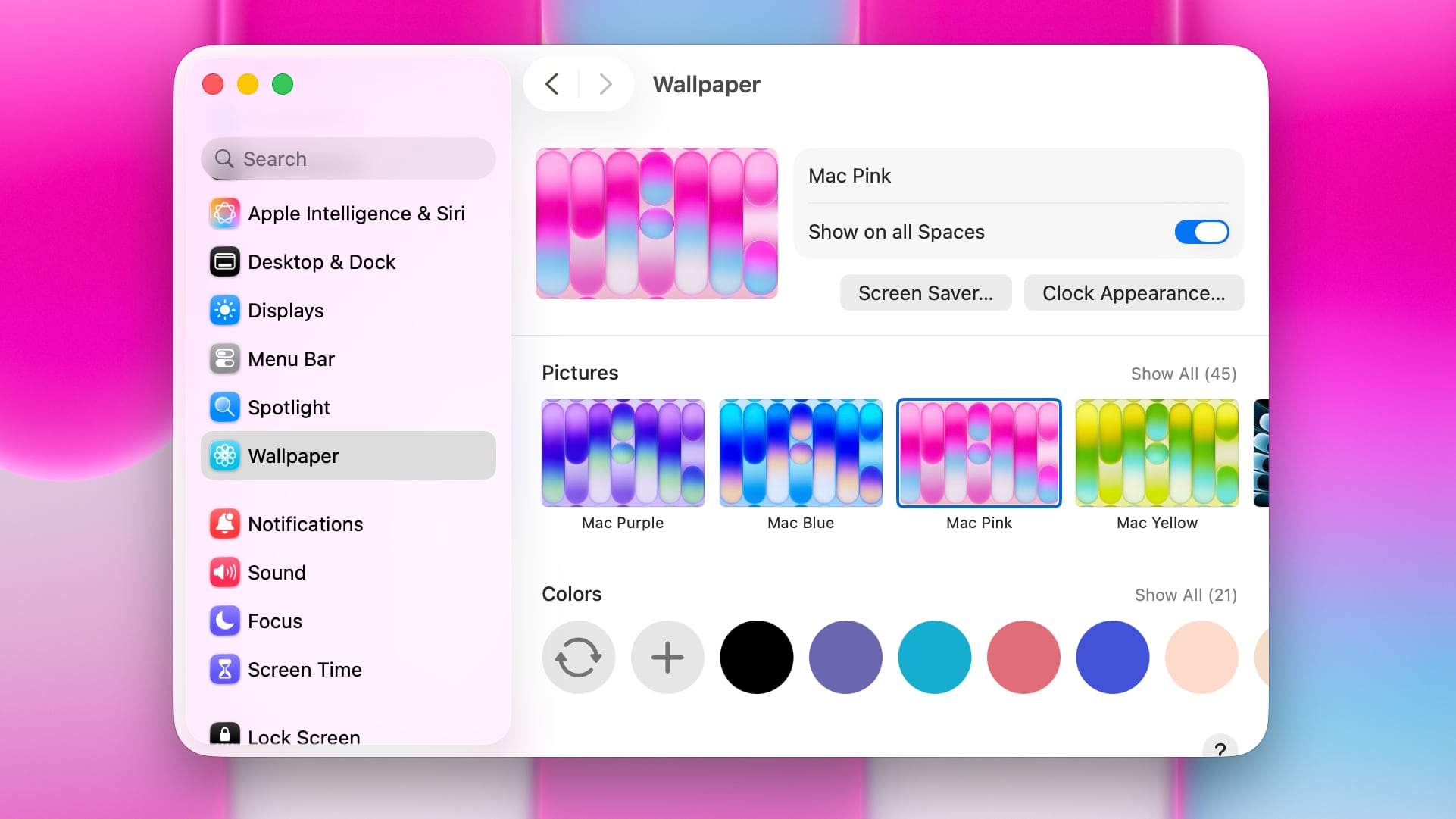
Featuring bubble-style lines with colorful gradients, the wallpapers come in Mac Purple, Mac Blue, Mac Pink, and Mac Yellow. The design and the colors spell out the word "Mac."
Beta testers can use the new wallpapers by opening up the System Settings app, going to the Wallpaper option, and scrolling down to the Pictures section.
Apple typically makes all of the wallpapers that it designs for Mac marketing images available to all Macs, so the new Neo wallpapers join wallpapers created for the MacBook Air, MacBook Pro, iMac, and other machines.

Today's macOS Tahoe 26.4 update also adds new emoji characters, like trombone, treasure chest, distorted face, hairy creature, fight cloud, orca, and landslide.
The fourth beta of macOS Tahoe 26.4 is limited to developers, but it should soon be released for public beta testers as well. The update is expected to launch this spring.
This article, "MacBook Neo Wallpapers Now Available for All Macs in macOS Tahoe 26.4 Beta" first appeared on MacRumors.com
Discuss this article in our forums
Featuring bubble-style lines with colorful gradients, the wallpapers come in Mac Purple, Mac Blue, Mac Pink, and Mac Yellow. The design and the colors spell out the word "Mac."
Beta testers can use the new wallpapers by opening up the System Settings app, going to the Wallpaper option, and scrolling down to the Pictures section.
Apple typically makes all of the wallpapers that it designs for Mac marketing images available to all Macs, so the new Neo wallpapers join wallpapers created for the MacBook Air, MacBook Pro, iMac, and other machines.
Today's macOS Tahoe 26.4 update also adds new emoji characters, like trombone, treasure chest, distorted face, hairy creature, fight cloud, orca, and landslide.
The fourth beta of macOS Tahoe 26.4 is limited to developers, but it should soon be released for public beta testers as well. The update is expected to launch this spring.
Related Roundups: MacBook Neo, macOS Tahoe
Related Forum: macOS Tahoe
This article, "MacBook Neo Wallpapers Now Available for All Macs in macOS Tahoe 26.4 Beta" first appeared on MacRumors.com
Discuss this article in our forums
Recommended Comments
Join the conversation
You can post now and register later. If you have an account, sign in now to post with your account.