_811205.png)
_e196d8.png)
_32b3d9.png)
_1c53fe.png)

macOS Tahoe 26.4 introduces a new security feature that warns Mac users if they paste certain commands in the Terminal app that may be harmful.

For those unaware, the Terminal app allows you to enter text commands to perform tasks on your Mac. Terminal is primarily intended for advanced users and developers, but unfortunately casual users can be tricked into entering harmful commands that can permanently delete files, change user permissions, and cause other problems.
Here is what the warning says when it appears:
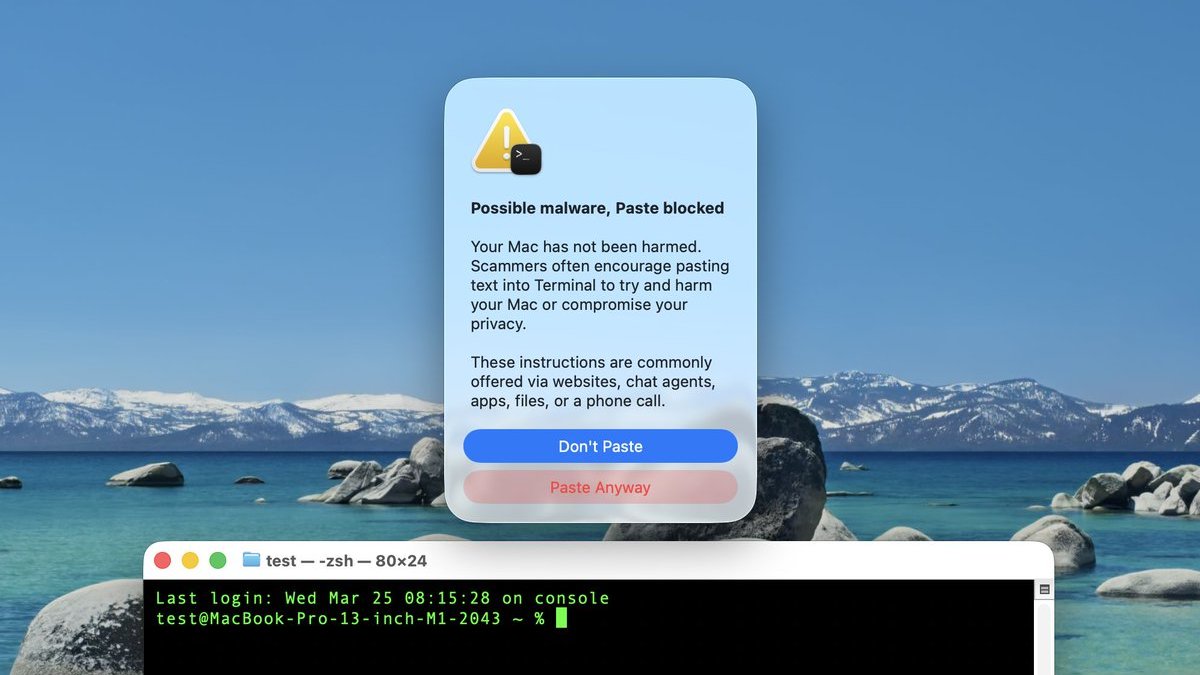 Screenshot via "Mr. Macintosh"
We have yet to determine exactly which commands trigger the warning, which does not always appear. For this reason, always be careful. If you are unfamiliar with how Terminal works, it is probably best to avoid using it entirely.
macOS 26.4 was released earlier this week.
This article, "macOS 26.4 Introduces New Security Feature for Terminal Commands" first appeared on MacRumors.com
Discuss this article in our forums
For those unaware, the Terminal app allows you to enter text commands to perform tasks on your Mac. Terminal is primarily intended for advanced users and developers, but unfortunately casual users can be tricked into entering harmful commands that can permanently delete files, change user permissions, and cause other problems.
Here is what the warning says when it appears:
Possible malware, Paste blockedThe warning was spotted by users across Reddit and X over the past week.
Your Mac has not been harmed.
Scammers often encourage pasting text into Terminal to try and harm your Mac or compromise your privacy.
These instructions are commonly offered via websites, chat agents, apps, files, or a phone call.
Screenshot via "Mr. Macintosh"We have yet to determine exactly which commands trigger the warning, which does not always appear. For this reason, always be careful. If you are unfamiliar with how Terminal works, it is probably best to avoid using it entirely.
macOS 26.4 was released earlier this week.
Related Roundup: macOS Tahoe
Tags: Apple Security, Terminal
Related Forum: macOS Tahoe
This article, "macOS 26.4 Introduces New Security Feature for Terminal Commands" first appeared on MacRumors.com
Discuss this article in our forums
Recommended Comments
Join the conversation
You can post now and register later. If you have an account, sign in now to post with your account.