_811205.png)
_e196d8.png)
_32b3d9.png)
_1c53fe.png)

In macOS 27 Golden Gate, Apple has removed many of the menu item icons that are so prevalent throughout macOS 26 Tahoe, as spotted by Nikita "Tonsky" Prokopov (via Daring Fireball). The developer shared before-and-after screenshots on Mastodon to evidence the reversal.
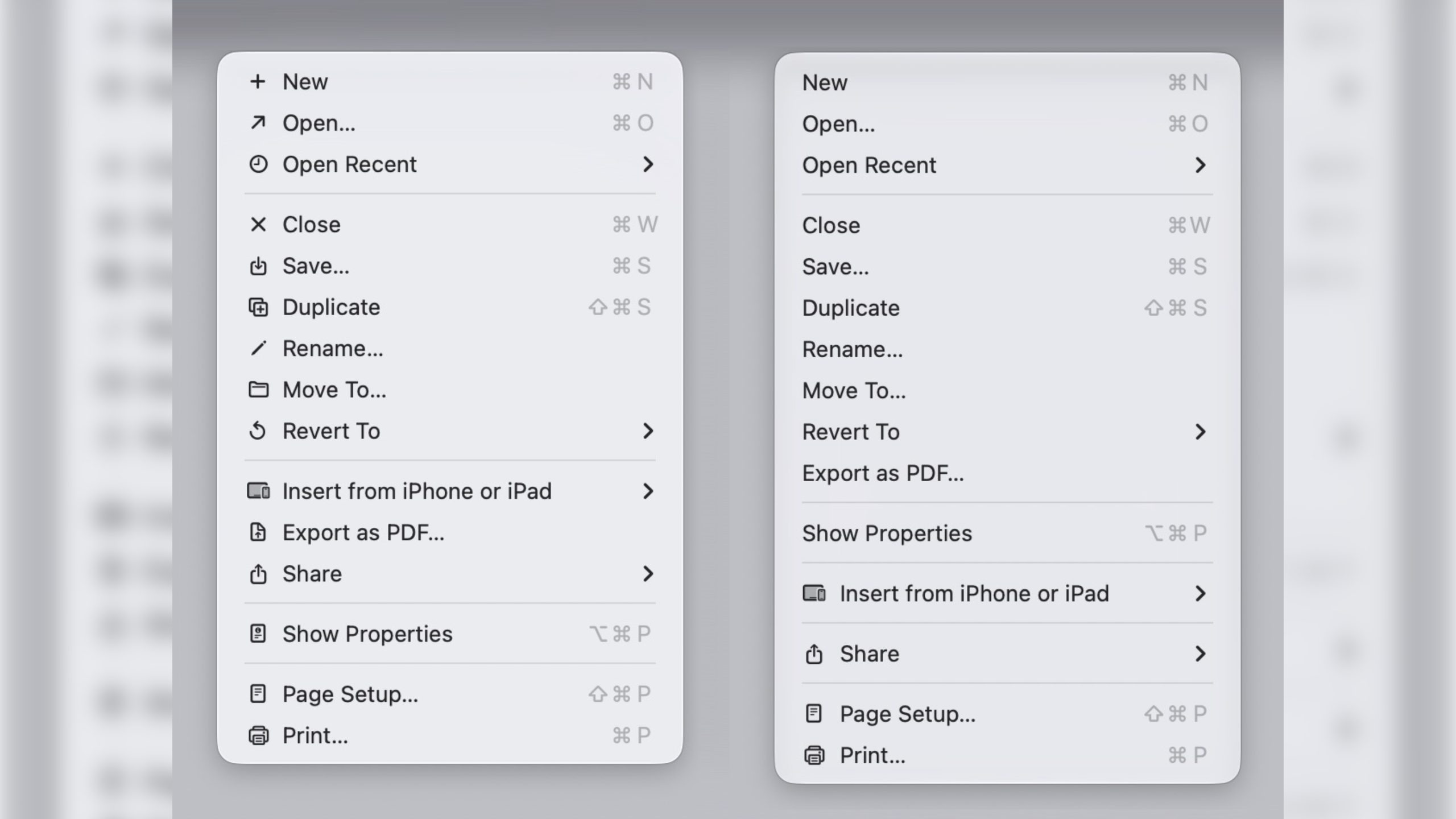
Tahoe was the first version of macOS to place a small icon next to nearly every entry in the menu bar across Apple's apps, but the change drew swift criticism from designers and developers. Many of the icons are inconsistent and often difficult to understand on their own, with different Apple apps showing different icons for the same menu items.
The third-party developer pushback was strong enough that some even adopted open-source code provided by NetNewsWire's Brent Simmons to switch the icons off by default.
In Golden Gate though, they're gone – or only used where genuinely useful. Apple has also revised its Human Interface Guidelines to tell developers to use menu item icons "sparingly and with purpose," reserving them for common actions, file system locations, connected devices, and similar cases.
macOS 27 is currently in developer beta, with a public beta to arrive next month, followed by a general release in the fall.
This article, "macOS 27 Golden Gate Reverses a Divisive Tahoe Design Choice" first appeared on MacRumors.com
Discuss this article in our forums
Menu item icons in macOS 26 (left) vs. macOS 27 (image: Nikita Prokopov)
Tahoe was the first version of macOS to place a small icon next to nearly every entry in the menu bar across Apple's apps, but the change drew swift criticism from designers and developers. Many of the icons are inconsistent and often difficult to understand on their own, with different Apple apps showing different icons for the same menu items.
The third-party developer pushback was strong enough that some even adopted open-source code provided by NetNewsWire's Brent Simmons to switch the icons off by default.
In Golden Gate though, they're gone – or only used where genuinely useful. Apple has also revised its Human Interface Guidelines to tell developers to use menu item icons "sparingly and with purpose," reserving them for common actions, file system locations, connected devices, and similar cases.
macOS 27 is currently in developer beta, with a public beta to arrive next month, followed by a general release in the fall.
Related Roundups: macOS Tahoe, macOS Golden Gate
Related Forum: macOS Tahoe
This article, "macOS 27 Golden Gate Reverses a Divisive Tahoe Design Choice" first appeared on MacRumors.com
Discuss this article in our forums
Recommended Comments
Join the conversation
You can post now and register later. If you have an account, sign in now to post with your account.