_811205.png)
_e196d8.png)
_32b3d9.png)
_1c53fe.png)

macOS Tahoe will be the last version of macOS that supports Intel-based Macs, with Apple planning to phase out Intel Macs entirely following its transition to Apple silicon.
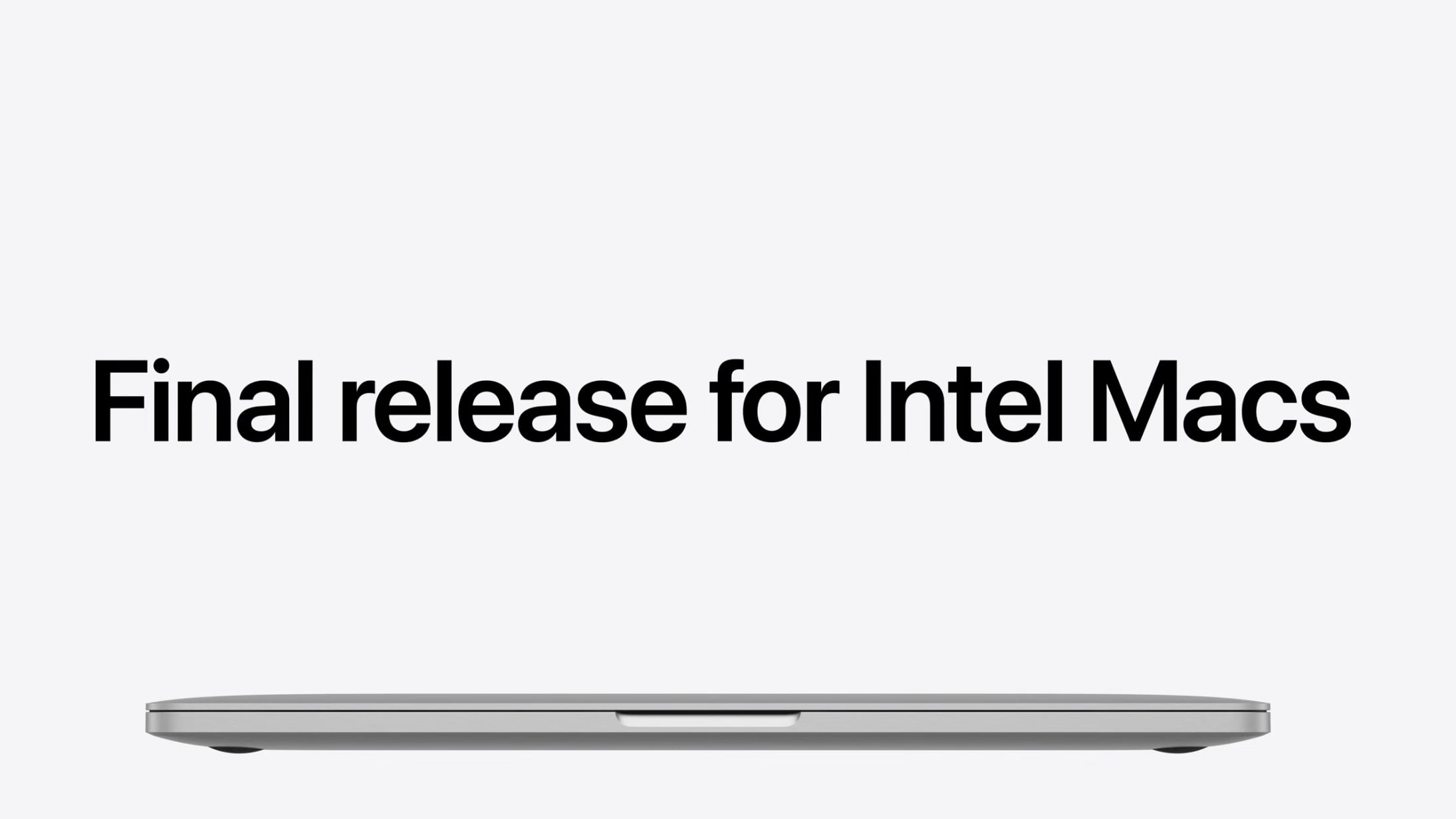
Apple today reminded developers and users that future versions of macOS will not support Intel machines, and Rosetta 2 support for apps will end after macOS 27.
Starting with macOS Tahoe 26.4, when users launch an app that uses Rosetta 2, there will be a popup letting them know that the app will no longer work when support for Rosetta 2 ends.
Apple says that it will continue to support older, unmaintained gaming titles with Rosetta along with software running Intel binaries in Linux VMs beyond macOS 27. There could also be future security fixes.
Apple first announced plans to stop supporting Intel Macs with new versions of macOS back in June 2025 when it debuted macOS Tahoe at WWDC.
Apple started its transition to Apple silicon with the 2020 launch of the M1 Mac machines, and three years ago, the company completed the transition to Apple silicon with the Apple silicon Mac Pro.
macOS 27 will launch in September 2026, so the end of support for Intel-based Macs is approaching.
This article, "macOS Tahoe 26.4 Displays Warnings for Apps That Won't Work After Rosetta 2 Support Ends" first appeared on MacRumors.com
Discuss this article in our forums
Apple today reminded developers and users that future versions of macOS will not support Intel machines, and Rosetta 2 support for apps will end after macOS 27.
Starting with macOS Tahoe 26.4, when users launch an app that uses Rosetta 2, there will be a popup letting them know that the app will no longer work when support for Rosetta 2 ends.
Apple says that it will continue to support older, unmaintained gaming titles with Rosetta along with software running Intel binaries in Linux VMs beyond macOS 27. There could also be future security fixes.
Apple first announced plans to stop supporting Intel Macs with new versions of macOS back in June 2025 when it debuted macOS Tahoe at WWDC.
Apple started its transition to Apple silicon with the 2020 launch of the M1 Mac machines, and three years ago, the company completed the transition to Apple silicon with the Apple silicon Mac Pro.
macOS 27 will launch in September 2026, so the end of support for Intel-based Macs is approaching.
This article, "macOS Tahoe 26.4 Displays Warnings for Apps That Won't Work After Rosetta 2 Support Ends" first appeared on MacRumors.com
Discuss this article in our forums
Recommended Comments
Join the conversation
You can post now and register later. If you have an account, sign in now to post with your account.