_811205.png)
_e196d8.png)
_32b3d9.png)
_1c53fe.png)

macOS Tahoe introduced a bug that causes a Studio Display connected to a Mac to flicker every so often, and subsequent updates only seem to have made the issue worse.
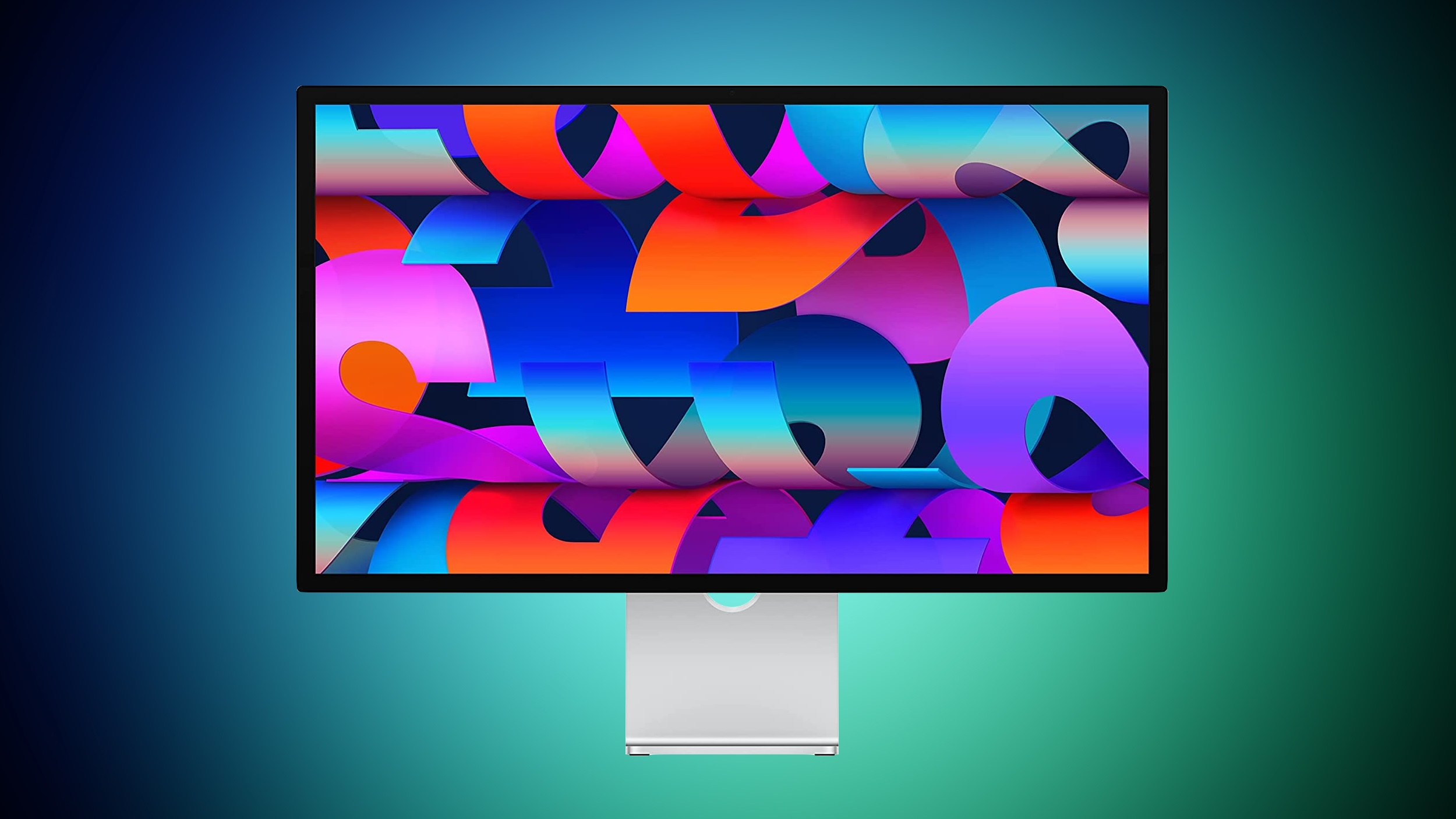
Mac users with the Studio Display have been complaining about intermittent flickering since the update launched in September. There are also complaints from users who have other kinds of displays, so it might be a bug that is affecting more than one type of external monitor.
We have experienced this issue with a MacBook Pro running macOS Tahoe connected to a Studio Display, and the macOS Tahoe 26.1 and macOS Tahoe 26.2 updates haven't improved the situation at all. In fact, the flickering seems to be getting worse in recent days.
Flickering happens most often when switching between apps that feature stark white backgrounds, or scrolling through webpages on light backgrounds. Any app can cause the flickering, and sometimes it just seems to be random. When flickering occurs, it's typically a brief flicker, but the display can also flicker several times in a row for a few seconds at a time. Switching from dark content to light content can almost always trigger a flicker on affected machines.
It's not clear what is causing the issue, but given that multiple Studio Display owners are experiencing it, it's likely some kind of software issue that could be addressed with new Studio Display firmware rather than a hardware problem.
This article, "macOS Tahoe Bug Causes Studio Display Flickering Issues" first appeared on MacRumors.com
Discuss this article in our forums
Mac users with the Studio Display have been complaining about intermittent flickering since the update launched in September. There are also complaints from users who have other kinds of displays, so it might be a bug that is affecting more than one type of external monitor.
We have experienced this issue with a MacBook Pro running macOS Tahoe connected to a Studio Display, and the macOS Tahoe 26.1 and macOS Tahoe 26.2 updates haven't improved the situation at all. In fact, the flickering seems to be getting worse in recent days.
Flickering happens most often when switching between apps that feature stark white backgrounds, or scrolling through webpages on light backgrounds. Any app can cause the flickering, and sometimes it just seems to be random. When flickering occurs, it's typically a brief flicker, but the display can also flicker several times in a row for a few seconds at a time. Switching from dark content to light content can almost always trigger a flicker on affected machines.
It's not clear what is causing the issue, but given that multiple Studio Display owners are experiencing it, it's likely some kind of software issue that could be addressed with new Studio Display firmware rather than a hardware problem.
Related Roundup: macOS Tahoe 26
Related Forum: macOS Tahoe
This article, "macOS Tahoe Bug Causes Studio Display Flickering Issues" first appeared on MacRumors.com
Discuss this article in our forums
Recommended Comments
Join the conversation
You can post now and register later. If you have an account, sign in now to post with your account.